# Manage S3 buckets using the GUI
Using the GUI, you can:
* [Create a bucket](#create-a-bucket)
* [View a bucket details](#view-a-bucket-details)
* [Edit a bucket hard quota](#edit-a-bucket-hard-quota)
* [Edit a bucket policy](#edit-a-bucket-policy)
* [Delete a bucket](#remove-a-bucket)
## Create a bucket
**Before you begin**
S3 does not support creating buckets on filesystems with names containing the characters ' ', '`(`', '`)`', or '`&`'. Verify that the filesystem name excludes these characters. Rename the filesystem if needed before creating the S3 bucket.
**Procedure**
1. From the menu, select **Manage > Protocols**.
2. From the Protocols pane, select **S3**.
3. Select the **Buckets** tab.
4. Select **+Create**.
5. In the Add S3 Bucket dialog, do the following:
* **Bucket Name:** Set a bucket name according to the naming conventions.
* **Filesystem:** Set the filesystem to host the bucket.
* **Use Existing Directory:** If you want to expose an existing directory, set its path. Make sure that the directory is not below the hierarchy of the already configured S3 bucket.
* **Hard Quota:** Set the maximum capacity for the bucket. If you want to remove the hard quota setting, enter 0.
* **Bucket Policy:** Select the policy to attach to the bucket: none, download, upload, public, or custom. If you select a custom policy, add it in JSON format.
6. Select **Save**.

## View a bucket details
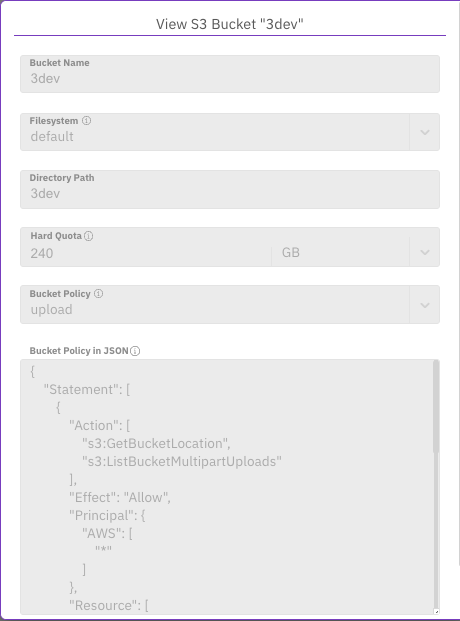
You can view the details of the bucket.
**Procedure**
1. From the menu, select **Manage > Protocols**.
2. From the Protocols pane, select **S3**.
3. Select the **Buckets** tab.
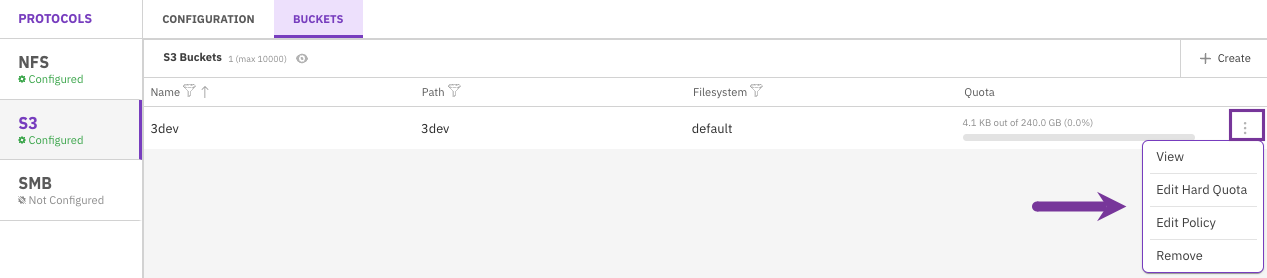
4. Select the three dots of the bucket and select **View**.
Manage a bucket menu
View S3 Bucket
## Edit a bucket hard quota
The hard quota determines the maximum capacity of the bucket. Initially, you can only set the hard quota for an empty bucket. If the hard quota of the bucket is already set, you can modify it or remove it.
**Procedure**
1. From the menu, select **Manage > Protocols**.
2. From the Protocols pane, select **S3**.
3. Select the **Buckets** tab.
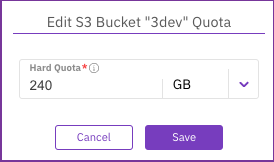
4. Select the three dots of the bucket and select **Edit Hard Quota**.
5. Set the maximum capacity for the bucket. If you want to remove the hard quota setting, enter 0.
Edit S3 Bucket Quota
## Edit a bucket policy
You can edit the bucket policy according to your needs.
**Procedure**
1. From the menu, select **Manage > Protocols**.
2. From the Protocols pane, select **S3**.
3. Select the **Buckets** tab.
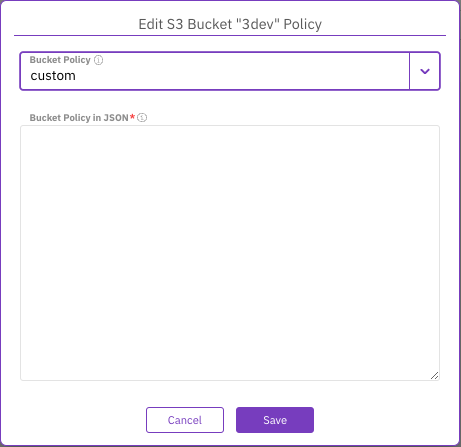
4. Select the three dots of the bucket you want to delete, and select **Edit Bucket Policy**.
5. Select the policy to attach to the bucket: none, download, upload, public, or custom. If you select a custom policy, add it in JSON format.
Edit S3 Bucket
## Delete a bucket
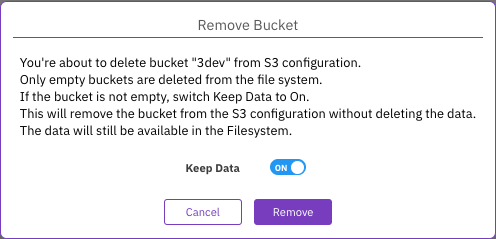
You can delete an existing bucket from the filesystem only if the bucket is empty. If the bucket is not empty, you can detach the bucket from the S3 configuration and keep the data and metadata in place. Consequently, you can recreate the bucket while preserving the data and metadata (see [Create a bucket](#create-a-bucket) using the Use Existing Directory switch.
{% hint style="info" %}
If the intent is to keep the data files for use outside of the S3 configuration and delete only the S3 metadata, contact the Customer Success Team for assistance.
{% endhint %}
**Procedure**
1. From the menu, select **Manage > Protocols**.
2. From the Protocols pane, select **S3**.
3. Select the **Buckets** tab.
4. Select the three dots of the bucket you want to delete and select **Remove**.
Remove Bucket
5. In the confirmation message, if the bucket is not empty, switch **Keep Data** to **ON**.\
Then, select **Remove**.