# Deploy Local WEKA Home v3.0 or higher

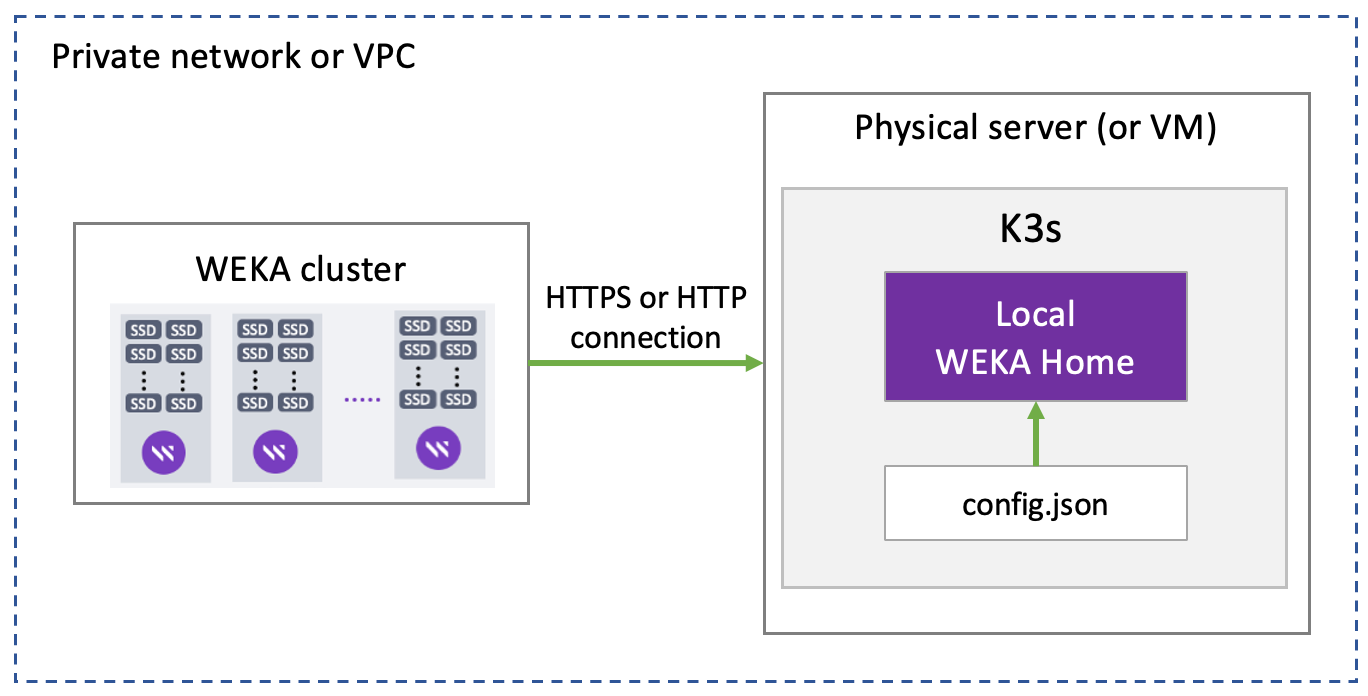
This Local WEKA Home v3.0 (or higher) runs on K3s, a lightweight Kubernetes installed on a single node cluster. Customize the deployment by specifying configuration parameters in the `config.json` file.

<figure><img src="https://content.gitbook.com/content/VJsIYq2tJgf6IfttPZ6j/blobs/JF45qqVMgOabfaKQmr52/LWH_on_K3s.png" alt=""><figcaption><p>Local WEKA Home v3.0 or higher deployment</p></figcaption></figure>

## Workflow: Local WEKA Home deployment

If you have deployed the WMS and do not require IPv6 networking, follow [deploy-monitoring-tools-using-the-weka-management-station-wms](https://docs.weka.io/4.4/monitor-the-weka-cluster/deploy-monitoring-tools-using-the-weka-management-station-wms "mention"). Otherwise, perform the following workflow:

1. Verify prerequisites.
2. Prepare the physical server (or VM).
3. Configure IPv6 (optional).
4. Download the Local WEKA Home bundle.
5. Install and configure the Local WEKA Home.
6. Access the Local WEKA Home portal and Grafana.
7. Enable the WEKA cluster to send data to the Local WEKA Home.
8. Test the deployment.

### 1.  Verify prerequisites

Verify that the following requirements are met:

* A dedicated physical server (or VM) for the installation with `systemd`.&#x20;
* The user account for installing the LWH must have root privileges.
* Server minimum CPU core and RAM requirements:
  * Minimum 8 CPU cores and 32 GiB RAM for up to 1000 total processes.
    * Total processes are equal to the cores used on the cluster **backends** for Management/Frontend/Compute/Drives roles and the cores used on **clients** for Management/Frontend roles.
  * Sizing for additional processes:

    * The total number of processes determines the number of CPU cores and RAM required.
    * For every additional 1000 processes or less, add 1 CPU core and 8 GiB RAM.

    Example: 20 backends with 10 processes each = 200 processes; 500 clients with 2 processes each = 1000 processes. The total is 1200 processes. This deployment requires 9 CPU cores and 40 GiB.
* SSD-backed storage requirements:
  * Minimum 500 GiB for locally collected data in `/opt/wekahome/data`
* 1 Gbps network

{% hint style="success" %}
For using other operating systems, contact the [Customer Success Team](https://docs.weka.io/4.4/support/getting-support-for-your-weka-system#contact-customer-success-team).
{% endhint %}

### 2. Prepare the physical server (or VM)

1. If you added an extra disk to hold the  `/opt/wekahome` data, make sure to format and mount it.  Then ensure it is remounted on reboot.&#x20;
2. It's recommended to disable the *SELinux*.
3. If enabled, it is required to disable nm-cloud-setup and reboot the node:

   ```
   systemctl disable nm-cloud-setup.service nm-cloud-setup.timer
   reboot
   ```
4. Ensure the following ports are open and not used by any other process. Each port is used for the process specified in the brackets. `homecli` adds firewall rules automatically during installation for supported systems `(firewalld`, `ufw)`. For any other setup, check the following ports:

   `6443`   (kube-apiserver)

   `10259` (kube-scheduler)

   `10257` (kube-controller-manager)

   `10250` (kubelet)

   `80`        (Local WEKA Home, WEKA cluster, and web browser)

   `443`      (Local WEKA Home, WEKA cluster, and web browser)
5. Ensure the following networks are trusted:

   1. `10.42.0.0/16` (pods)
   2. `10.43.0.0/16` (service)

   If these networks are not available, you can customize them in the configuration file before running the installation.

{% hint style="info" %}
If you forward data from the Local WEKA Home to the Cloud WEKA Home, ensure the outbound traffic on port 443 is open.
{% endhint %}

### 3. Configure IPv6 (optional)

Local WEKA Home (LWH) supports dual-stack networking, allowing communication over both IPv4 and IPv6 protocols. Enabling IPv6 ensures LWH can function in modern network environments that require IPv6 compliance and connectivity. Both IPv4 and IPv6 can operate simultaneously, providing flexibility and compatibility.

**Benefits of IPv6 configuration**

* Support IPv6-only and dual-stack environments for seamless communication.
* Enable network segmentation to meet enterprise deployment requirements.
* Ensure compatibility with IPv6-enabled client applications.
* Future-proof LWH deployments for evolving IPv6 adoption.

#### Prerequisites

Before configuring IPv6 support, ensure the following requirements are met:

* The host system has IPv6 networking enabled.
* Client machines have IPv6 connectivity to access LWH over IPv6.
* Required IPv6 network ranges are available. If unavailable, customize them (refer to the relevant step in the procedure):
  * Pod network: `2001:cafe:42::/56`
  * Service network: `2001:cafe:43::/112`
* LWH installation has not been completed.

{% hint style="info" %}
Dual-stack networking must be configured during cluster creation. It cannot be enabled later if the cluster was initially deployed with IPv4-only.
{% endhint %}

#### Procedure

1. Verify IPv6 readiness:

```sh
cat /proc/sys/net/ipv6/conf/all/disable_ipv6
```

Ensure the output is `0` to confirm IPv6 is enabled.

2. Verify network interface IPv6 assignment:

```shell
ip -6 addr show
```

Confirm the presence of a **global** IPv6 address (`scopeid 0x0<global>`) on your intended network interface.

Example:

```sh
ifconfig ens5
ens5: flags=4163<UP,BROADCAST,RUNNING,MULTICAST>  mtu 9001
       inet 10.0.4.73  netmask 255.255.0.0  broadcast 10.0.255.255
       inet6 fe80::8b1:29ff:fea7:a707  prefixlen 64  scopeid 0x20<link>
       inet6 2a05:d018:d69:4ef6:65c9:843e:ef26:a5b3  prefixlen 128  scopeid 0x0<global>
       ether 0a:b1:29:a7:a7:07  txqueuelen 1000  (Ethernet)
```

3. If using **custom** network ranges for dual-stack networking, modify the k3s arguments in your LWH configuration:

```shell
"k3sArgs": [
  "--cluster-cidr=10.142.0.0/16,2001:cafe:46::/56",
  "--service-cidr=10.143.0.0/16,2001:cafe:48::/112"
]
```

Replace the `cluster-cidr` and `service-cidr` values with your available networks.

4. Validate the IPv6 configuration **after** the LWH deployment (see [#ipv6-validation](#ipv6-validation "mention")).

### 4. Download the Local WEKA Home bundle

Download the latest [Local WEKA Home bundle](https://get.weka.io/ui/lwh/download) (v3.0 or above) to the dedicated server or VM.

### 5. Install and configure Local WEKA Home

1. Run the Local WEKA Home setup bundle as a root user (where `*` is wekahome version):\
   `bash wekahome-*.bundle`
2. To customize the configuration, create a `config.json` file from the following examples and the template located in `/opt/wekahome/current/config.json.sample`.

<details>

<summary>GitHub SSO integration</summary>

Centralize and secure organizational access through GitHub Single Sign-On (SSO), simplifying authentication and user management.

**Prerequisites:** Prepare GitHub OAuth App

1. Go to GitHub Developer Settings.
2. Create a new OAuth application.
3. Set the Authorization Callback URL the same as your Homepage URL.
4. Note the Client ID and Client Secret.

**Implement GitHub-based login**

Add the following lines to the configuration file.

```
"githubSSO": {
    "enabled": true,
    "clientId": "your_github_oauth_client_id",
    "clientSecret": "your_github_oauth_client_secret",
    "emailDomain": "weka.io",
}
```

</details>

<details>

<summary>Trusted network for pods and services (optional)</summary>

If the networks for the pods (cluster) and service (`10.42.0.0/16` and `10.43.0.0/16`, are not available, set your available networks as shown in the following example:

```
"k3sArgs": ["--cluster-cidr=10.142.0.0/16", "--service-cidr=10.143.0.0/16"]
```

Replace the `cluster-cidr` and `service-cidr` values with your available networks.

</details>

<details>

<summary>Domain</summary>

Set the domain for URL accessing the Local WEKA Home portal either by the organization domain FQDN (DNS-based) or IP address (IP-based).

The URL to access the Local WEKA Home does not accept aliases of the DNS name.&#x20;

Only the name configured in the `config.json` or passed via CLI argument `--host some.domain.com` during setup can be used for accessing the Local WEKA Home.

DNS-based domain setting:\
In the **host** section at the top of the file, set the domain FQDN as shown in the following example:

```json
{
  "host": "some.domain.com"
}
```

IP-based domain setting:\
In the **host** section (at the top of the file) set the IP address of the domain as shown in the following example:

```json
{
  "host": "52.20.26.14"
}
```

If the host section is not set - the first IP address from the provided network interface will be used.

</details>

<details>

<summary>SMTP</summary>

To enable the Local WEKA Home to send emails, set the SMTP details in the **smtp** section as shown in the following example:

```json
{
  "smtp":{
    "sender": "Weka Home",
    "host": "smtp.gmail.com",
    "port": 587,
    "user": "username@your-domain.com",
    "password": "your_password",
    "senderEmail": "weka-home-noreply@your-domain.com",
    "insecure": false,
   }
}
```

If your SMTP server uses a self-signed certificate, set the line `"insecure":` to `true`.

Ensure to enable the SMTP relay service in your SMTP service.&#x20;

The Google SMTP server requires an [app password](https://support.google.com/mail/answer/185833?hl=en).

Once the Local WEKA Home is deployed, you can set it to send alerts by email, SNMP, or PagerDuty. See [manage-alerts-and-integrations](https://docs.weka.io/4.4/monitor-the-weka-cluster/the-wekaio-support-cloud/manage-alerts-and-integrations "mention").

</details>

<details>

<summary>TLS certificates</summary>

To enforce an HTTPS connection, you can pass the TLS certificate and private key to config.json or use CLI arguments with certificate and key filenames `--tls-cert cert.pem --tls-key key.pem` during the next setup step.

You can generate a self-signed certificate and a private key using the following example:\
`openssl req -x509 -newkey rsa:2048 -keyout key.pem -out cert.pem -days <days> -nodes`

Example of passing TLS settings in JSON:

```json
{
  "tls":{
    "cert":"-----BEGIN CERTIFICATE-----\n-----END CERTIFICATE-----\n",
    "key":"-----BEGIN PRIVATE KEY-----\n-----END PRIVATE KEY-----\n"
  }
}
```

To use an IP address as a hostname and to have a valid certificate, make sure you pass SAN during creation. A SAN or subject alternative name is a structured way to indicate all domain names and IP addresses secured by the certificate.

**Related topic**

[tls-certificate-management](https://docs.weka.io/4.4/security/tls-certificate-management "mention")

</details>

<details>

<summary>Events retention period</summary>

The default number of days to keep events in the Local WEKA Home is 30. To reduce the consumption of disk space, specify the max number of days in the **retentionDays** section, as shown in the following example:

```json
{
  "retentionDays": {
   "diagnostics": 10,
   "events": 20,
   "stats": 30
  }
}
```

</details>

<details>

<summary>Forward data from the Local WEKA Home to the Cloud WEKA Home</summary>

Set the forwarding parameters to `true`, as demonstrated in the sample below. Note that this is the default setting commencing from Local WEKA Home v2.10.

To turn off the forwarding of metrics from Local WEKA Home to Cloud WEKA Home, set `enabled: false`.

<pre class="language-json"><code class="lang-json">{
  "forwarding": {
<strong>    "enabled": true,
</strong>    "url": "https://api.home.weka.io",
    "enableEvents": true,
    "enableUsageReports": true,
    "enableAnalytics": true,
    "enableDiagnostics": true,
    "enableStats": true,
    "enableClusterRegistration": true
  }
}
</code></pre>

For networks that require a **proxy** to forward requests, incorporate the following lines as shown in the example below:

```json
{
  "proxy": {
    "url": "http://user:pass@server.com:3128",
    "noProxy": ["server.com"]
  }
}
```

The supported proxy types include:

* http
* https
* socks5

**Note:** You don’t need to set the proxy if you are just debugging.

</details>

4. To reload your path variable do one of the following:
   * Re-login to the server.
   * Run the following command: `source /etc/profile`
5. To initialize the setup, run the following command from the root user: \
   `homecli local setup -c config.json`\
   \
   For a fresh installation, expect approximately 5 minutes for completion.<br>

   <div data-gb-custom-block data-tag="hint" data-style="success" class="hint hint-success"><p>If you get a "command not found" error, make sure you did not skip step 4 above.</p></div>

   \
   **Options:**

   * You can use the default configuration by running: \
     `homecli local setup`
   * Specify the network interface or bind address for the cluster using:\
     `homecli local setup --iface <interface> --ip <IP address>`
   * Set your domain name or external IP as the host with:\
     `homecli local setup --host <host.domain.com>`&#x20;
   * Enable HTTPS by providing a certificate and key directly to the command instead of using the  `config.json`:\
     `homecli local setup --iface <interface> --tls-cert <cert.pem> --tls-key <key.pem>`

<details>

<summary>Response example of a successful Local WEKA Home installation</summary>

```
helm status wekahome -n home-weka-io
NAME: wekahome
LAST DEPLOYED: Thu Jan  5 09:30:42 2023
NAMESPACE: home-weka-io
STATUS: deployed
REVISION: 3
TEST SUITE: None
NOTES:
Thank you for installing home-weka-io.
Your release is named homewekaio
To learn more about the release, try:

  $ helm status homewekaio -n home-weka-io
  $ helm get all homewekaio -n home-weka-io

------------------------------------------------------------------------
Weka Home Frontend:
------------------------------------------------------------------------
URL:
https://172.31.46.11
Username:
admin
To obtain password, run:
kubectl get secret -n home-weka-io weka-home-admin-credentials -o jsonpath='{.data.admin_password}' | base64 -d

------------------------------------------------------------------------
Weka Home REST API:
------------------------------------------------------------------------
URL:
https://172.31.46.11/api/

------------------------------------------------------------------------
Weka Home Statistics (Grafana):
------------------------------------------------------------------------
URL:
https://172.31.46.11/stats/
Username:
admin
To obtain password, run:
kubectl get secret -n home-weka-io weka-home-grafana-credentials  -o jsonpath='{.data.password}' | base64 -d

------------------------------------------------------------------------
Weka Home Encryption Secret Key
------------------------------------------------------------------------
To obtain secretkey, run:
kubectl get secret -n home-weka-io weka-home-encryption  -o jsonpath='{.data.encryption_secret_key}' | base64 -d

------------------------------------------------------------------------
Technical information
------------------------------------------------------------------------
Number of event store databases: 1
Easy wekahoming!

```

</details>

### 6. Access the Local WEKA Home portal and Grafana

* **URLs:**
  * **LWH portal:** `https://<your_domain>`
  * **Grafana:** `https://<your_domain>/stats/`
  * **WEKA Home REST API:** `https://<your_domain>/api/`
* **Username:** `admin` (for accessing all portals).
* **Passwords to access the URLs:**
  * **Obtain the LWH portal password:** Run the command:\
    `kubectl get secret -n home-weka-io wekahome-admin-credentials -o jsonpath='{.data.adminPassword}' | base64 -d`
  * **Obtain the Grafana portal password:** Run the command:\
    `kubectl get secret -n home-weka-io wekahome-grafana-credentials  -o jsonpath='{.data.password}' | base64 -d`
  * **Obtain the WEKA Home secret key:** Run the command:\
    `kubectl get secret -n home-weka-io wekahome-encryption-key -o jsonpath='{.data.encryptionKey}' | base64 -d`

### 7. Enable the WEKA cluster to send information to the Local WEKA Home

By default, the WEKA cluster is set to send information to the public instance of WEKA Home. To get the information in the Local WEKA Home, connect to the WEKA cluster and run one of the following commands depending on the configuration:

* Standard configuration:

```
weka cloud enable --cloud-url http://<ip or hostname of the Local WEKA Home server>
```

* Secure configuration with valid TLS certificates:

```
weka cloud enable --cloud-url https://<ip or hostname of the Local WEKA Home server> 
```

### 8. Test the deployment

The WEKA cluster periodically and on-demand uploads data to the Local WEKA Home according to its information type (see [#which-information-is-uploaded-to-weka-home](https://docs.weka.io/4.4/monitor-the-weka-cluster/the-wekaio-support-cloud/..#which-information-is-uploaded-to-weka-home "mention")).&#x20;

1. Access the WEKA Home portal and verify that the test data appears.
2. To trigger a test event, run `weka events trigger-event test` and verify the test event is received in the Local WEKA Home portal under the **Events** section.
3. If required, go to `/var/log/pods` and review the relevant log according to the timestamp (for example, `wekahome-install-03-08-2023_16-29.log`).

#### **IPv6 validation**

1. **Confirm IPv4 and IPv6 networking**:\
   Run the following and confirm both IPv4 and IPv6 addresses are listed in the output.

```shell
kubectl get nodes wekahome.local -o jsonpath='{.status.addresses}'
```

Example output:&#x20;

```json
[
  {
    "address": "10.0.4.73",
    "type": "InternalIP"
  },
  {
    "address": "2a05:d018:d69:4ef6:65c9:843e:ef26:a5b3",
    "type": "InternalIP"
  },
  {
    "address": "wekahome.local",
    "type": "Hostname"
  }
]
```

2. **Access LWH using IPv4:**\
   Replace `<IPv4_address>` with the actual IPv4 address of the LWH and run the following command:

```shell
curl -4 http://<IPv4_address>/api/v3/auth/login/sso/github
```

Example:

```shell
curl -4 http://10.0.4.73/api/v3/auth/login/sso/github
```

Expected response:

```json
{"enabled":false}
```

3. **Access LWH using IPv6:**\
   Replace `<IPv6_address>` with the actual IPv6 address of the LWH and run the following command:

```shell
curl -6 "http://[<IPv6_address>]/api/v3/auth/login/sso/github"
```

Example:

```shell
curl -6 "http://[2a05:d018:d69:4ef6:65c9:843e:ef26:a5b3]/api/v3/auth/login/sso/github"
```

Expected respons&#x65;**:**

```json
{"enabled":false}
```

#### Troubleshoot IPv6 issues

* IPv6 address not assigned:
  * Verify network interface configuration.
  * Check network connectivity with IPv6 ping.
  * Ensure router advertisements are enabled if using SLAAC.
* Connection failures:
  * Verify firewall rules allow IPv6 traffic.
  * Confirm client machine has global IPv6 connectivity.
  * Check network security group configurations.

## Upgrade the Local WEKA Home

The upgrade process takes up to 5 minutes. It is recommended to perform the upgrade during a maintenance window.

Certain upgrades require a fresh installation, as direct in-place upgrades are not supported in some cases.

* Upgrading from **minikube or WMS** to the **Local WEKA Home 3.0 bundle** (based on K3s) is not supported. To upgrade, install the new Local WEKA Home bundle on a new server and configure API forwarding from the minikube cluster to the new K3s cluster.
* **IPv6 support requires a fresh installation.** It is not possible to upgrade an existing LWH deployment with IPv4 to include IPv6. If IPv6 is needed, install a new LWH instance with dual-stack networking configured during cluster creation.

**Procedure**

1. Download the latest [Local WEKA Home bundle](https://get.weka.io/ui/lwh/download) to the dedicated physical server (or VM).
2. Run `bash wekahome-*.bundle`
3. To modify the existing configuration, open the `/opt/wekahome/config/config.json` file and modify the settings. See [#id-4.-install-and-configure-local-weka-home](#id-4.-install-and-configure-local-weka-home "mention").
4. Run `homecli local upgrade`. For an upgrade, it takes about 2 minutes.
5. Run `kubectl get pods -n home-weka-io` and verify in the results that all pods have the status **Running** or **Completed**. \
   To wait for the pods' statuses, run `watch kubectl get pods -n home-weka-io`.
6. Verify the Local WEKA Home is upgraded successfully. Run the following command line:\
   `helm status wekahome -n home-weka-io`

## Modify the Local WEKA Home configuration

If there is a change in the TLS certificates, SMTP server in your environment, or any other settings in the Local WEKA Home configuration, you can modify the existing `config.json` with your new settings and apply them.

**Procedure**

1. Open the `/opt/wekahome/config/config.json` file and modify the settings. See [#id-4.-install-and-configure-local-weka-home](#id-4.-install-and-configure-local-weka-home "mention").
2. Run `homecli local upgrade`
3. Run `kubectl get pods -n home-weka-io` and verify in the results that all pods have the status **Running** or **Completed**.\
   To wait for the pods' statuses, run `watch kubectl get pods -n home-weka-io`.
4. Verify the Local WEKA Home is updated successfully. Run the following command line:\
   `helm status wekahome -n home-weka-io`

## Check Local WEKA Home health&#x20;

After deploying Local WEKA Home (LWH), it is essential to verify its health to ensure all components are functioning correctly. A healthy LWH means that all pods are running without issues, CPU and memory usage are within acceptable limits, and there are no critical low disk space.

If some pods are restarting frequently, producing errors, or failing to start, LWH is considered unhealthy and may require intervention. The following steps guide you in checking the health status of LWH.

#### Procedure

1. **Check the status of all pods**\
   Run the following command to get an overview of the pod statuses:

   ```sh
   homecli local status pods
   ```

   * If all pods are running, the system is **healthy**.
   * If any pods are faulty, proceed with a detailed check.
2. **Get detailed pod status**\
   To identify specific faulty pods and their issues, use the following command:

   ```sh
   homecli local status pods --detailed
   ```

   (For more information on the pod statuses and reasons, see the **kubectl** documentation.)\
   Example output for a faulty pod:

   ```
   Faulty pods:

     Pod Name  Status   Reason        
     pod-1     Pending  ErrImagePull  
   ```
3. **Check pod status in JSON format (optional)**\
   For automated processing, output can be formatted in JSON:

   ```sh
   homecli local status pods -o json
   ```

   * A response of `{ "healthy": true }` indicates that all pods are running correctly.
   * If any pod has issues, to get detailed JSON output, use the following command:

     ```sh
     homecli local status pods -o json --detailed
     ```

     Example output showing a faulty pod:

     ```json
     {
       "faultyPods": [
         {
           "name": "pod-1",
           "reason": "ImagePullBackOff",
           "status": "Pending"
         }
       ],
       "healthy": false
     }
     ```
4. **Verify ingress address response**\
   The ingress address in the `home-weka-io` namespace should return HTTP 200, indicating that the service is reachable:

   ```sh
   homecli local status wekahome
   ```

   * If this check fails, LWH might be experiencing connectivity or service-related issues.

## Troubleshoot the Local WEKA Home deployment

### Symptom: browsing to the Local WEKA Home returns an error

The probable cause can be, for example, a communication problem.

#### Resolution

1. Check the firewall and node IP settings. If you didn't set up a firewall (see [#id-2.-prepare-the-management-server](#id-2.-prepare-the-management-server "mention")), set valid rules and run:

```
k3s-killall.sh
homecli local upgrade
```

2. Retrieve the ingress pod (controller) of the Local WEKA Home.

```
kubectl get pods -n kube-system -o name -l app.kubernetes.io/name=traefik
```

3. Retrieve the logs and look for the error.

```
kubectl logs <pod name from previous command> -n kube-system > traefik.out
```

### Symptom: when executing any command on the Local WEKA Home, the error “no space left” is displayed&#x20;

The probable cause for this issue is that the containers dir (`/var/lib/rancher/k3s`) consumes disk space.

#### Resolution

Do one of the following:

* Try to clean unused images with `homecli local cleanup images`
* Resize the disk and reinstall the Local WEKA Home.
* Relocate the K3s root directory path to a new path on a larger device (if it exists) and copy the content from the old path to the new path.

### Symptom: when testing the integration, the email is not received

The probable cause can be issues related to the SMTP server, such as wrong credentials or recipient email address.

#### Resolution

1. On the **Integration** page, select **Test Integration**.\
   Wait until an error appears.
2. Retrieve the logs and search for the error. On the Local WEKA Home terminal, run the following command:

{% code overflow="wrap" %}

```bash
for dep in `kubectl get deployment -n home-weka-io -o name`; do echo -----$dep-----; kubectl logs $dep -n home-weka-io --all-containers=true --timestamps=true --since=5m ; done
```

{% endcode %}

## Collect LWH deployment diagnostics

The LWH provides a script that collects various resource details from the LWH deployed on the Kubernetes cluster and generates an archive. This information helps the Customer Success Team and R\&D to analyze and provide support when troubleshooting is needed.

The LWH deployment diagnostics provide the following information:

* Pods status
* Logs of all pods
* K3s settings
* Free disk space
* CPU and memory usage
* Name resolutions
* LWH version
* Syslogs

**Procedure**

1. Run the following command:

{% code overflow="wrap" %}

```bash
homecli local collect-debug-info [archive] [--include-sensitive] [--full-disk-scan] [--verbose]
```

{% endcode %}

2. Once you generate the LWH deployment diagnostics archive file, send it to the [Customer Success Team](https://docs.weka.io/4.4/support/getting-support-for-your-weka-system) for analysis.

**Parameters**

<table><thead><tr><th width="242">Parameter</th><th>Description</th></tr></thead><tbody><tr><td><code>archive</code>*</td><td>The path and output archive file name. <br>For example: <code>/path/diag/lwh_diagnostics.tar.gz</code></td></tr><tr><td><code>include-sensitive</code></td><td>Include sensitive data in the archive. For example, value overrides.<br>Use this parameter only if required by the Customer Success Team.</td></tr><tr><td><code>full-disk-scan</code></td><td>Perform a higher level of disk scan.<br>Use this parameter only if required by the Customer Success Team.</td></tr><tr><td><code>verbose</code></td><td>Provide a higher verbosity level of the debug information.</td></tr></tbody></table>
