> For the complete documentation index, see [llms.txt](https://docs.weka.io/llms.txt). Markdown versions of documentation pages are available by appending `.md` to page URLs; this page is available as [Markdown](https://docs.weka.io/4.4/planning-and-installation/weka-installation-on-gcp/google-kubernetes-engine-and-weka-over-posix-deployment.md).
# Google Kubernetes Engine and WEKA over POSIX deployment
A step-by-step guide to setting up Google Kubernetes Engine (GKE) with WEKA on Google Cloud Platform (GCP), enhancing storage and scalability for demanding Kubernetes workloads.
## Introduction
Google Kubernetes Engine (GKE) is a managed Kubernetes service for deploying, managing, and scaling containerized applications. WEKA is a high-performance, scalable storage platform that integrates seamlessly with Kubernetes clusters to provide persistent storage for demanding containerized applications and workflows.
Combining GKE and WEKA results in an easily automated and managed Kubernetes environment, delivering best-in-class performance at scale.
## Requirements for WEKA over POSIX with GKE
* GKE must be deployed in [Standard mode](https://cloud.google.com/kubernetes-engine/docs/concepts/choose-cluster-mode#why-standard).
* GKE Worker nodes must be configured with Ubuntu OS.
{% hint style="info" %}
If [GPUDirect-TCPX](https://cloud.google.com/compute/docs/gpus/gpudirect) (supported on GKE only with Google Container Optimized OS) is required, configure WEKA over NFS. For details, see [Manage the NFS protocol](/4.4/additional-protocols/nfs-support.md).
{% endhint %}
## Workflow
1. Deploy GKE in Standard mode with Ubuntu OS.
2. Set up WEKA client on existing GKE worker nodes.
3. Configure automated WEKA setup client on worker nodes.
4. Install and configure the WEKA CSI plugin.
5. Set up WEKA storage for GKE pods.
### 1. Deploy GKE in Standard mode with Ubuntu OS
Follow these steps to deploy GKE in Standard mode with Ubuntu OS for the worker nodes. For complete GKE documentation, visit the [GCP documentation](https://cloud.google.com/kubernetes-engine/docs).
**Procedure:**
1. Go to the GCP menu, select **Kubernetes Engine**, and then **Clusters**.
2. Click **CREATE** to create a new cluster.
3. If prompted, click **SWITCH TO STANDARD CLUSTER.** This mode also enables SSH access to worker nodes, which is necessary for installing the WEKA POSIX clients.
4. Change from a regional to a zonal setup. Select the zone where the WEKA Cluster management IPs are located to ensure optimal communication and performance. This step ensures seamless communication between GKE and the WEKA cluster.
5. Adjust the node pool settings: Go to **Nodes** within the **default-pool** under **NODE POOLS** in the GKE console, and change the **Image type** to **Ubuntu with containerd (ubuntu\_containerd)**.
6. Ensure worker nodes meet a minimum configuration of 8 vCPUs and 32 GB RAM. The WEKA client requires a minimum of 2 vCPUs and 5 GB of RAM.
7. If the GKE cluster was set up in advance, deploy the WEKA cluster to the same networking VPC and subnet. Otherwise, ensure that the GKE cluster networking is configured within the same VPC and subnet as the WEKA management IPs. Aligning networking elements per the recommendation will ensure optimal performance.
8. Click **CREATE** to create the cluster.
8. Wait for the cluster status to indicate **Ready** or **Green** before proceeding with further configuration or deployment tasks.
### 2. Set up WEKA client on existing GKE worker nodes
Perform this procedure for each GKE worker node individually.
{% hint style="info" %}
Any new GKE worker nodes added later will require these steps for WEKA client installation unless the following automation steps are implemented.
{% endhint %}
**Before You Begin**
Ensure SSH access to the GKE worker nodes is available to install the WEKA client.
**Procedure:**
1. Identify the names of the GKE worker nodes where the WEKA client will be installed.
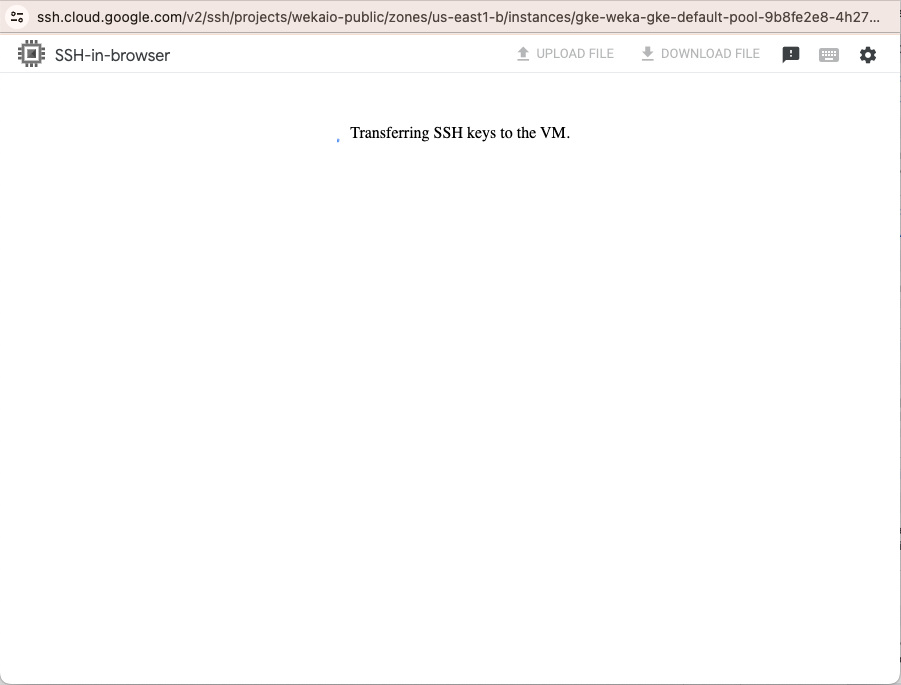
2. Go to **Google Cloud Platform > Compute Engine > VM Instance** console. Locate the identified GKE worker node, select **SSH connect** from the dropdown menu, and choose **Open in browser window** to initiate the SSH connection.
3. To avoid CPU pinning conflicts with GKE, start the WEKA client using a stateless client mount. Authorize the SSH connection, then add the WEKA client from the existing WEKA cluster. For details, see the [Add clients to an on-premises WEKA cluster](/4.4/planning-and-installation/bare-metal/adding-clients-bare-metal.md) procedure.
{% tabs %}
{% tab title="Transferring SSH keys to the VM" %}
{% endtab %}
{% tab title="Authorize" %}
{% endtab %}
{% tab title="Install a WEKA client" %}
{% endtab %}
{% tab title="Make directory and mount" %}
{% endtab %}
{% endtabs %}
### 3. Configure automated WEKA setup client on worker nodes
Google Cloud Platform (GCP) allows the addition of startup scripts at the project level, ensuring each new instance runs the script. By using metadata lookups, the WEKA client installation you can restrict to GKE cluster systems.
With auto-scaling enabled, GKE automatically adds and sets up the WEKA client on each new worker node.
**Procedure:**
1. In the GCP **Compute Engine** console, scroll to the bottom of the left-side menu.
2. Select **Metadata** under the **Settings** section.
3. Click **EDIT**, then select **+ ADD ITEM**.
4. Set the key name to **startup-script** (no spaces), and paste the following GKE WEKA client install script into the **Value** field. Replace the following input values according to your environment:
* WEKA\_FS (line 11)
* WEKA\_HOSTS (line 17)
* GKE\_CLUSTER\_NAME (line 99)
GKE WEKA client install script
{% code lineNumbers="true" %}
```bash
curl -sS -H 'Metadata-Flavor: Google' 'http://metadata.google.internal/computeMetadata/v1/instance/?recursive=true&alt=json' | jq '.attributes."cluster-name"' -r
(
#!/usr/bin/env bash
set -euo pipefail
DEBIAN_FRONTEND=noninteractive
ROOT_MOUNT_DIR="${ROOT_MOUNT_DIR:-/root}"
export WEKA_FS="default"
# Mount point for weka filesystem
export WEKA_MOUNT="/mnt/gkeclient"
# Its good to add 2-3 servers in case one is not available
export WEKA_HOSTS="10.0.0.8,10.0.0.9,10.0.0.10"
# Timeout for how long the client is inaccessible before being removed from the cluster
# Default is 86400 (24hrs) in a more dynamic environment it can be lower.
export WEKA_CLIENTTIMEOUNT="3600"
# Number of cores to add to WEKA FrontEnd.
export WEKA_FRONTENDCORES=2
# First IP taken from WEKA_HOSTS list to download the client from.
export WEKA_DOWNLOADIP=$(echo "$WEKA_HOSTS" | cut -d',' -f1)
echo "Installing dependencies"
apt-get update
apt-get install -y apt-transport-https curl gnupg lsb-release jq
echo "Installing gcloud SDK"
snap install google-cloud-sdk --classic
echo "Getting node metadata"
ALL_METADATA="$(curl -sS -H 'Metadata-Flavor: Google' 'http://metadata.google.internal/computeMetadata/v1/instance/?recursive=true&alt=json')"
NODE_NAME="$(curl -sS http://metadata.google.internal/computeMetadata/v1/instance/name -H 'Metadata-Flavor: Google')"
ZONE="$(curl -sS http://metadata.google.internal/computeMetadata/v1/instance/zone -H 'Metadata-Flavor: Google' | awk -F "/" '{print $4}')"
echo "Setting up disks"
DISK_NAME="$NODE_NAME-wekadir"
if ! gcloud compute disks list --filter="name:$DISK_NAME" | grep "$DISK_NAME" > /dev/null; then
echo "Creating $DISK_NAME"
gcloud compute disks create "$DISK_NAME" --size=$(( 1024*20 )) --zone="$ZONE"
else
echo "$DISK_NAME already exists"
fi
if ! gcloud compute instances describe "$NODE_NAME" --zone "$ZONE" --format '(disks[].source)' | grep "$DISK_NAME" > /dev/null; then
echo "Attaching $DISK_NAME to $NODE_NAME"
gcloud compute instances attach-disk "$NODE_NAME" --device-name=sdb --disk "$DISK_NAME" --zone "$ZONE"
else
echo "$DISK_NAME is already attached to $NODE_NAME"
fi
function create_wekaio_partition() {
echo "--------------------------------------------"
echo " Creating local filesystem on WekaIO volume "
echo "--------------------------------------------"
wekaiosw_device="/dev/sdb"
if mount | grep -w $wekaiosw_device | grep -w /opt/weka; then
echo "Weka volume is already mounted"
else
echo "Formatting and mounting Weka trace volume"
mkfs.ext4 -L wekaiosw ${wekaiosw_device} || return 1
mkdir -p /opt/weka || return 1
mount $wekaiosw_device /opt/weka || return 1
echo "LABEL=wekaiosw /opt/weka ext4 defaults 0 2" >>/etc/fstab
fi
}
function prepare_weka_env() {
echo "--------------- ENV ---------------"
env
echo "--------------- ENV ---------------"
create_wekaio_partition || logger -s -t weka.install "Failed creating wekaio partition"
}
function start_weka_client() {
prepare_weka_env
if ! which weka; then
echo "Installing agent from ${WEKA_DOWNLOADIP}"
curl --fail --max-time 10 "http://${WEKA_DOWNLOADIP}:14000/dist/v1/install" | sh || logger -s -t weka.install "Failed installing agent from the first backend"
else
echo "Weka seems already installed, skipping agent install"
fi
mkdir -p ${WEKA_MOUNT}
if mount | grep -w ${WEKA_MOUNT}; then
echo "Weka filesystem seems already mounted on endpoint, skipping mount"
else
mount -t wekafs ${WEKA_HOSTS}/${WEKA_FS} ${WEKA_MOUNT} -o remove_after_secs=${WEKA_CLIENTTIMEOUNT},num_cores=${WEKA_FRONTENDCORES},net=udp || logger -s -t weka.install "Error mounting filesystem"
fi
}
## Update to the name of the GKE cluster
GKE_CLUSTER_NAME=my-gke-cloud-name
GKE_METADATA_CLUSTER_NAME=$(curl -sS -H 'Metadata-Flavor: Google' 'http://metadata.google.internal/computeMetadata/v1/instance/?recursive=true&alt=json' | jq '.attributes."cluster-name"' -r)
if [ "$GKE_CLUSTER_NAME" != "GKE_METADATA_CLUSTER_NAME" ]; then
echo "Instance does not belong to GKE cluster $GKE_CLUSTER_NAME. Skipping installation"
else
echo "Instance belongs to GKE cluster, initializing Weka client installation"
start_weka_client
fi
) >/root/startup.out 2>/root/startup.err
```
{% endcode %}
5. After adding the startup script, click **SAVE** at the bottom of the page.
6. Test the script:
* Increase the Node Pools node count.
* Check the client list in WEKA UI to verify that the new clients have been added.
### 4. Install and configure the WEKA CSI plugin
To install and configure the WEKA CSI plugin, follow the procedures in the [WEKA CSI Plugin](/4.4/appendices/weka-csi-plugin.md) section.
{% hint style="info" %}
You may need to adjust the steps according to your specific setup and requirements.
{% endhint %}
### 5. Set up WEKA storage for GKE pods
To set up WEKA storage for use by GKE pods, follow the procedures in the[Dynamic and static provisioning](/4.4/appendices/weka-csi-plugin/dynamic-and-static-provisioning.md) section, in the CSI Plugin section.
---
# Agent Instructions
This documentation is published with GitBook. GitBook is the documentation platform designed so that both humans and AI agents can read, navigate, and reason over technical content effectively. Learn more at gitbook.com.
## Querying This Documentation
If you need additional information that is not directly available in this page, you can query the documentation by asking a question.
Perform an HTTP GET request on the following URL with the `ask` and `goal` query parameters:
```
GET https://docs.weka.io/4.4/planning-and-installation/weka-installation-on-gcp/google-kubernetes-engine-and-weka-over-posix-deployment.md?ask=&goal=
```
`ask` is the immediate question: it should be specific, self-contained, and written in natural language.
`goal` is what the user is ultimately trying to achieve, the reason they need the answer. Sharing it helps GitBook give you a better, more relevant answer. A goal is most helpful when it describes the outcome the user wants rather than restating the question. For example, with `ask=how do I create an API token`, a goal like `automate deployments from our CI pipeline` lets GitBook tailor the answer to that use case.
The response will contain a direct answer to the question and relevant excerpts and sources from the documentation.
Use this mechanism when the answer is not explicitly present in the current page, you need clarification or additional context, or you want to retrieve related documentation sections.