# Manage S3 lifecycle rules using the GUI
Using the GUI, you can:
* [Add a lifecycle rule](#add-a-lifecycle-rule)
* [View lifecycle rules](#viewing-ilm-rules)
* [Remove a lifecycle rule](#remove-a-lifecycle-rule)
* [Remove all lifecycle rules](#or-all-rules)
## **Add** a lifecycle rule
You can add a lifecycle rule to an object (bucket) that defines an expiration duration per object prefix and tags.
**Procedure**
1. From the S3 buckets page, select the three dots of the required bucket, and select **Lifecycle Rules**.
Lifecycle Rules menu
2\. In the Add a Lifecycle Rule dialog set the following:
* **Expiration days:** The minimum number of days before the object is eligible for expiration. ILM processes the object shortly after this period based on its modified timestamp, but processing may be delayed if the queue is long.
* **Prefix:** The object prefix to which the rule applies. Wildcards are not supported.
* **Tags:** One or more object tags to apply the ILM policy rule. The tags are key-value pairs. Example: \=\.
3\. Select **Save**.
Add a Lifecycle Rule
## View lifecycle rules
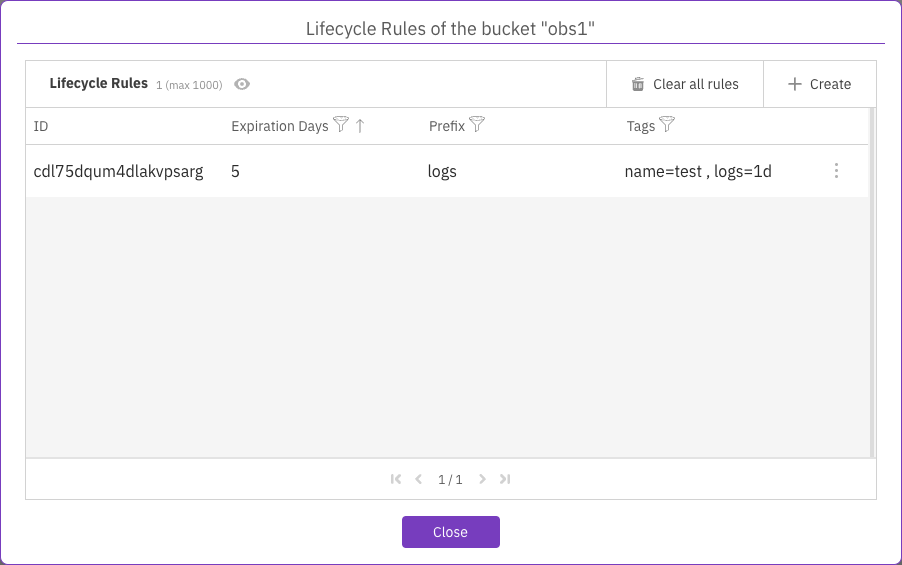
You can view the lifecycle rules defined for a bucket and filter according to expiration days, prefixes, or tags.
**Procedure**
1. From the S3 buckets page, select the three dots of the required bucket, and select **Lifecycle Rules**.
View Lifecycle Rules
## Remove a lifecycle rule
You can remove a specific lifecycle rule of a specified bucket if it is no longer required.
**Procedure**
1. From the S3 buckets page, select the three dots of the required bucket, and select **Lifecycle Rules**.
2. In the Lifecycle Rules dialog, select the three dots of the required rule and select **Remove**.
Remove a lifecycle rule
## Remove all lifecycle rules
You can remove all the lifecycle rules of a specified bucket if they are no longer required.
**Procedure**
1. From the S3 buckets page, select the three dots of the required bucket, and select **Lifecycle Rules**.
2. In the Lifecycle Rules dialog, select **Clear all rules**.