# Manage statistics using the GUI
Using the GUI, you can:
* [View the statistics page](#view-the-statistics-page)
* [Add a chart to the statistics page](#add-a-chart-to-the-statistics-page)
* [Remove a chart from the statistics page](#remove-a-chart-from-the-statistics-page)
* [Set the timeframe](#set-the-charts-time-frame)
* [Display events from a chart](#display-events-from-a-chart)
## View the statistics page
**Procedure**
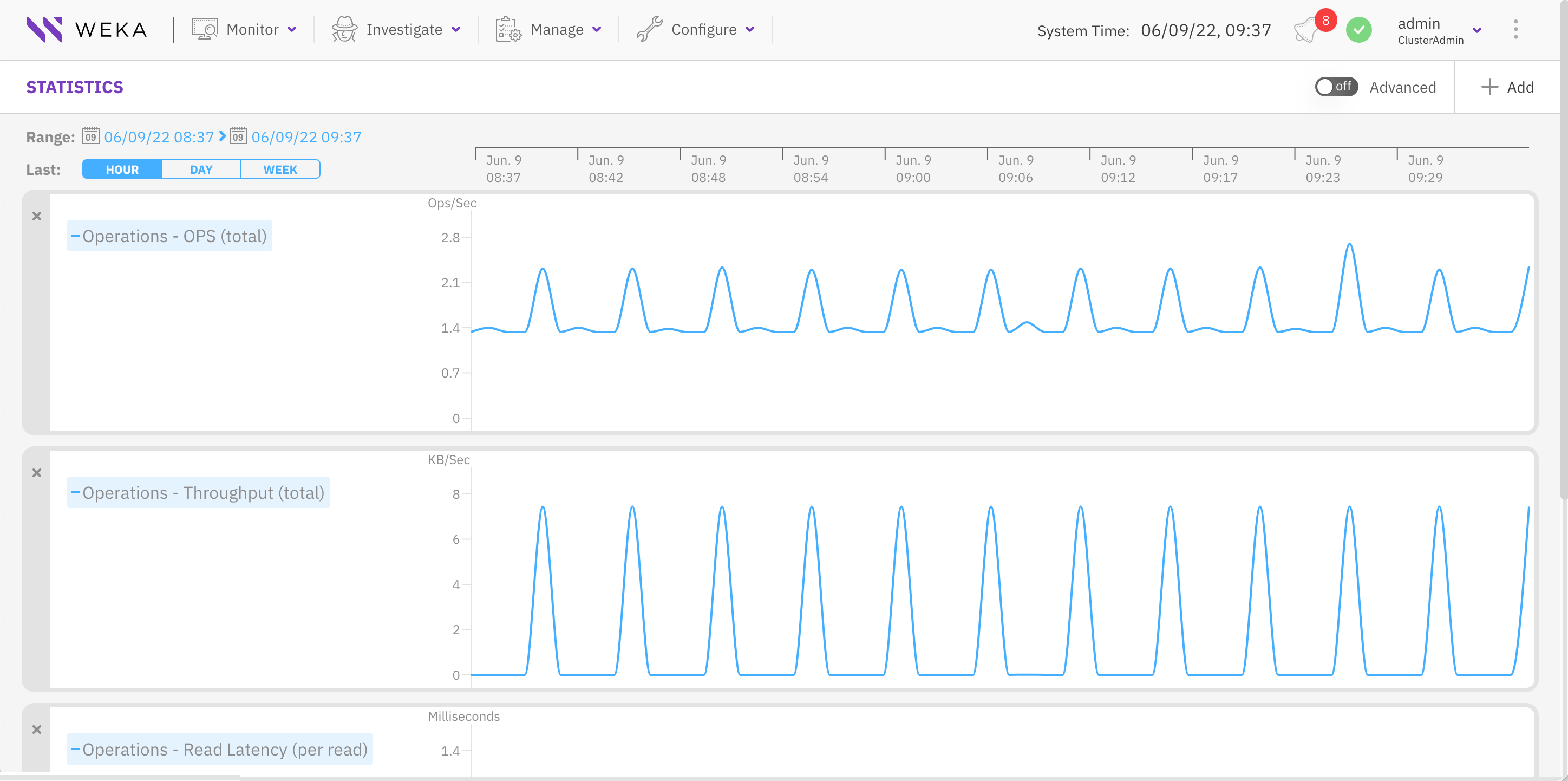
1. From the menu, select **Investigate > Statistics**.
View Statistics
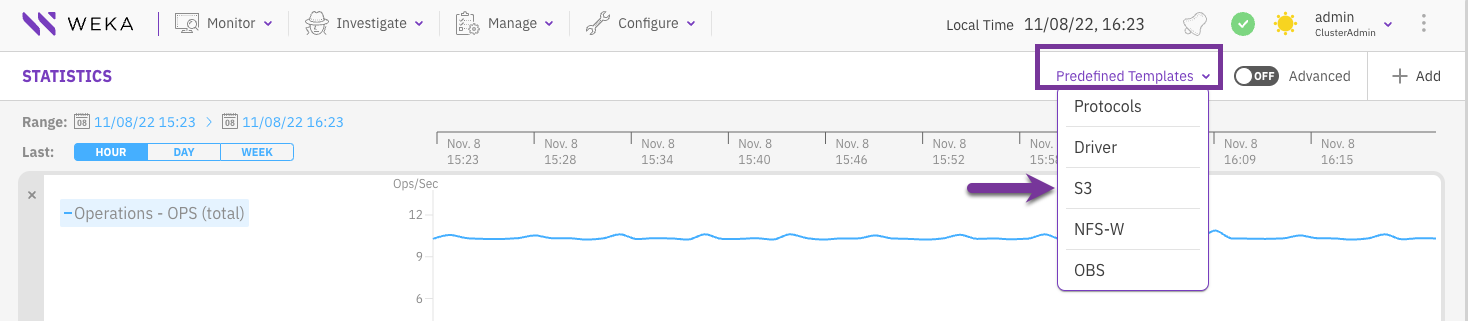
2\. To view statistics of predefined templates for commonly used categories, select\
**Predefined Templates** and from the list select the required statistics template.\
The following predefined templates are available:
* **Protocols:** System throughput breakdown by protocol access.
* **Driver:** Throughput, latency, and OPS generated by native clients.
* **S3:** Throughput, latency, and OPS generated by S3 clients
* **NFS-W:** Throughput, latency, and OPS generated by NFS clients.
* **OBS:** Throughput and latency generated while interacting with object store buckets.
Predefined Templates
## Add a chart to the statistics page
You can add charts to the statistics page to display up to a maximum of five charts.
**Procedure**
1. From the menu, select **Investigate > Statistics**.
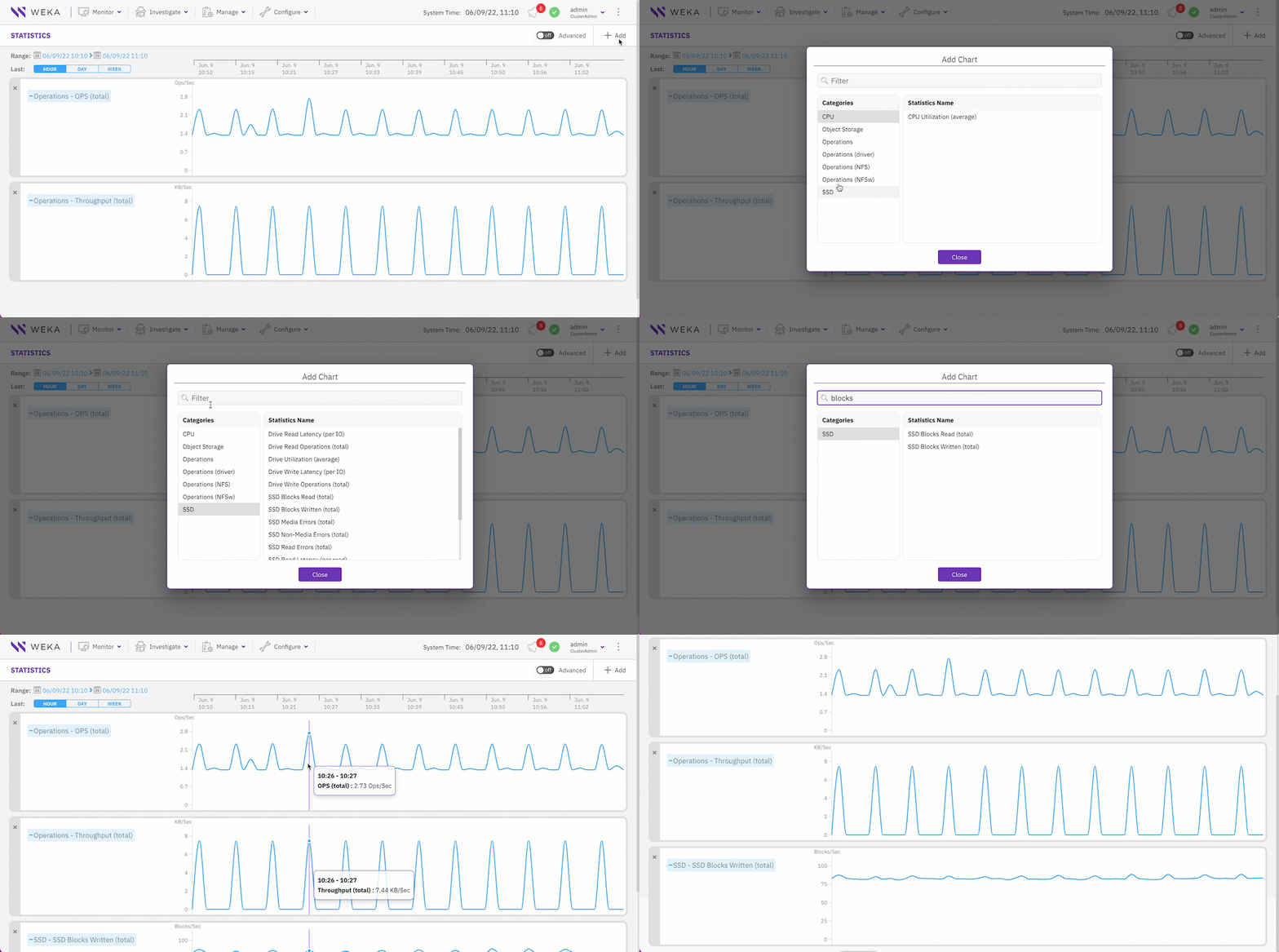
2. On the Statistics page, select **+Add**.
3. In the Add Chart dialog, do one of the following:
* From the Categories pane, select a category, and then from the Statistics Name pane select the required chart. You multiple charts (up to 5) at once. The number next to the category name indicates the number of charts already selected.
* Search for a chart using the **Filter**. Type a keyword or two related to the chart, and then from the Statistics Name pane select the required chart.
## Remove a chart from the statistics page
You can remove a chart that is no longer required to free space for adding another chart to the statistics page. For example, if the Statistics page already has the maximum number of five charts.
**Procedure**
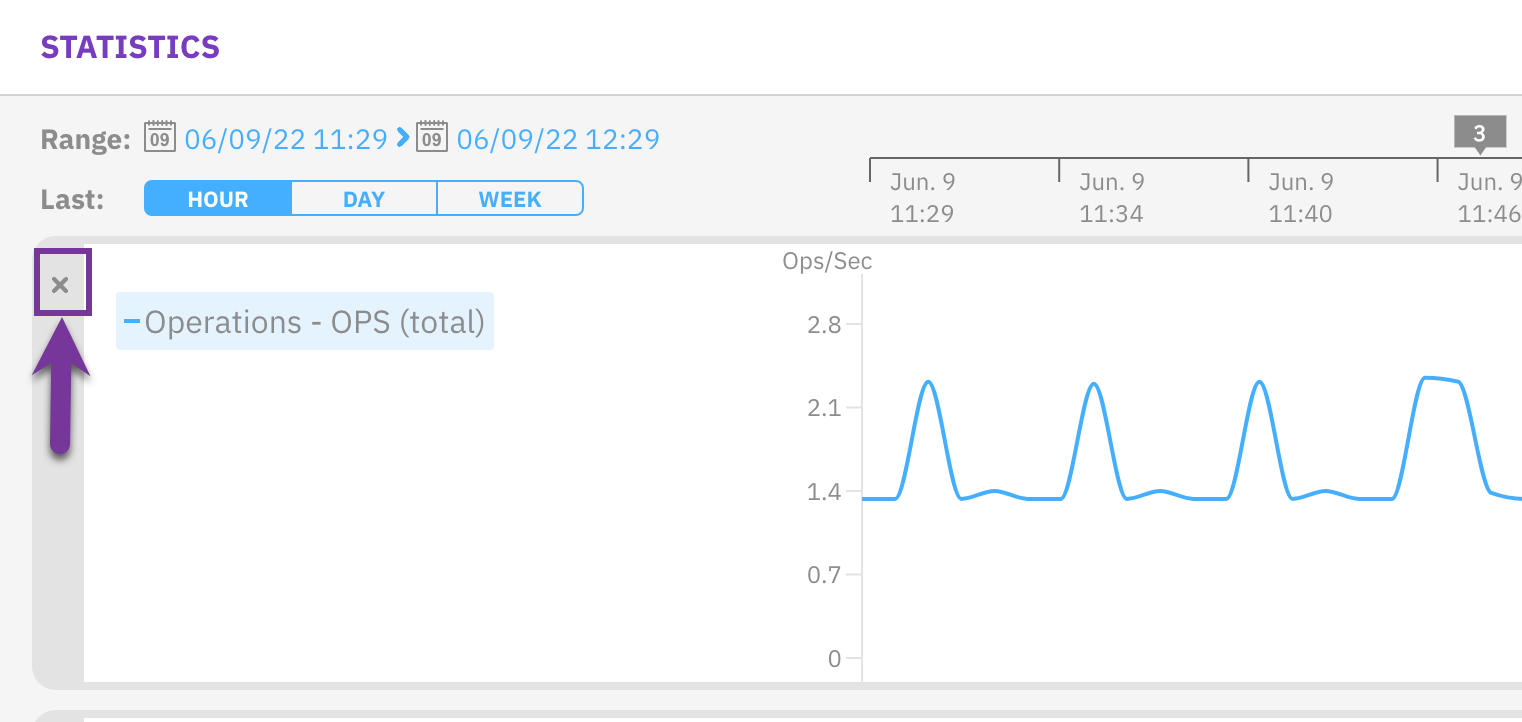
1. On the upper left corner of the chart, select **X**.
## Set the timeframe
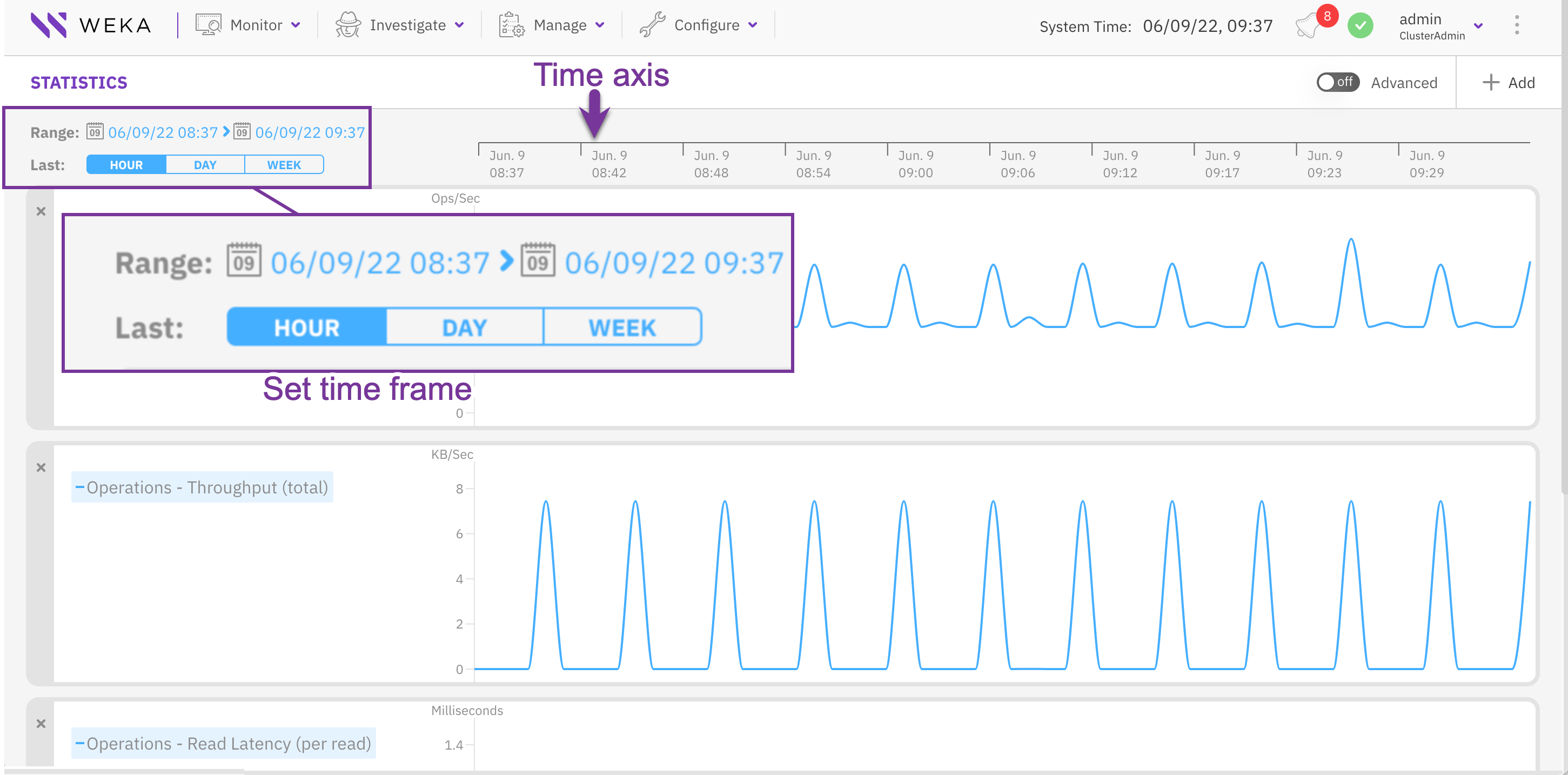
The Statistics page contains a time axis for all the displayed charts. To investigate charts in a specific timeframe, you can set the interval in the time axis to the last hour, last day, or last week. You can also set a timeframe for a specific period (start and end time).
**Procedure**
1. To display the charts for the last period: **Hour**, **Day**, or **Week**, in the **Last** line, select the relevant button.
2. To display the charts for a specific period, in the **Range** line select the calendar, and set the start time and end time for the timeframe.
## Display events from a chart
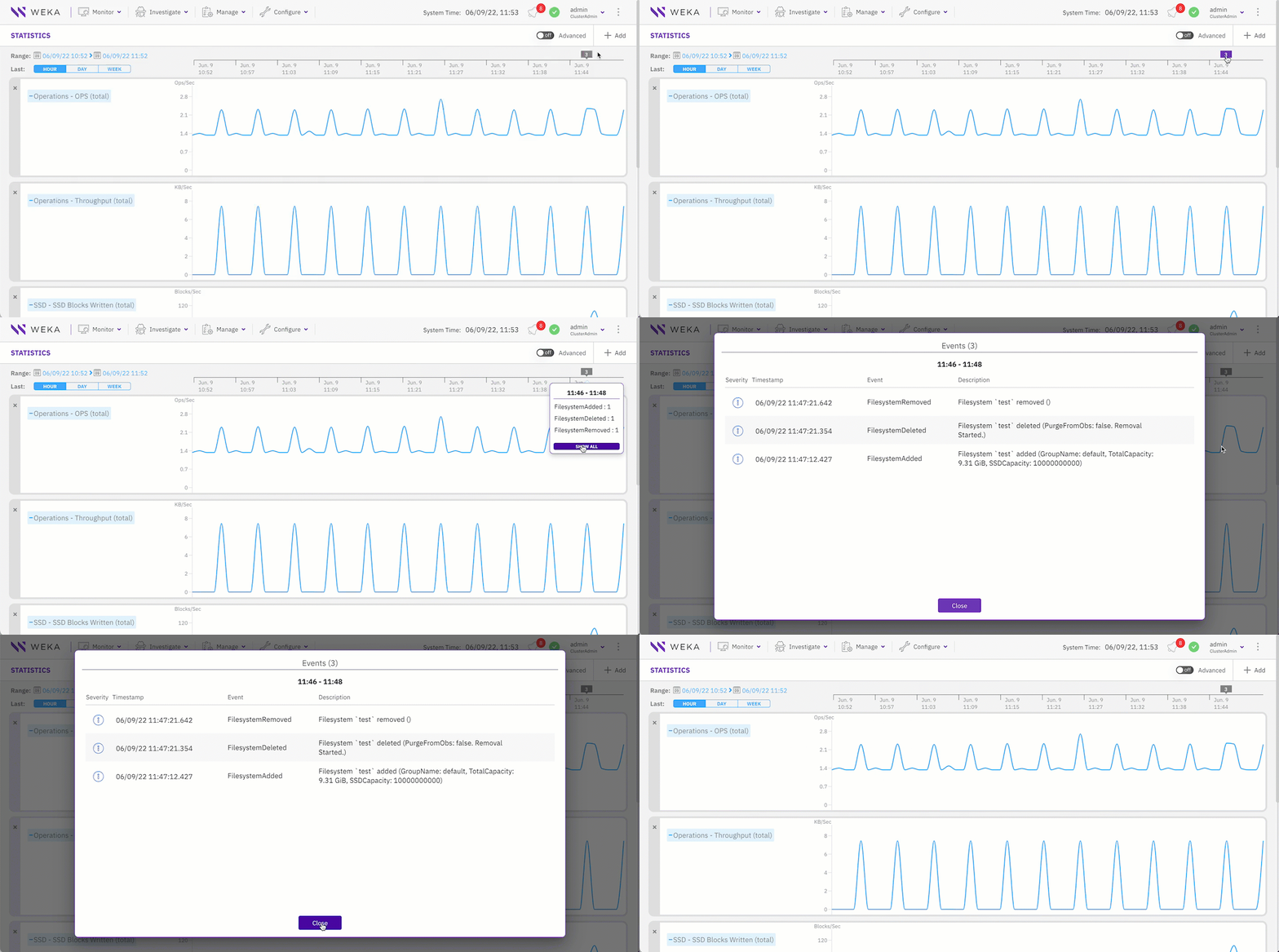
If events occur during the period of the displayed charts, a purple box indicates the number of the events. To investigate the events, show and correlate them with the statistics data.
**Procedure**
1. On the time axis, select the purple box (it only appears if events occur).
2. From the popup box, select **Show All**.