# Manage filesystem groups using the GUI
Using the GUI, you can perform the following actions:
* [View filesystem groups](#view-filesystem-groups)
* [Add filesystem groups](#add-a-filesystem-group)
* [Edit filesystem groups](#edit-a-filesystem-group)
* [Delete a filesystem group](#delete-a-filesystem-group)
## View filesystem groups
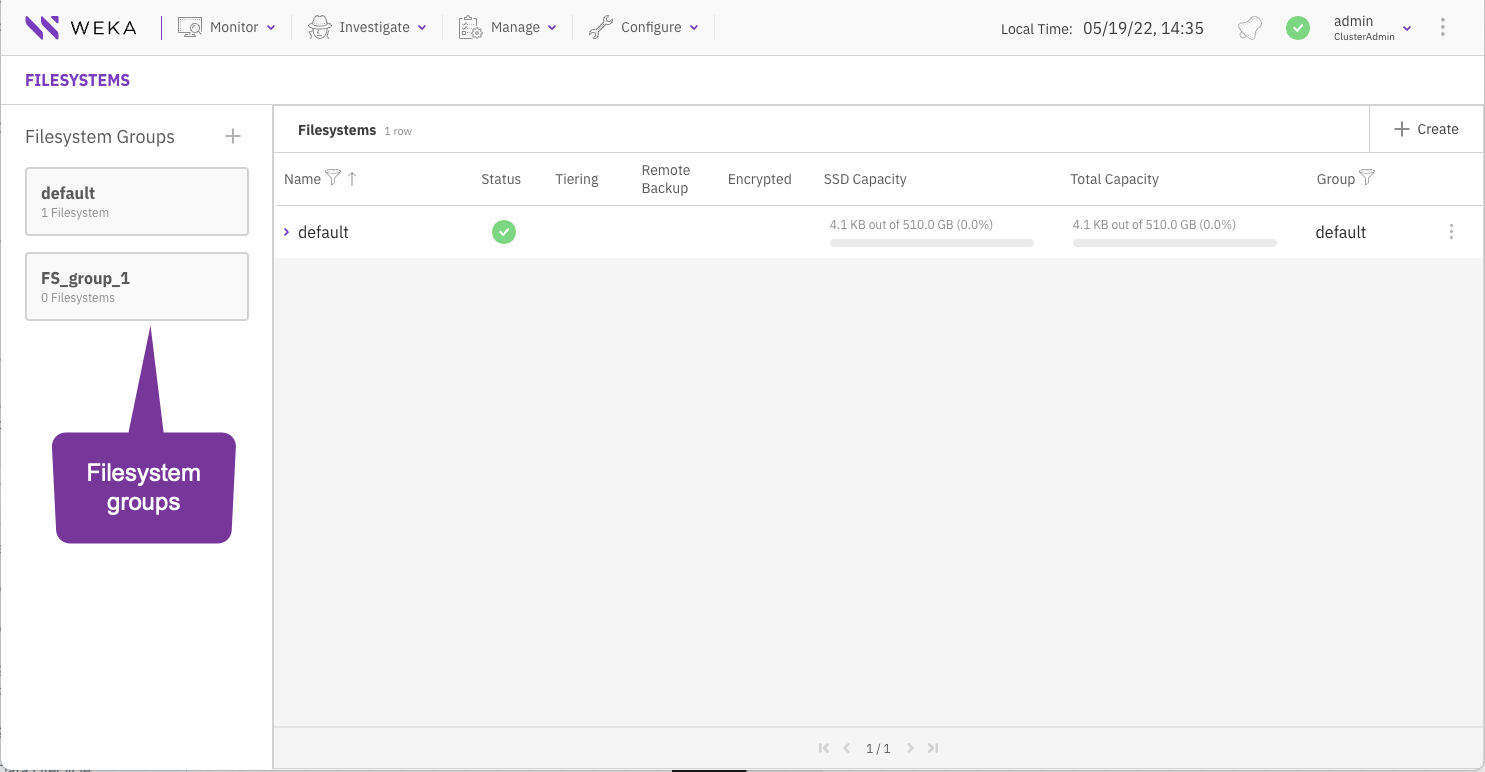
The filesystem groups are displayed on the **Filesystems** page. Each filesystem group indicates the number of filesystems that use it.
**Procedure**
1. From the menu, select **Manage > Filesystems**.
## Add a filesystem group
A filesystem group is required when adding a filesystem. You can create more filesystem groups if you want to apply a different tiering policy on specific filesystems.
**Procedure**
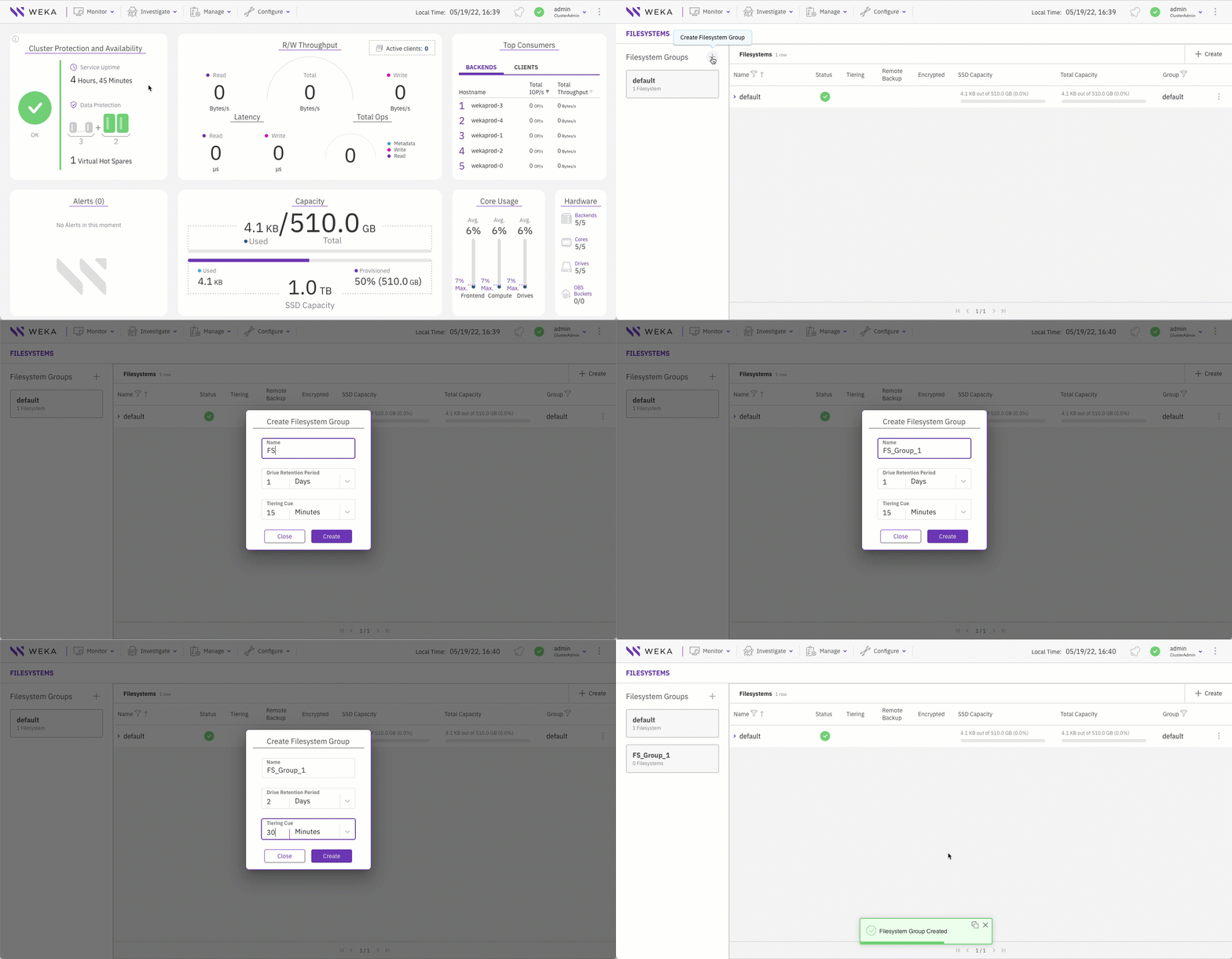
1. From the menu, select **Manage > Filesystems**.
2. Select the + sign right to the Filesystem Groups title.
3. In the **Create Filesystem Group** dialog, set the following:
* **Name:** Set a meaningful name for the filesystem group.
* **Drive Retention Period**: Set the period for keeping data on the SSD after it is copied to the object store. After this period, the copy of the data is deleted from the SSD.
* **Tiering Cue**: Set the time to wait after the last update before the data is copied from the SSD and sent to the object store.
4. Select **Create**.
**Related topic**
[#data-lifecycle-policy-controls](https://docs.weka.io/5.0/tiering#data-lifecycle-policy-controls "mention") (to learn more about the drive retention period and tiering cue)
## Edit a filesystem group
You can edit the filesystem group policy according to your system requirements.
**Procedure**
1. From the menu, select **Manage > Filesystems**.
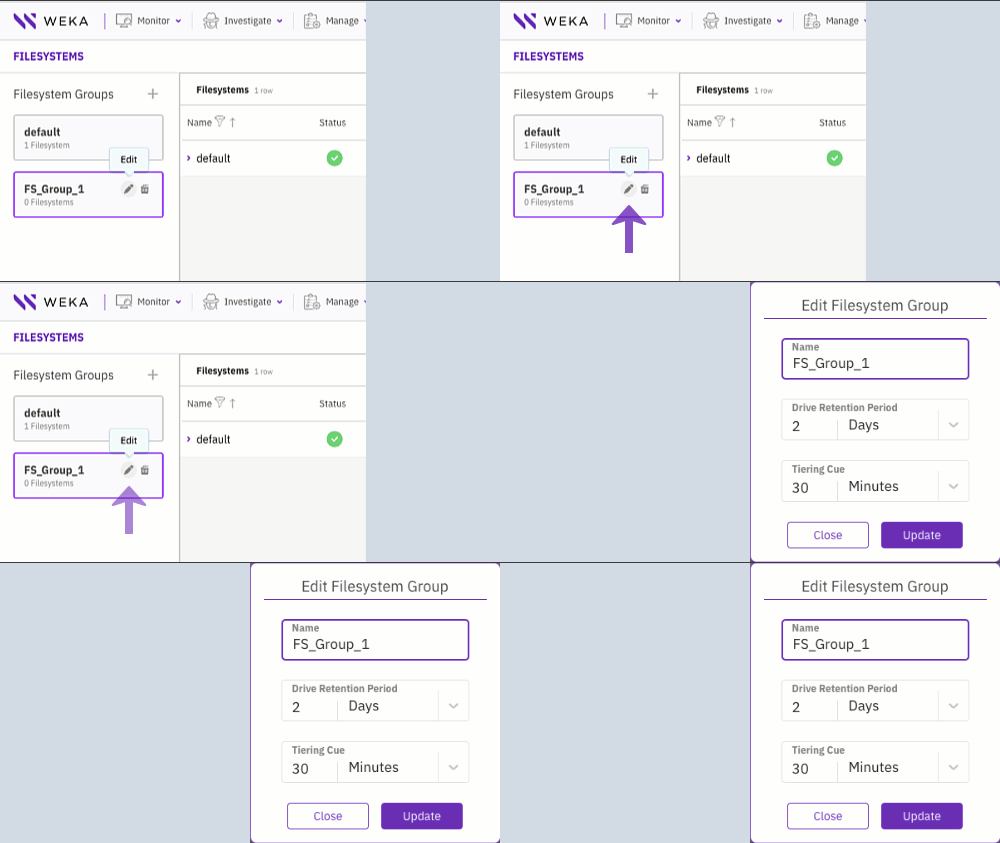
2. Select the filesystem group you want to edit.
3. Select the pencil sign right to the filesystem group name.
4. In the **Edit Filesystem Group** dialog, update the settings as you need. (See the parameter descriptions in the [Add a filesystem group](#add-a-filesystem-group) topic.)
5. Select **Update**.
## Delete a filesystem group
You can delete a filesystem group no longer used by any filesystem.
**Procedure**
1. From the menu, select **Manage > Filesystems**.
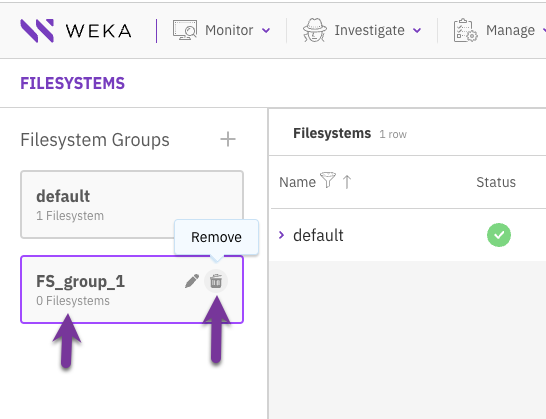
2. Select the filesystem group you want to delete.
3. Verify that the filesystem group is not used by any filesystems (indicates 0 filesystems).
5. Select the **Remove** icon. In the pop-up message, select **Yes** to delete the filesystem group.