# Manage Snap-To-Object using the GUI
Using the GUI, you can:
* [Upload a snapshot](#upload-a-snapshot)
* [Create a filesystem from an uploaded snapshot](#create-a-filesystem-from-an-uploaded-snapshot)
* [Sync a filesystem from a snapshot](#sync-a-filesystem-from-a-snapshot)
**Related topics**
To learn about how to view, create, update, delete, and restore snapshots, see [Manage snapshots using the GUI](https://docs.weka.io/5.0/weka-filesystems-and-object-stores/snapshots/snapshots).
## Upload a snapshot
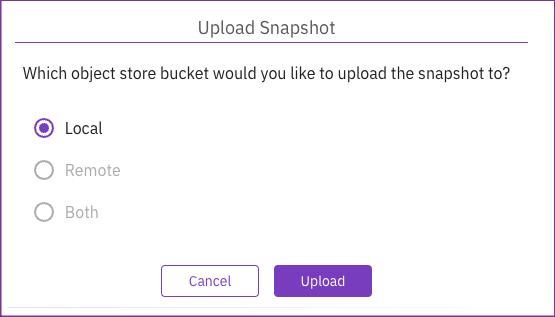
You can upload a snapshot to a local, remote, or both object store buckets.
**Procedure**
1. From the menu, select **Manage > Snapshots**.
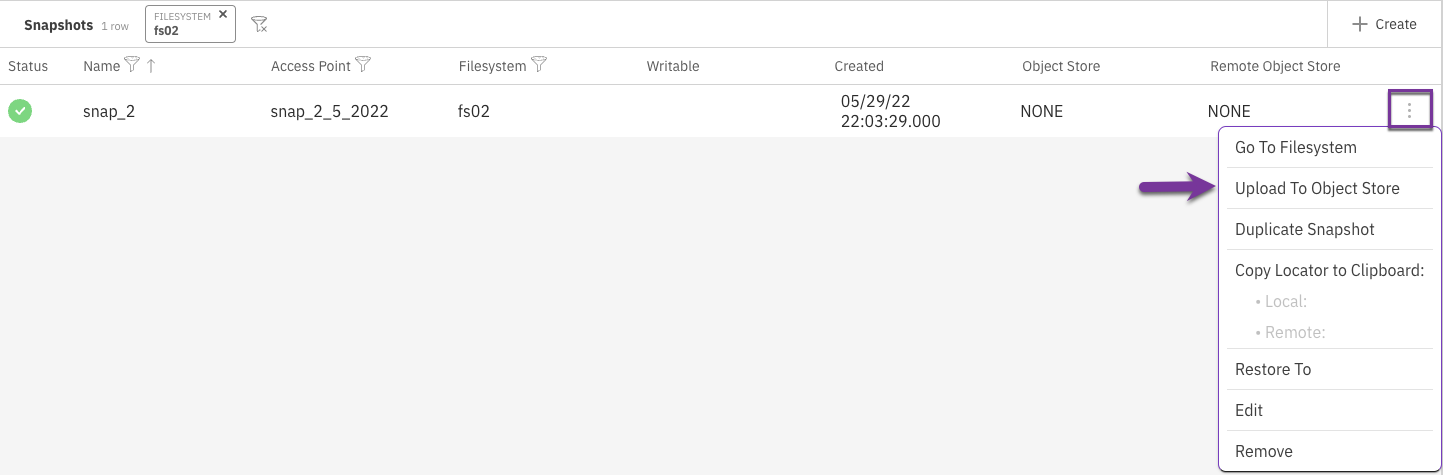
2. Select the three dots on the right of the required snapshot. From the menu, select **Upload To Object Store**.
3. A relevant message appears if a local or remote object store bucket is not attached to the filesystem. It enables opening a dialog to select an object store bucket and attach it to the filesystem. To add an object store, select **Yes**.
4. In the Attach Object Store to Filesystem dialog, select the object store bucket to attach the snapshot.
5. Select **Save**.\
The snapshot is uploaded to the target object store bucket.
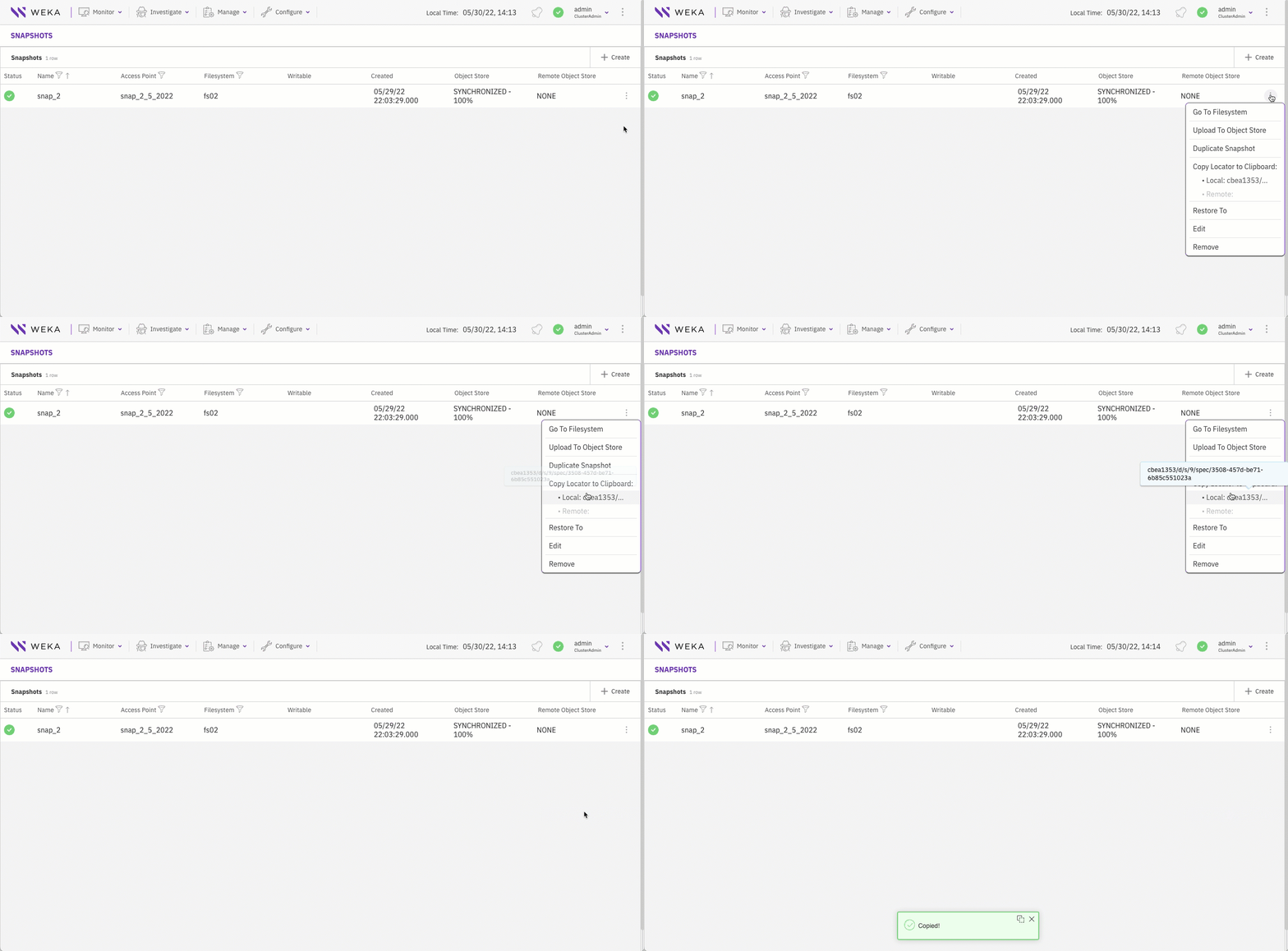
6. **Copy the snapshot locator:**
* Select the three dots on the right of the required snapshot, and select **Copy Locator to Clipboard**.
* Save the locator in a dedicated file so later you can use it for creating a filesystem from the uploaded snapshot.
***
**Related topics**
[#pause-resume-abort-a-background-task](https://docs.weka.io/5.0/operation-guide/background-tasks#pause-resume-abort-a-background-task "mention")
## Create a filesystem from an uploaded snapshot
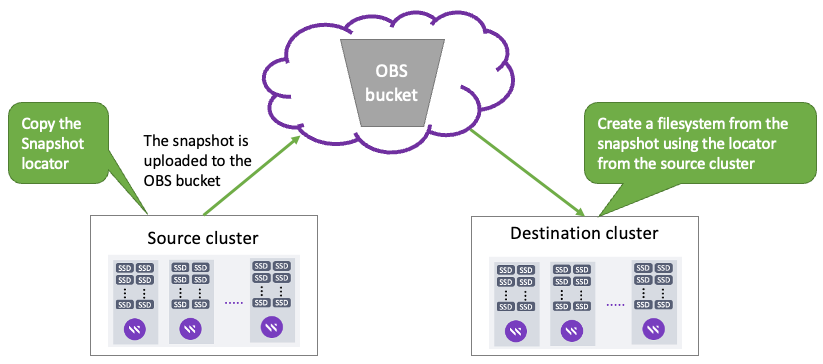
You can create (or recreate) a filesystem from an uploaded snapshot, for example, when you need to migrate the filesystem data from one cluster to another.
When recreating a filesystem from a snapshot, adhere to the following guidelines:
* **Pay attention to upload and download costs**: Due to the bandwidth characteristics and potential costs when interacting with remote object stores, it is not allowed to download a filesystem from a remote object store bucket. If a snapshot on a local object store bucket exists, it is advisable to use that one. Otherwise, follow the procedure in the [Recover from a remote snapshot](https://docs.weka.io/5.0/weka-filesystems-and-object-stores/snap-to-obj-1#recover-from-a-remote-snapshot) topic using the CLI.
* **Use the same KMS master key**: For an encrypted filesystem, to decrypt the snapshot data, use the same KMS master key as used in the encrypted filesystem. See the [KMS Management Overview](https://docs.weka.io/5.0/security/kms-management#overview) topic.
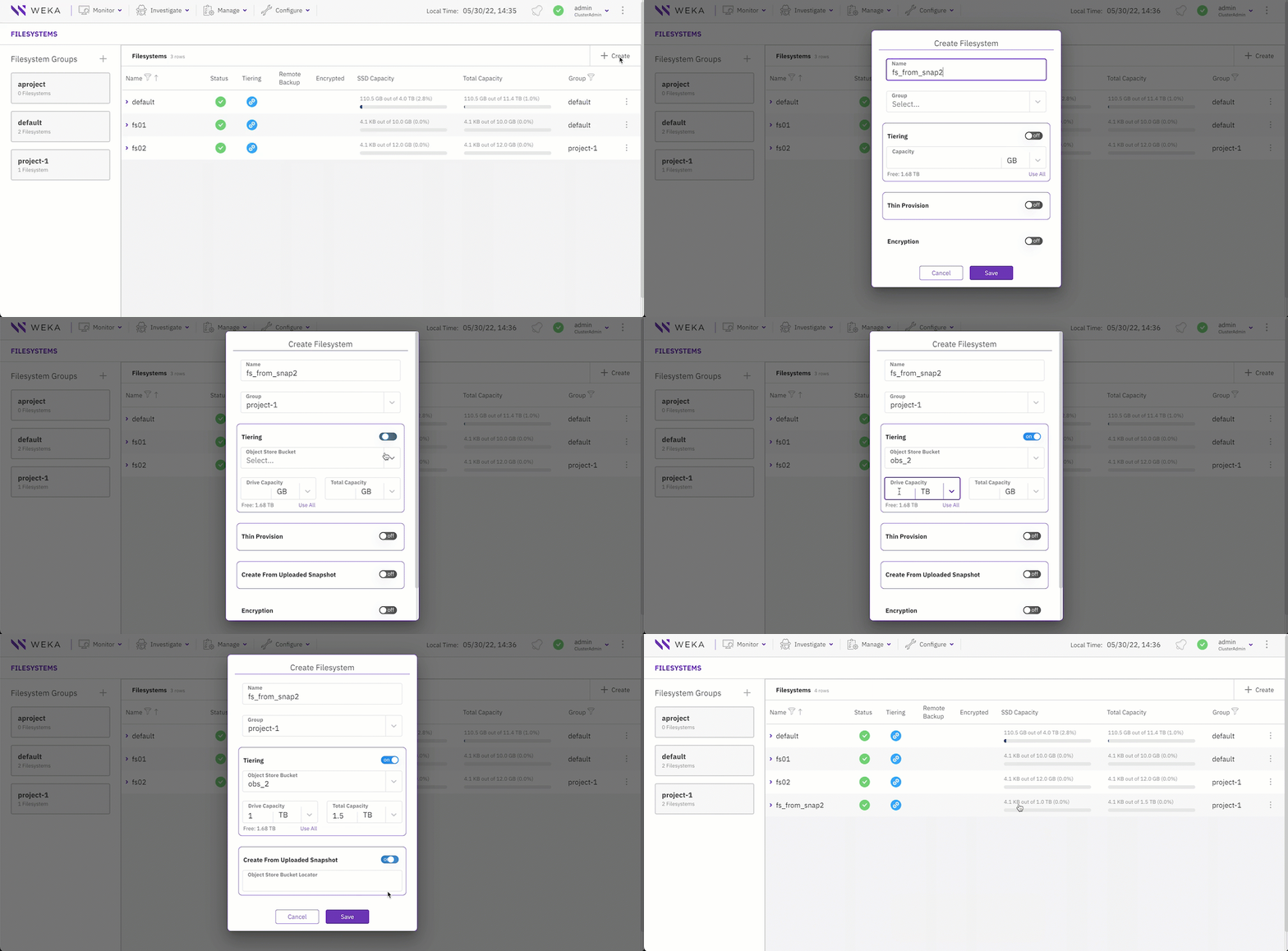
Create a filesystem from an uploaded snapshot example
**Before you begin**
* Verify that the locator of the required snapshot (from the source cluster) is available (see the last step in the [Upload a snapshot](#upload-a-snapshot) procedure).
* Ensure the object store is attached to the destination cluster.
**Procedure**
1. Connect to the destination cluster where you want to create the filesystem.
2. From the menu, select **Manage > Filesystems**, and select **+Create**.
3. In the Create Filesystem, do the following:
* Set the filesystem name, group, and tiering properties.
* Select **Create From Uploaded Snapshot** (it only appears when you select **Tiering**).\
Paste the copied snapshot locator in the Object Store Bucket Locator (from the source cluster).\
In the Snapshot Name, set a meaningful snapshot name to override the default (uploaded snapshot name).\
In the Access Point, set a meaningful access point name to override the default (uploaded access point name) for the directory that serves as the snapshot's access point.
4. Select **Save**.
## Sync a filesystem from a snapshot
You can synchronize a filesystem from a snapshot using the Synchronous Snap feature (incremental snapshot). Synchronous Snap only downloads changes since the last snapshot from the object store bucket.
{% hint style="info" %}
Only snapshots uploaded from version 4.3 or later can be downloaded using Synchronous Snap.
{% endhint %}
**Before you begin**
Copy the locator of the snapshot you want to sync with the filesystem.
**Procedure**
1. From the menu, select **Manage > Filesystems**.
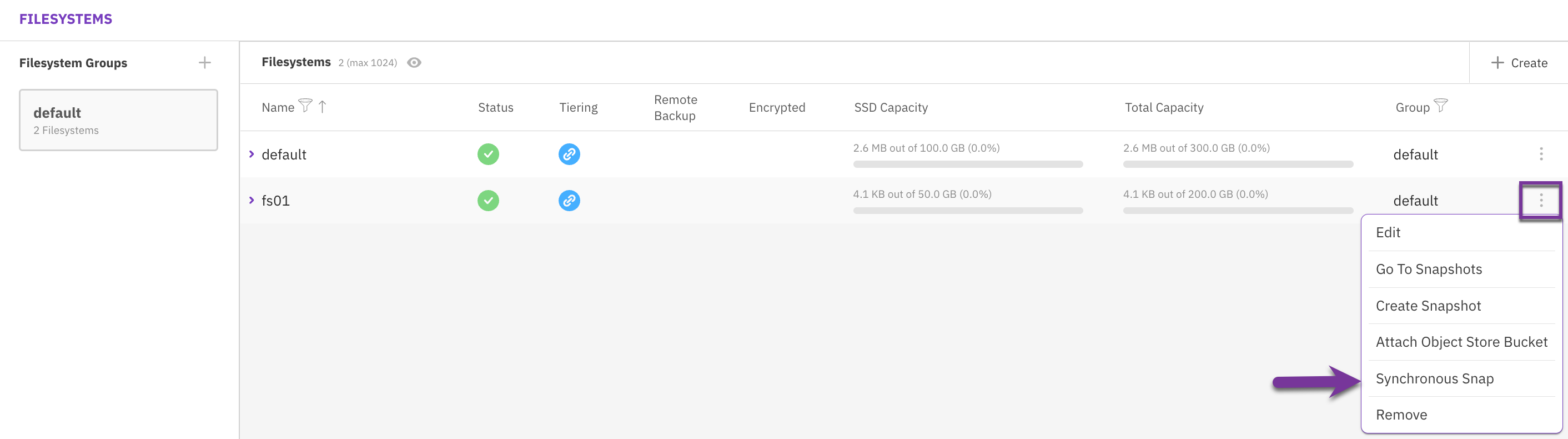
2. From the Filesystems page, select the three dots of the filesystem you want to sync, and from the menu, select **Synchronous Snap**.
Filesystem menu: Synchronous Snap
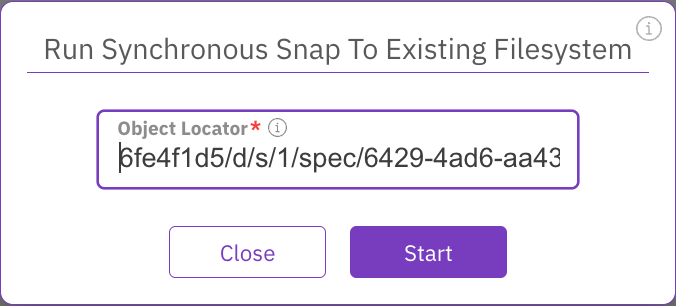
3. Paste the snapshot object locator in the Run Synchronous Snap to Existing Filesystem dialog.
4. Select **Start**.\
The filesystem starts syncing with the snapshot.
Run synchronous snap to an existing filesystem
5. Once the sync is completed, restore the snapshot to update the production filesystem.
**Related topics**
[#add-a-filesystem](https://docs.weka.io/5.0/managing-filesystems/managing-filesystems#add-a-filesystem "mention")