> For the complete documentation index, see [llms.txt](https://docs.weka.io/llms.txt). Markdown versions of documentation pages are available by appending `.md` to page URLs; this page is available as [Markdown](https://docs.weka.io/6.0/additional-protocols/s3/s3-buckets-management/s3-buckets-management.md).
# Manage S3 buckets using the GUI
Create, view, update, and delete S3 buckets using the GUI.
## Create a bucket
**Before you begin**
S3 does not support creating buckets on filesystems with names containing the characters ' ', '`(`', '`)`', or '`&`'. Verify that the filesystem name excludes these characters. Rename the filesystem if needed before creating the S3 bucket.
In multi-tenant deployments, the **Buckets** tab shows only buckets in the current tenant. Buckets from other tenants are not visible, regardless of admin role.
Bucket names must be unique across the entire cluster. If the name is already in use, the GUI returns the following error:
```
This name cannot be used, please choose another name.
```
**Procedure**
1. From the menu, select **Manage > Protocols**.
2. From the Protocols pane, select **S3**.
3. Select the **Buckets** tab.
4. Select **+Create**.
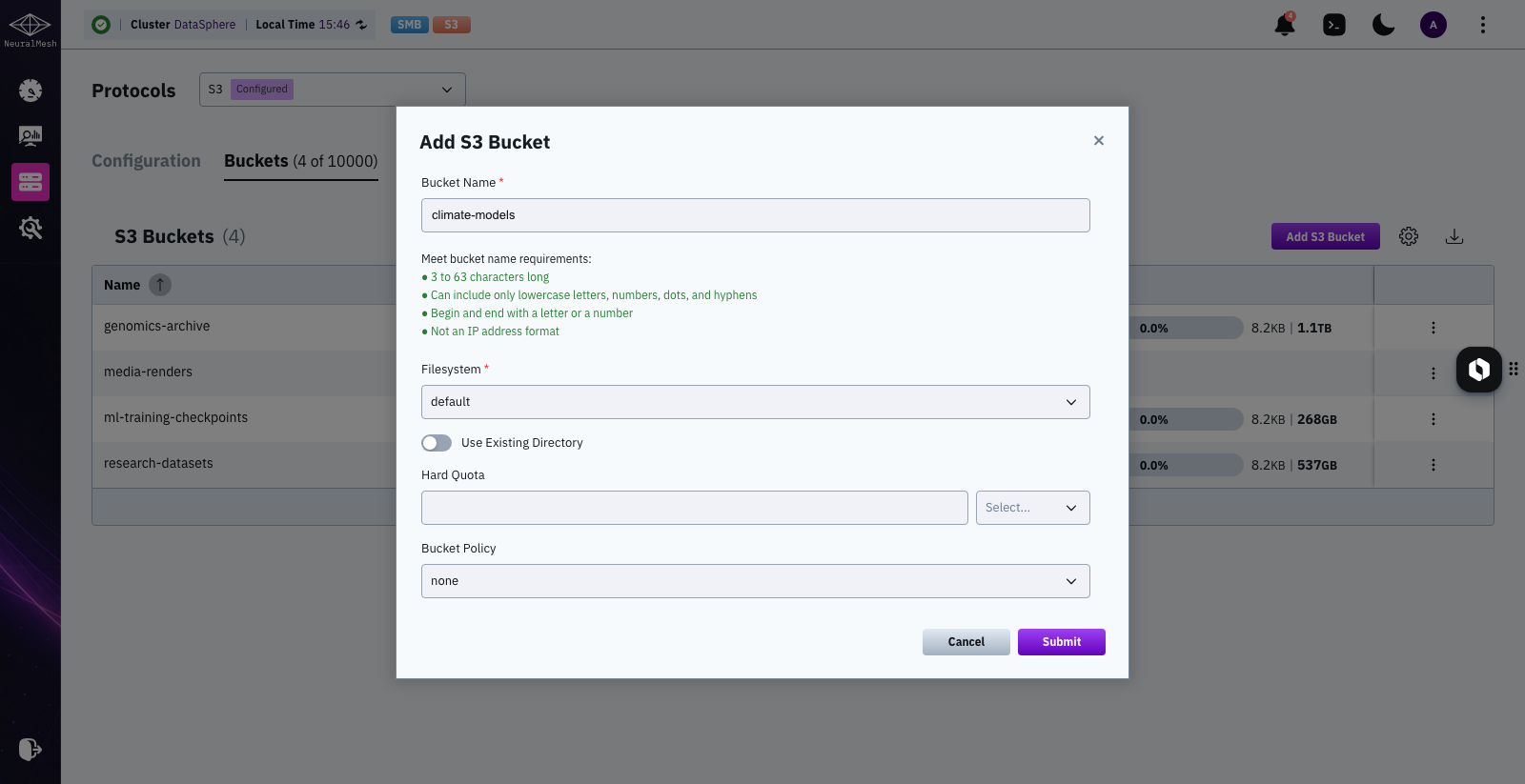
5. In the Add S3 Bucket dialog, do the following:
* **Bucket Name:** Set a bucket name according to the naming conventions.
* **Filesystem:** Set the filesystem to host the bucket. If the tenant has a default filesystem, the system uses it first. If not, the system uses the cluster default filesystem. If neither default is configured, select a filesystem explicitly or the operation fails.
* **Use Existing Directory:** If you want to expose an existing directory, turn it on and set the path relative to the filesystem root. To use the filesystem root, set `.`. When this option is off, the system creates a directory named after the bucket. Make sure that the directory is not below the hierarchy of the already configured S3 bucket.
* **Hard Quota:** Set the maximum capacity for the bucket. If you want to remove the hard quota setting, enter 0.
* **Bucket Policy:** Select the policy to attach to the bucket: none, download, upload, public, or custom. If you select a custom policy, add it in JSON format.
6. Select **Save**.
{% hint style="info" %}
Tenant 0, also called the root tenant, follows the same tenant-scoped bucket visibility behavior.
{% endhint %}
Enter the bucket name and select the filesystem
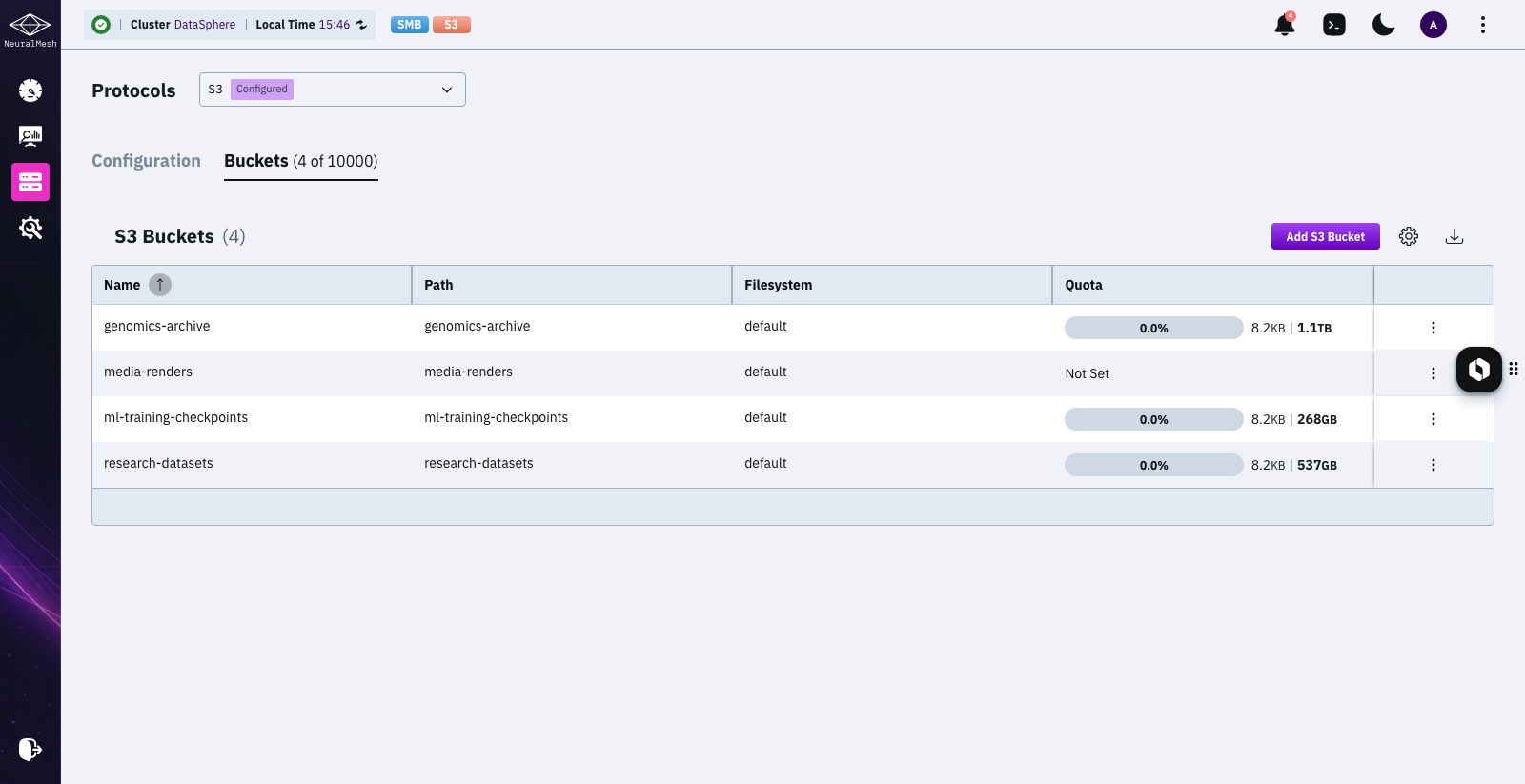
The new bucket appears in the bucket list
## View a bucket details
You can view the details of the bucket.
**Procedure**
1. From the menu, select **Manage > Protocols**.
2. From the Protocols pane, select **S3**.
3. Select the **Buckets** tab.
4. Select the three dots of the bucket and select **View**.
Manage a bucket menu
View S3 Bucket
## Edit a bucket hard quota
The hard quota determines the maximum capacity of the bucket. Initially, you can only set the hard quota for an empty bucket. If the hard quota of the bucket is already set, you can modify it or remove it.
**Procedure**
1. From the menu, select **Manage > Protocols**.
2. From the Protocols pane, select **S3**.
3. Select the **Buckets** tab.
4. Select the three dots of the bucket and select **Edit Hard Quota**.
5. Set the maximum capacity for the bucket. If you want to remove the hard quota setting, enter 0.
Edit S3 Bucket Quota
## Edit a bucket policy
You can edit the bucket policy according to your needs.
**Procedure**
1. From the menu, select **Manage > Protocols**.
2. From the Protocols pane, select **S3**.
3. Select the **Buckets** tab.
4. Select the three dots of the bucket you want to delete, and select **Edit Bucket Policy**.
5. Select the policy to attach to the bucket: none, download, upload, public, or custom. If you select a custom policy, add it in JSON format.
Edit S3 Bucket
## Delete a bucket
You can delete an existing bucket from the filesystem only if the bucket is empty. If the bucket is not empty, you can detach the bucket from the S3 configuration and keep the data and metadata in place. Consequently, you can recreate the bucket while preserving the data and metadata (see [Create a bucket](#create-a-bucket) using the Use Existing Directory switch.
{% hint style="info" %}
If the intent is to keep the data files for use outside of the S3 configuration and delete only the S3 metadata, contact the Customer Success Team for assistance.
{% endhint %}
**Procedure**
1. From the menu, select **Manage > Protocols**.
2. From the Protocols pane, select **S3**.
3. Select the **Buckets** tab.
4. Select the three dots of the bucket you want to delete and select **Remove**.
Remove Bucket
5. In the confirmation message, if the bucket is not empty, switch **Keep Data** to **ON**.\
Then, select **Remove**.
---
# Agent Instructions
This documentation is published with GitBook. GitBook is the documentation platform designed so that both humans and AI agents can read, navigate, and reason over technical content effectively. Learn more at gitbook.com.
## Querying This Documentation
If you need additional information that is not directly available in this page, you can query the documentation by asking a question.
Perform an HTTP GET request on the following URL with the `ask` and `goal` query parameters:
```
GET https://docs.weka.io/6.0/additional-protocols/s3/s3-buckets-management/s3-buckets-management.md?ask=&goal=
```
`ask` is the immediate question: it should be specific, self-contained, and written in natural language.
`goal` is what the user is ultimately trying to achieve, the reason they need the answer. Sharing it helps GitBook give you a better, more relevant answer. A goal is most helpful when it describes the outcome the user wants rather than restating the question. For example, with `ask=how do I create an API token`, a goal like `automate deployments from our CI pipeline` lets GitBook tailor the answer to that use case.
The response will contain a direct answer to the question and relevant excerpts and sources from the documentation.
Use this mechanism when the answer is not explicitly present in the current page, you need clarification or additional context, or you want to retrieve related documentation sections.