> For the complete documentation index, see [llms.txt](https://docs.weka.io/llms.txt). Markdown versions of documentation pages are available by appending `.md` to page URLs; this page is available as [Markdown](https://docs.weka.io/kubernetes/weka-operator-deployments/quick-installation.md).
# Quick installation
Use this quick start procedure to deploy the WEKA Operator and provision a minimal WEKA cluster on Kubernetes in five steps.
#### **Before you begin**
* Access the [WEKA Operator page](https://get.weka.io/ui/operator) to obtain the target `WEKA_OPERATOR_VERSION` and `WEKA_IMAGE_VERSION_TAG`.
* To obtain your `QUAY_USERNAME`, `QUAY_PASSWORD`, and target version tags, ensure you can access `get.weka.io`. See [Obtain the installation packages](/planning-and-installation/bare-metal/obtaining-the-weka-install-file.md).
* Ensure `helm`, `kubectl`, and Docker are installed. Log in to `quay.io` before pulling the Helm chart.
* Verify all nodes meet the hardware and software requirements described in Prepare Kubernetes environment.
#### **Procedure**
**1. Install the WEKA Operator**
Apply the Custom Resource Definitions (CRDs) so the Kubernetes API can recognize WEKA resources, then deploy the operator controller.
```bash
helm upgrade --install weka-operator \
oci://quay.io/weka.io/helm/weka-operator \
--namespace weka-operator-system \
--create-namespace \
--version v1.13.0 \
--set csi.installationEnabled=true
```
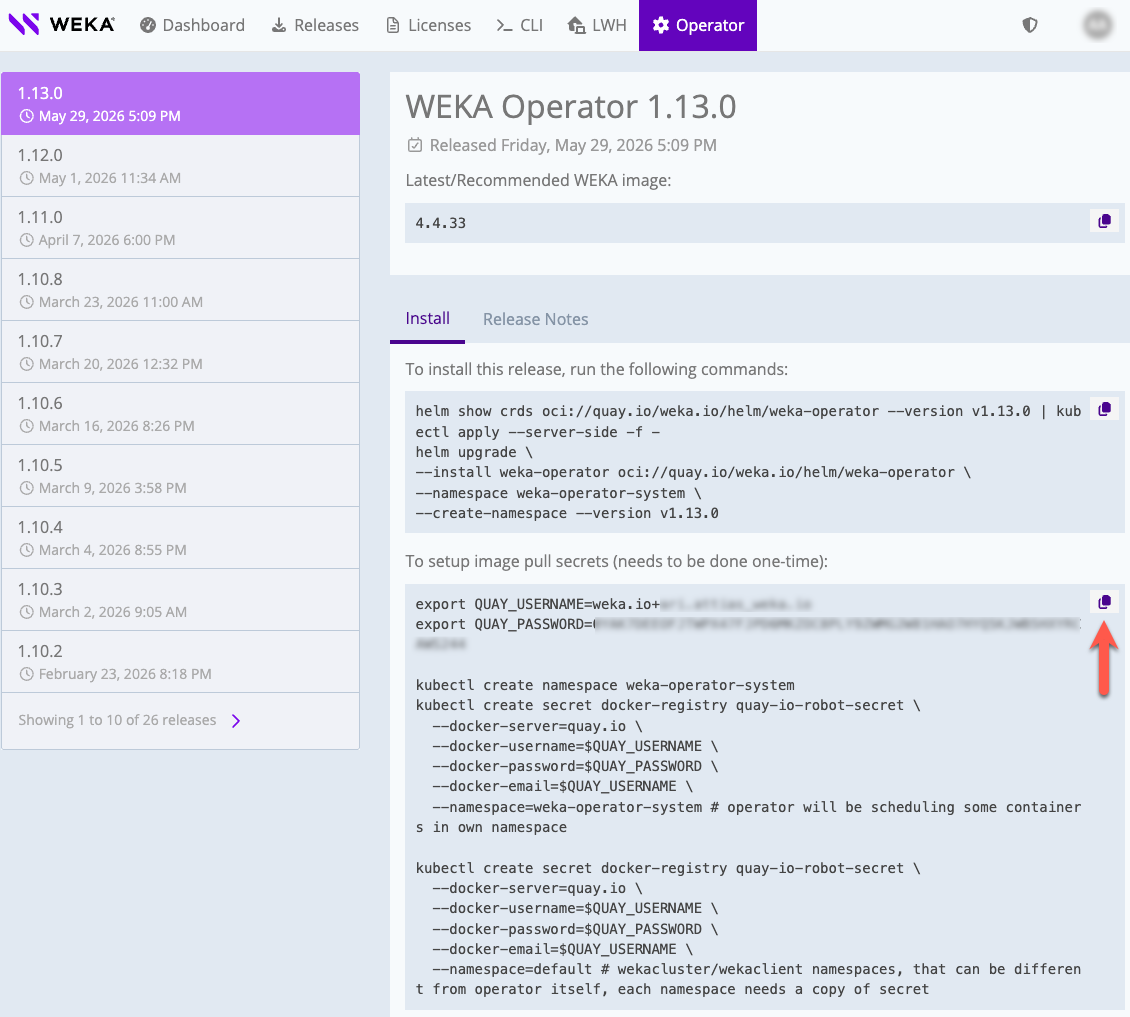
**2. Configure image pull secrets**
Create the Kubernetes image pull secrets that allow the operator and WEKA resources to pull container images. In this example, create the secret in `weka-operator-system` and `default`.
Replace the credentials with your values, or copy the generated command from `get.weka.io`. If additional namespaces require WEKA resources, run the same command for each namespace with the relevant namespace value.
get.weka.io: WEKA Operator image pull secrets example
```bash
export QUAY_USERNAME=
export QUAY_PASSWORD=
kubectl create secret docker-registry quay-io-robot-secret \
--docker-server=quay.io \
--docker-username=$QUAY_USERNAME \
--docker-password=$QUAY_PASSWORD \
--docker-email=$QUAY_USERNAME \
--namespace=weka-operator-system
kubectl create secret docker-registry quay-io-robot-secret \
--docker-server=quay.io \
--docker-username=$QUAY_USERNAME \
--docker-password=$QUAY_PASSWORD \
--docker-email=$QUAY_USERNAME \
--namespace=default
```
{% hint style="info" %}
Quick installation uses `https://drivers.weka.io` by default. Configure local driver distribution for example, air-gapped environments or custom kernels. See [WEKA Operator driver management](/kubernetes/weka-operator-deployments/weka-operator-driver-management.md).
{% endhint %}
**3. Sign drives**
Identify and prepare the physical storage devices before provisioning the cluster. Apply a `WekaPolicy` to automate drive discovery and signing.
Create `sign-drives.yaml`:
{% code title="sign-drives.yaml" %}
```yaml
apiVersion: weka.weka.io/v1alpha1
kind: WekaPolicy
metadata:
name: sign-drives
namespace: weka-operator-system
spec:
type: sign-drives
payload:
signDrivesPayload:
type: "all-not-root"
```
{% endcode %}
Apply the manifest:
```bash
kubectl apply -f sign-drives.yaml
```
**4. Deploy the WekaCluster**
Provision the backend storage by applying the `WekaCluster` custom resource. This resource defines the compute and drive containers, networking, and the driver distribution endpoint.
Create `weka-cluster.yaml`:
{% code title="weka-cluster.yaml" %}
```yaml
apiVersion: weka.weka.io/v1alpha1
kind: WekaCluster
metadata:
name: weka-cluster-dev
namespace: default
spec:
template: dynamic
dynamicTemplate:
computeContainers: 6
driveContainers: 6
numDrives: 1 #upated according to the available drives on each node
image: quay.io/weka.io/weka-in-container:5.1.0
nodeSelector:
weka.io/supports-backends: "true"
imagePullSecret: "quay-io-robot-secret"
```
{% endcode %}
Apply the manifest:
```bash
kubectl apply -f weka-cluster.yaml
```
{% hint style="info" %}
For WEKA 5.1.0 and later with drive sharing enabled, set `containerCapacity`. For earlier versions, set `numDrives`. Alternatively, set `dynamicTemplate.clusterCapacity`, such as `"300TiB"`, to define the cluster's target usable capacity instead of per-container capacity.
{% endhint %}
**5. Deploy the WekaClient**
Deploy the `WekaClient` custom resource to manage the client processes that mount WEKA filesystems to application pods. Use the `targetCluster` field to reference the `WekaCluster` deployed in the previous step.
Create `weka-client.yaml`:
{% code title="weka-client.yaml" %}
```yaml
apiVersion: weka.weka.io/v1alpha1
kind: WekaClient
metadata:
name: cluster-dev-clients
namespace: default
spec:
image: quay.io/weka.io/weka-in-container:5.1.0
imagePullSecret: "quay-io-robot-secret"
driversDistService: "https://drivers.weka.io"
nodeSelector:
weka.io/supports-clients: "true"
targetCluster:
name: weka-cluster-dev
namespace: default
```
{% endcode %}
Apply the manifest:
```bash
kubectl apply -f weka-client.yaml
```
**What to do next**
Verify deployment health: `kubectl get wekaclusters` and `kubectl get wekaclients`
---
# Agent Instructions
This documentation is published with GitBook. GitBook is the documentation platform designed so that both humans and AI agents can read, navigate, and reason over technical content effectively. Learn more at gitbook.com.
## Querying This Documentation
If you need additional information that is not directly available in this page, you can query the documentation by asking a question.
Perform an HTTP GET request on the following URL with the `ask` and `goal` query parameters:
```
GET https://docs.weka.io/kubernetes/weka-operator-deployments/quick-installation.md?ask=&goal=
```
`ask` is the immediate question: it should be specific, self-contained, and written in natural language.
`goal` is what the user is ultimately trying to achieve, the reason they need the answer. Sharing it helps GitBook give you a better, more relevant answer. A goal is most helpful when it describes the outcome the user wants rather than restating the question. For example, with `ask=how do I create an API token`, a goal like `automate deployments from our CI pipeline` lets GitBook tailor the answer to that use case.
The response will contain a direct answer to the question and relevant excerpts and sources from the documentation.
Use this mechanism when the answer is not explicitly present in the current page, you need clarification or additional context, or you want to retrieve related documentation sections.