> For the complete documentation index, see [llms.txt](https://docs.weka.io/llms.txt). Markdown versions of documentation pages are available by appending `.md` to page URLs; this page is available as [Markdown](https://docs.weka.io/4.4/planning-and-installation/weka-installation-on-azure/detailed-deployment-tutorial-weka-on-azure-using-terraform.md).
# Detailed deployment tutorial: WEKA on Azure using Terraform
This guide provides step-by-step instructions for deploying the WEKA Data Platform on Microsoft Azure using Terraform, tailored for customers, partners, and WEKA teams.
## Introduction
Deploying WEKA in Azure involves familiarity with Microsoft Azure Cloud, Terraform (for infrastructure-as-code provisioning), basic Linux operations, and WEKA software. Recognizing that not all individuals responsible for this deployment may have experience in every area, this document offers a comprehensive, step-by-step guide to successfully deploying a WEKA cluster in Azure, even with minimal prior knowledge.
**Document scope**
This document provides guidance on deploying WEKA in an Azure environment with an existing networking configuration. For Proof of Concept (POC) or production deployments, the process involves using the customer's existing Azure Virtual Network (VNet), subnet, and Network Security Group.
This document guides you through:
* General Azure requirements.
* Azure networking requirements necessary for WEKA.
* Deployment of WEKA using Terraform.
* Verification of a successful of WEKA deployment.
{% hint style="info" %}
The images embedded in this document may appear small when viewed in-line. Double-clicking on an image enlarges it to its original size for easier viewing.
{% endhint %}
## Administrative prerequisites
Before deploying WEKA in Microsoft Azure, ensure that the target environment is properly configured. Several key components must be set up before deploying WEKA using Terraform to ensure a successful outcome. The following subsections provide a step-by-step guide for configuring each component according to WEKA requirements.
### Identify your Azure Subscription
Azure environments are organized within a Subscription[^1], which serves as the primary construct containing resource groups, VNets, subnets, security groups, virtual machine instances, and other resources. The initial step in deploying WEKA in Azure is to identify the subscription where the WEKA resources will be deployed.
#### Procedure
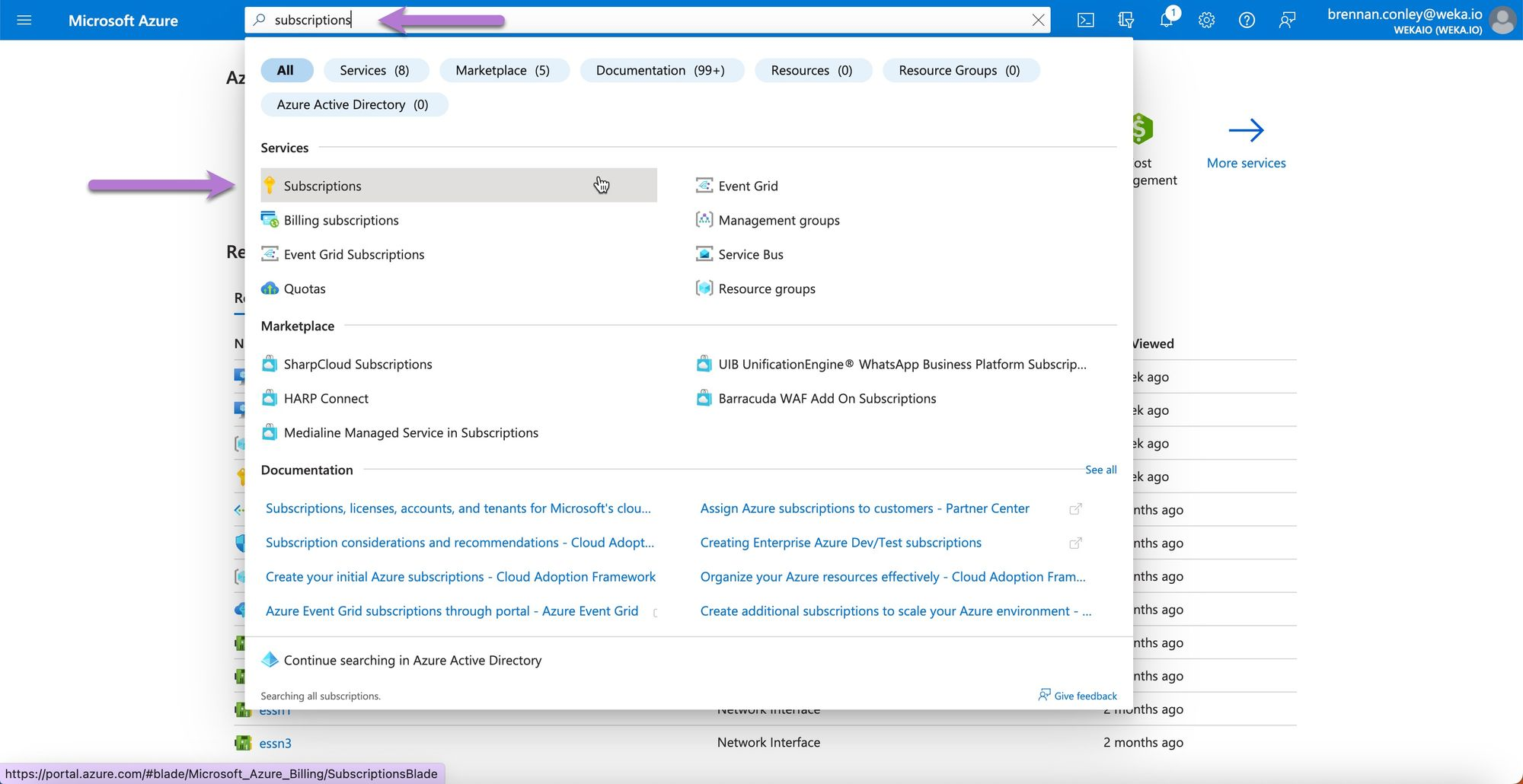
1. Navigate to the Microsoft Azure Portal. Search for **Subscriptions** and select it.
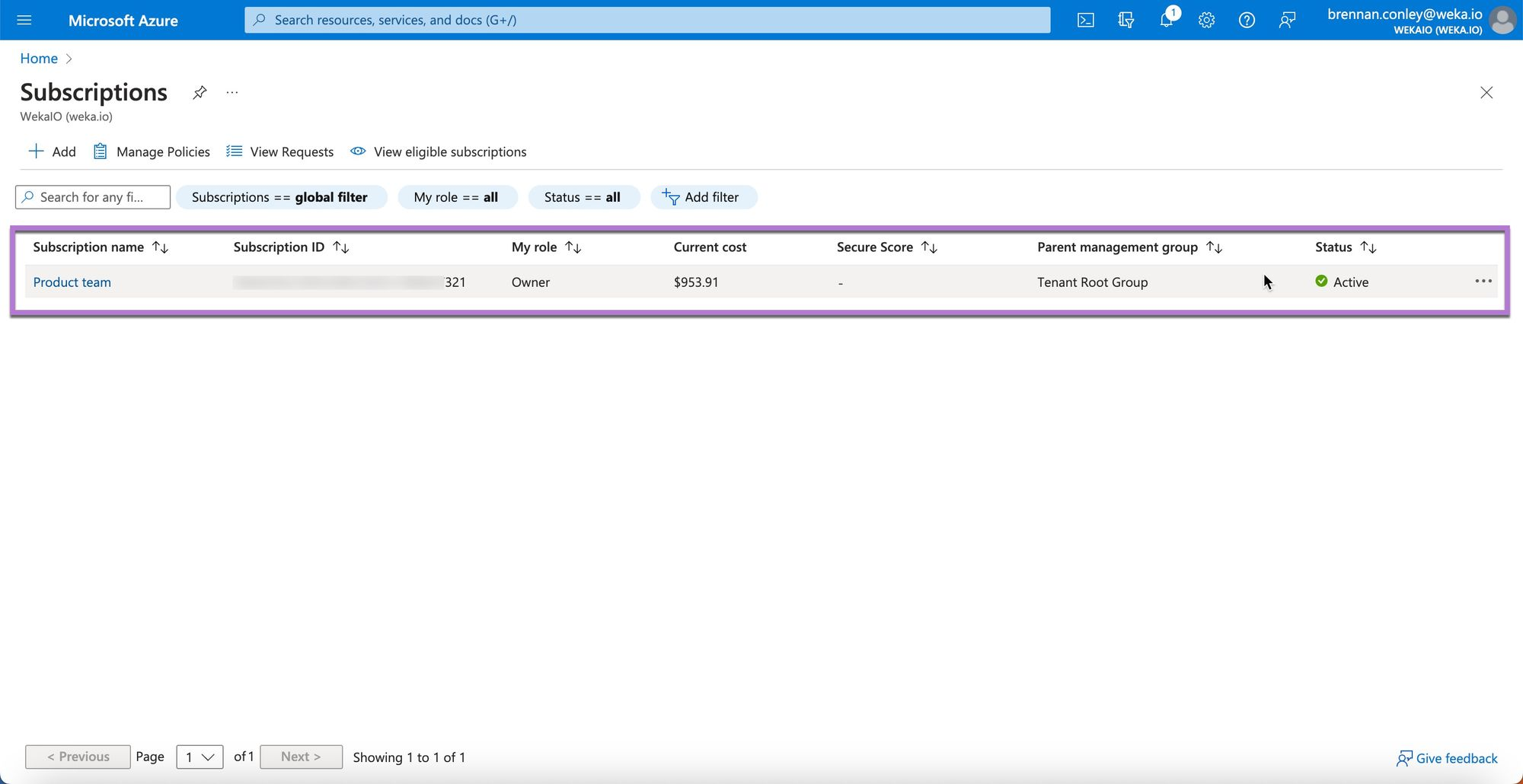
2. On the **Subscriptions** page, locate the subscription you plan to use for deploying WEKA.
Ensure you understand the Azure Subscription structure for your environment before proceeding with the deployment.
### Verify user privileges assignment
To successfully deploy WEKA in Microsoft Azure, ensure the account used is a Subscription Contributor. If the user lacks this role, the deployment steps will fail. If an existing user cannot be used, create a new user with the necessary rights within the Subscription.
#### Procedure
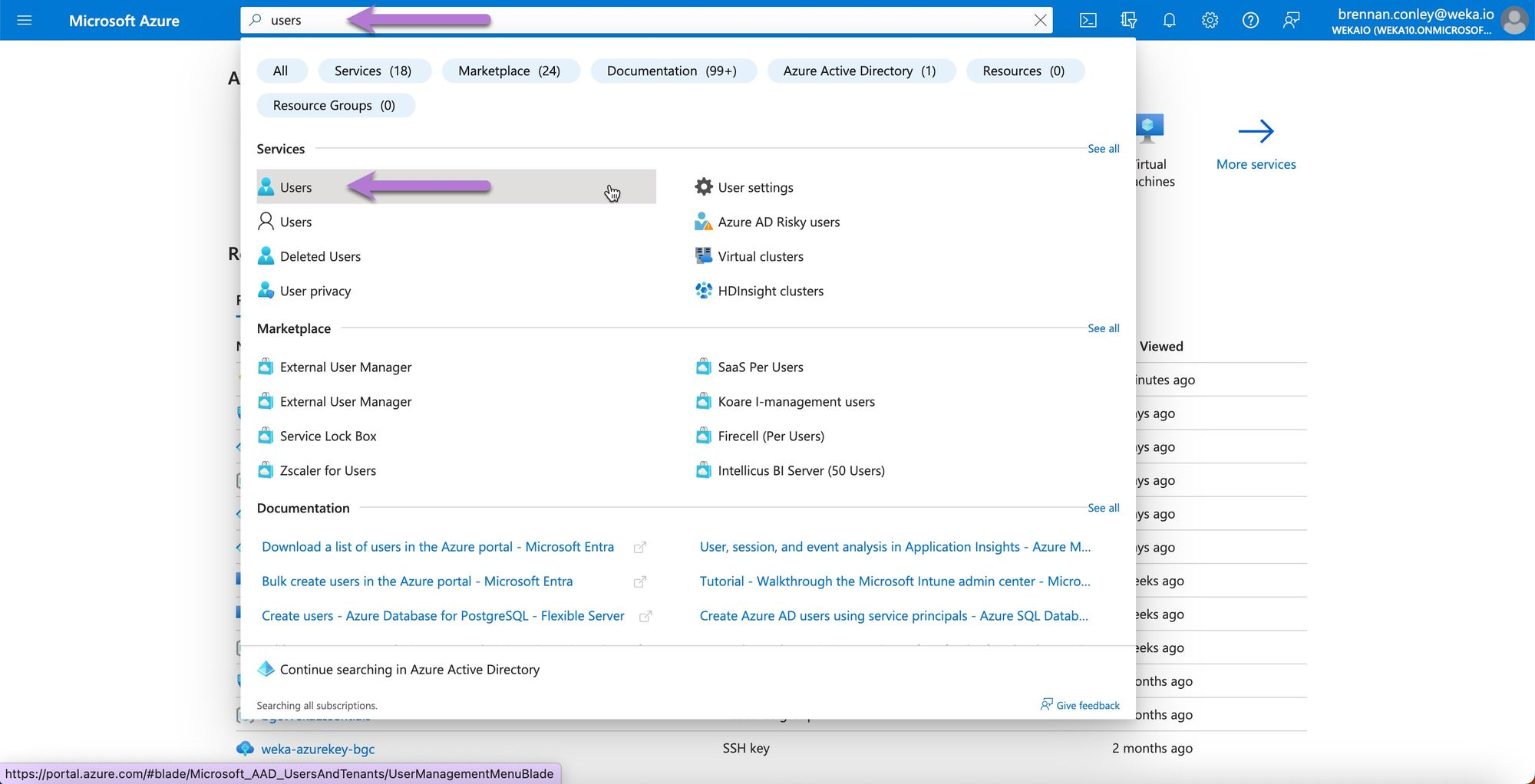
1. Log in to the Azure Portal using the account intended for the WEKA deployment. Search for **Users** and select it.
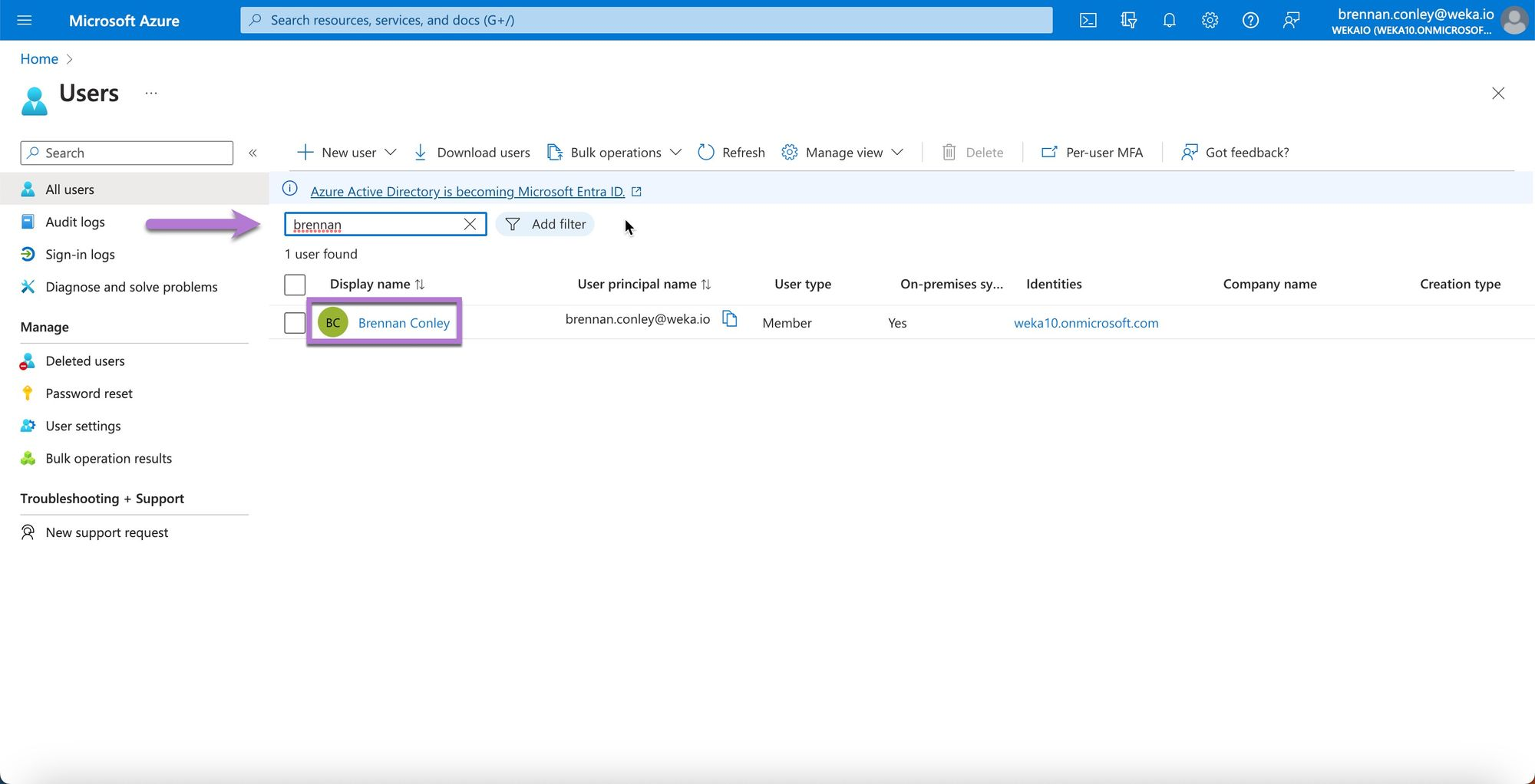
2. Locate the user by typing part of their username and select their name from the list.
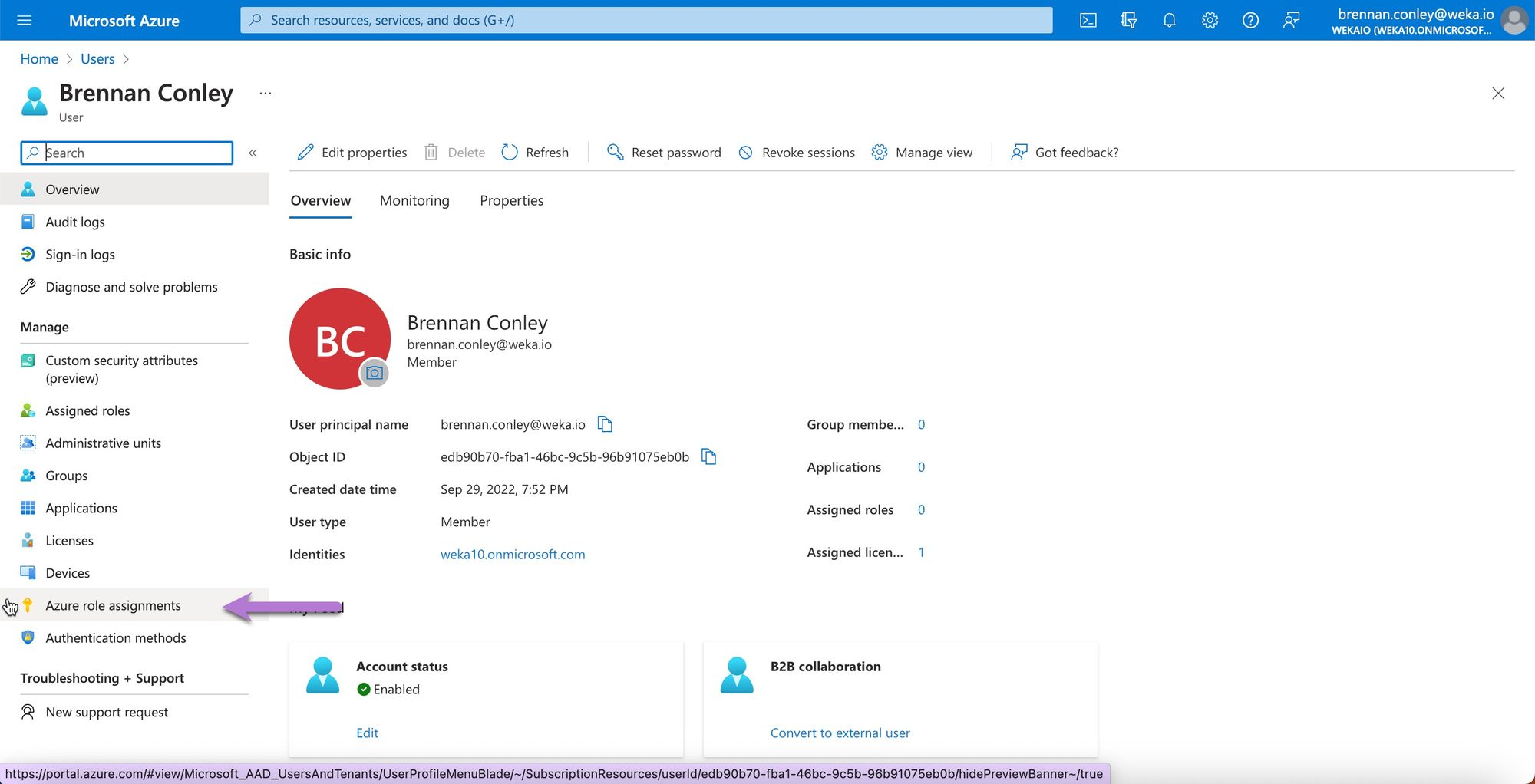
3. On the user page, select **Azure Role Assignments**.
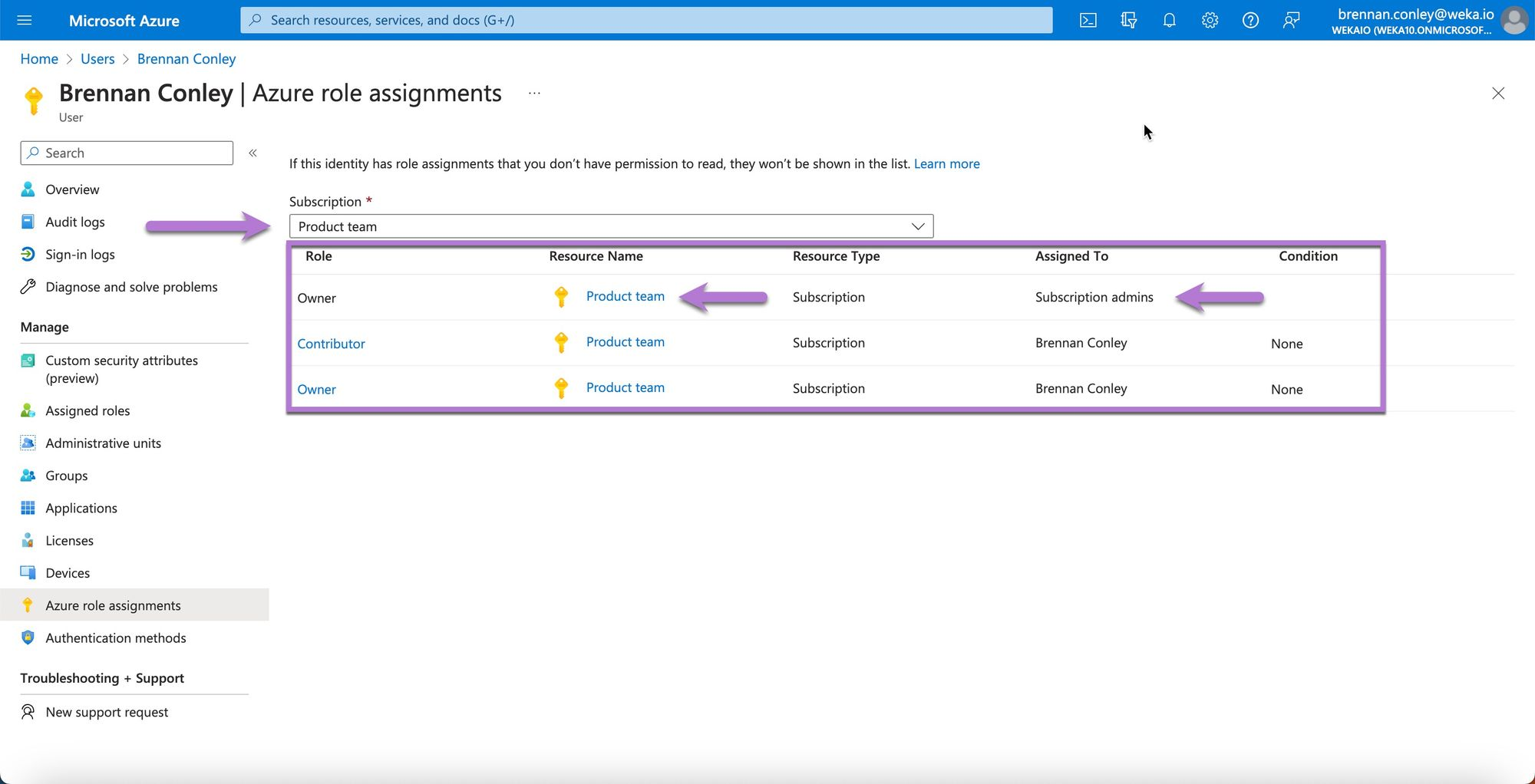
4. Verify the user's roles to ensure they are assigned as an **Owner** or **Contributor** for the Subscription used for WEKA deployment.
After confirming the user's permissions, verify the resource quotas.
### Verify resource quotas
When deploying resources in Microsoft Azure, ensure sufficient quotas are set for the specific resources needed. For instance, when deploying Lsv3 virtual instances for the WEKA backend cluster, configure an adequate vCPU quota for the Lsv3 instance type. Azure specifies quotas on a per-instance or per-instance-family basis.
If you or your customer have not used a particular instance type before, you must set a sufficient quota to avoid failures during deployment with Terraform. The minimum quota required is equal to the total number of vCPUs needed for the deployment.
#### Procedure
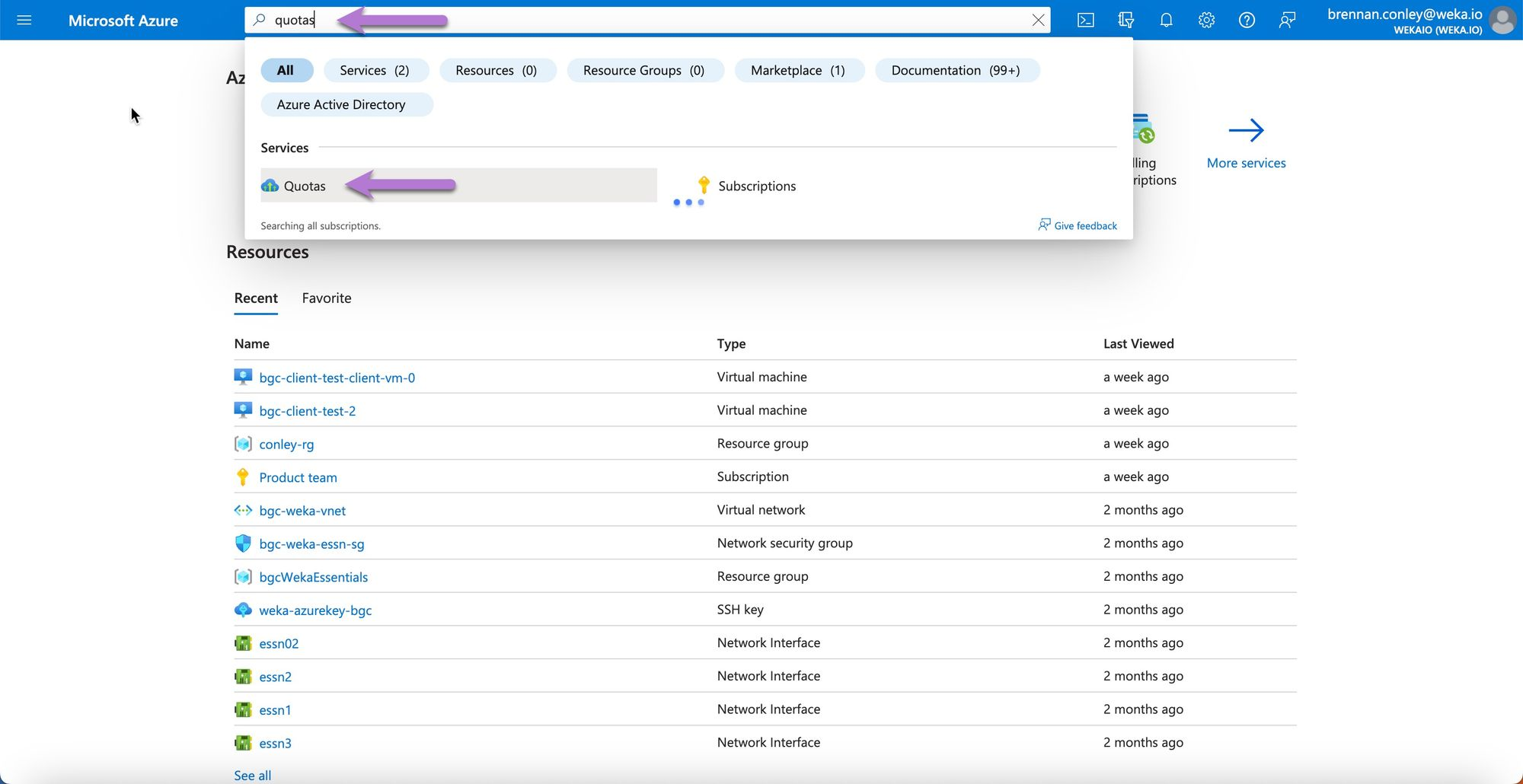
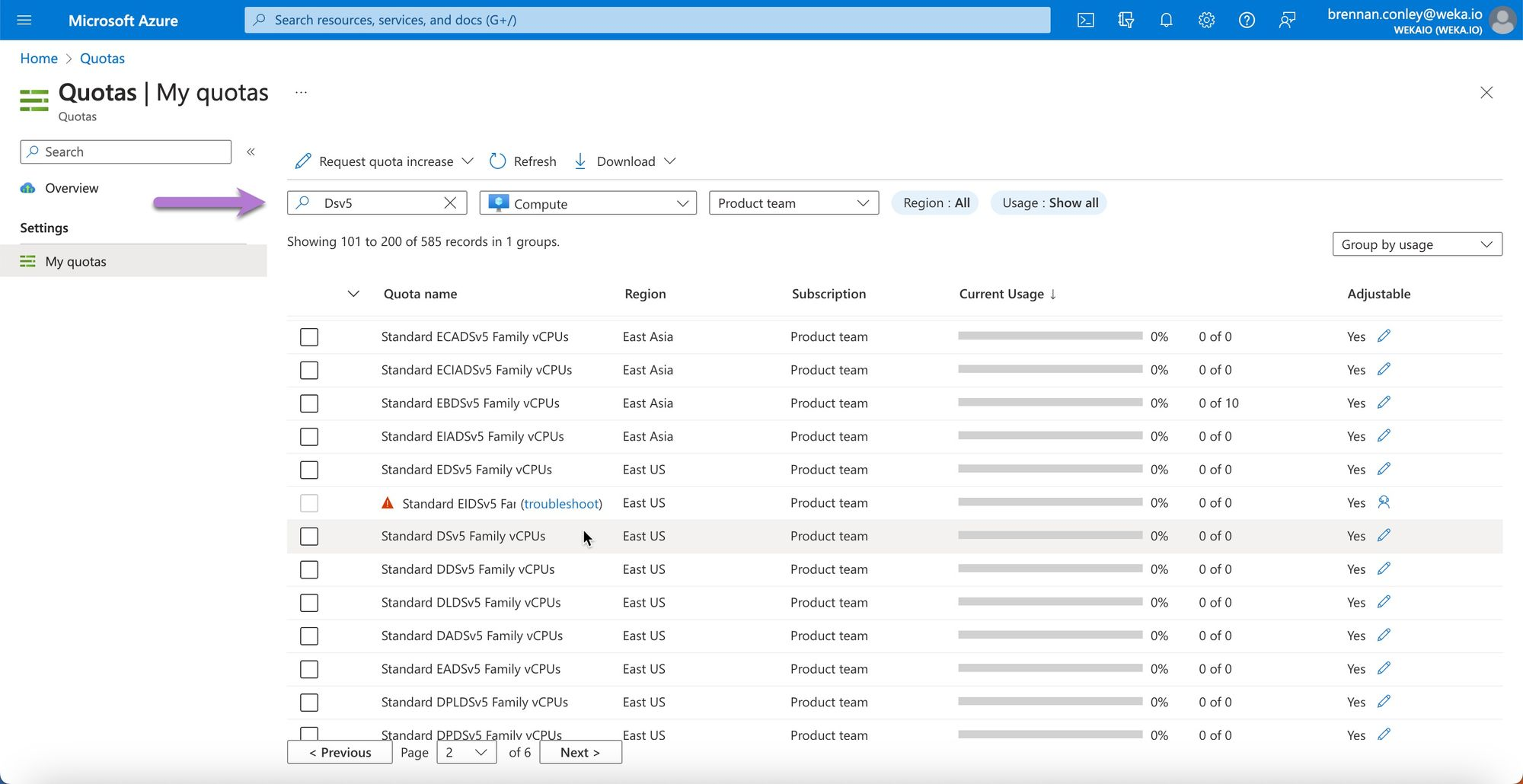
1. In the Azure Portal, search for **Quotas** and select it.
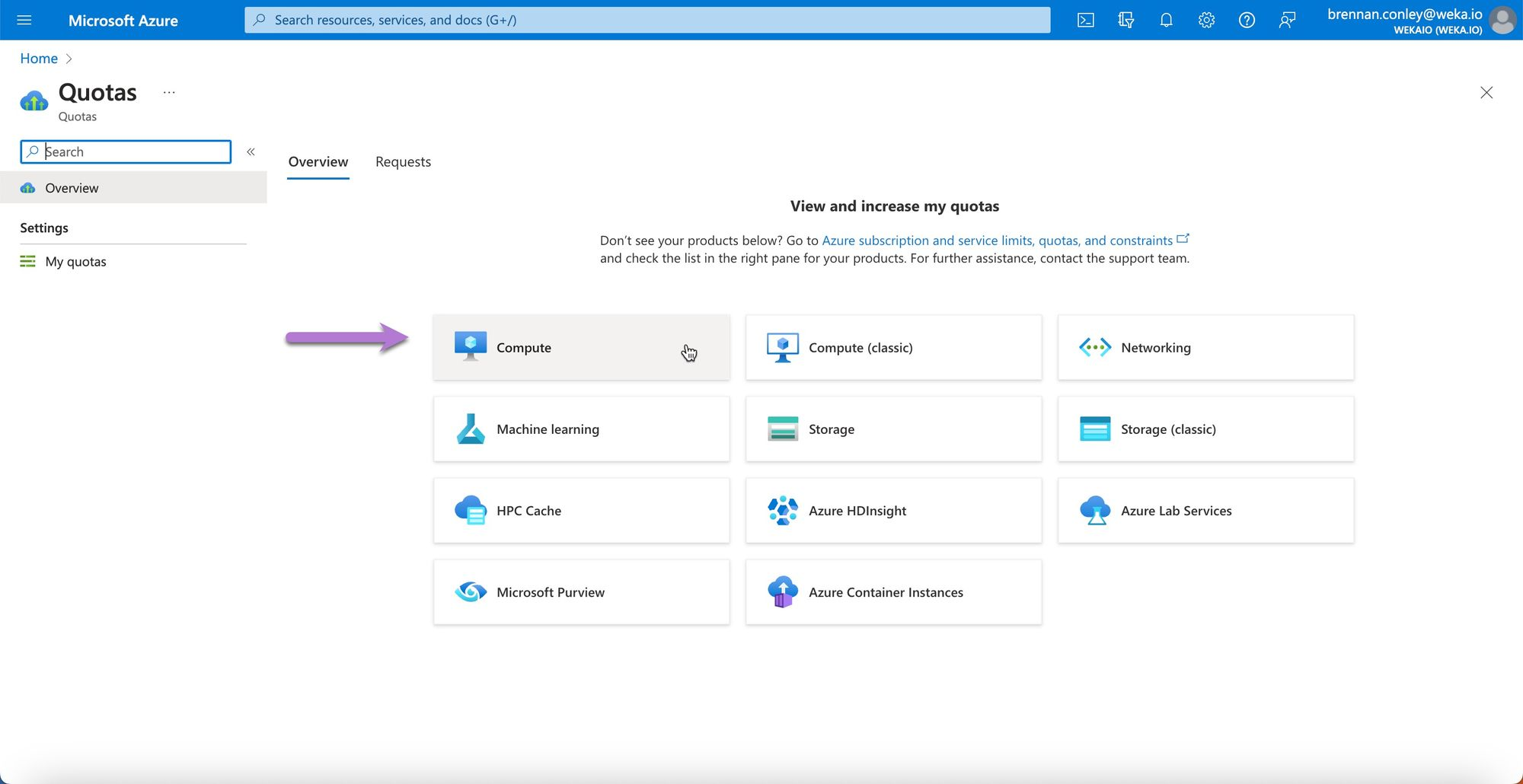
2. On the quotas page, select **Compute**.
3. Search for the instance family or specific instance for which you need to set or check the quota. For example, Dsv5 instances.
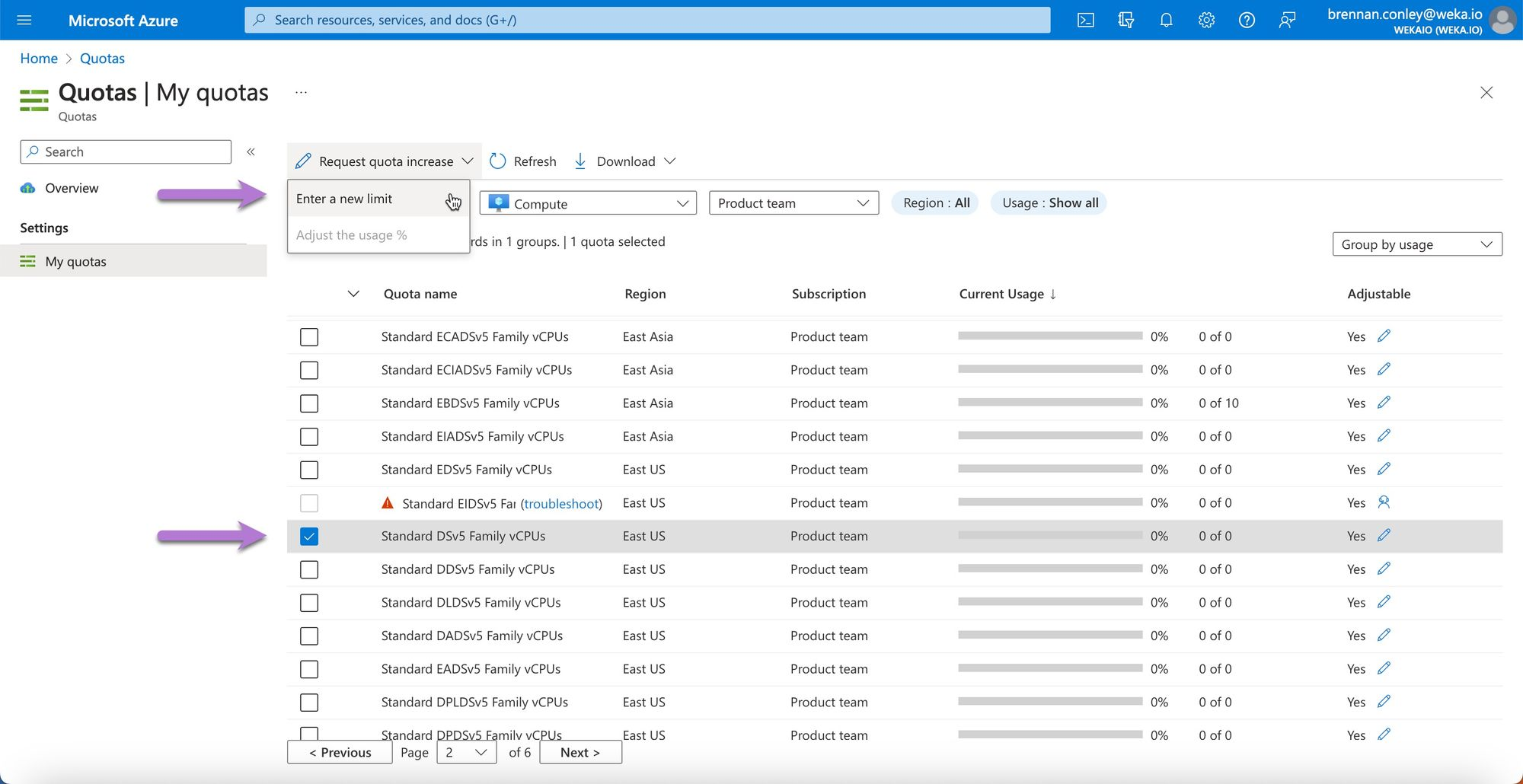
4. Select the checkbox next to the desired instance type, open the **Request quota increase** dropdown, and **Enter a new limit**.
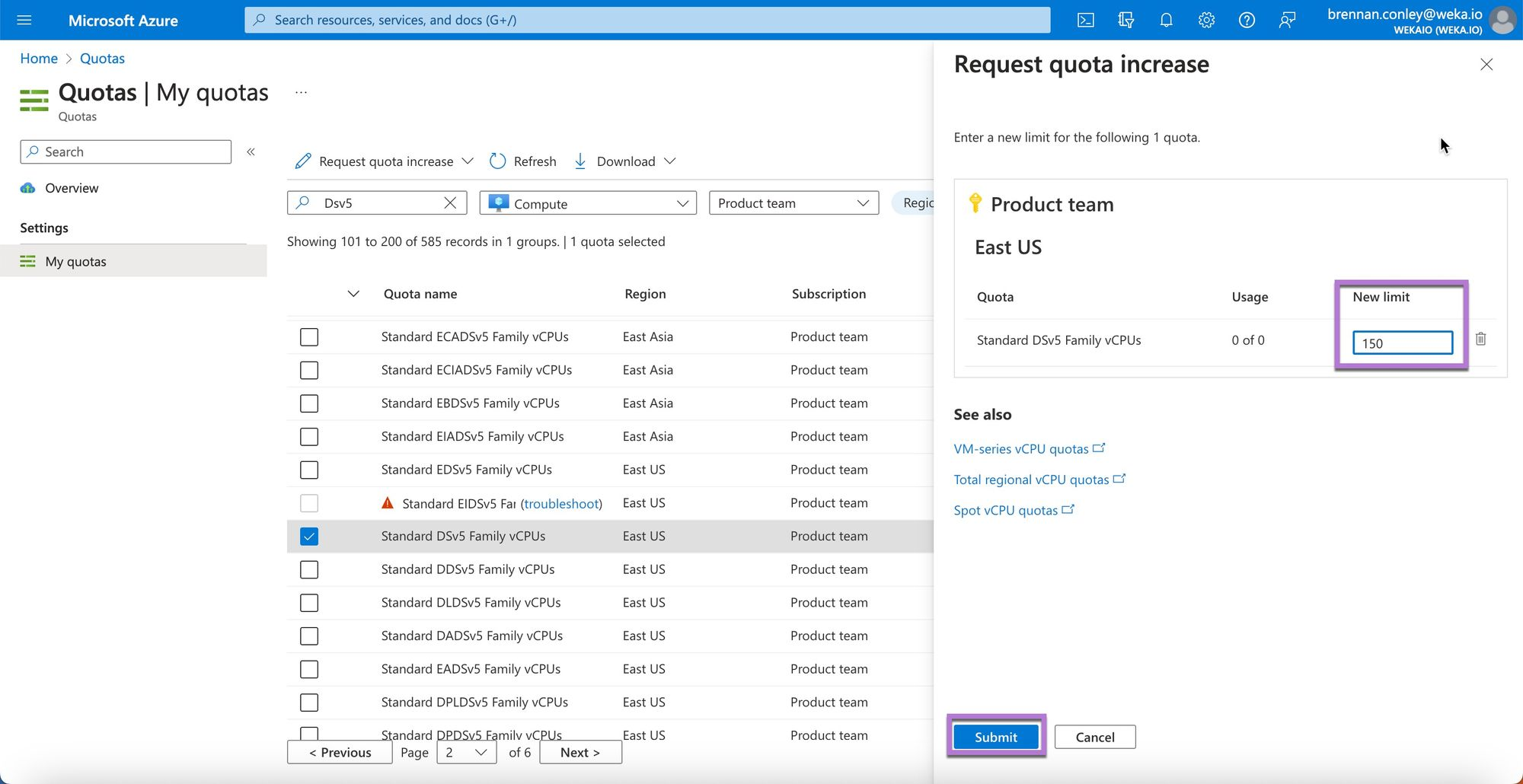
5. In the Request quota increase section, enter the desired number of vCPUs for the instance type or family. For instance, request a new vCPU quota of 150 for the Standard Dsv5 family. Select **Submit**.
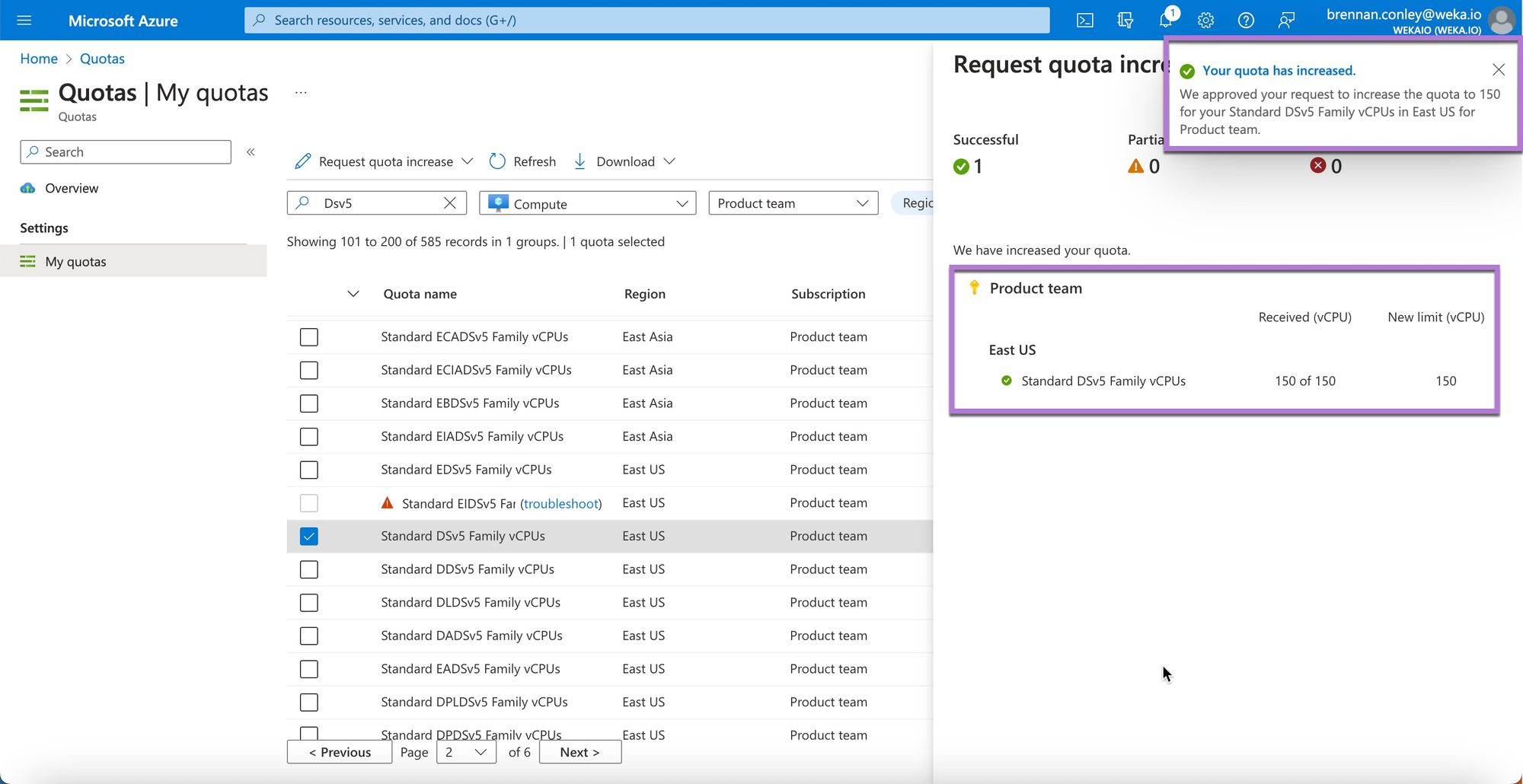
6. Most quota increase requests are approved in real-time, without needing Azure support. However, if requesting a large number of vCPUs or a specialized instance, contacting Azure support may be necessary. The example demonstrates a successful vCPU increase request.
7. Ensure quotas are set for all instances required for the deployment. For WEKA backends, set the quota for the Lsv3 instance family, and any other instance families used for WEKA clients. For a complete listing of available instance sizes, see [Supported virtual machine types](/4.4/planning-and-installation/weka-installation-on-azure/supported-virtual-machine-types.md).
## Azure resource prerequisites
Running WEKA in Azure requires Azure cloud resources for compute, storage, networking, and security. For internal testing, customer POC, or production deployment, a minimum resource configuration is necessary for successful operation.
Many customers may have pre-existing Azure environments that include the required resources, though confirmation is necessary. The following steps assume WEKA is being deployed into a “[blank slate](#user-content-fn-2)[^2]” Azure environment. These instructions also help navigate a customer’s existing environment to ensure WEKA prerequisites are met.
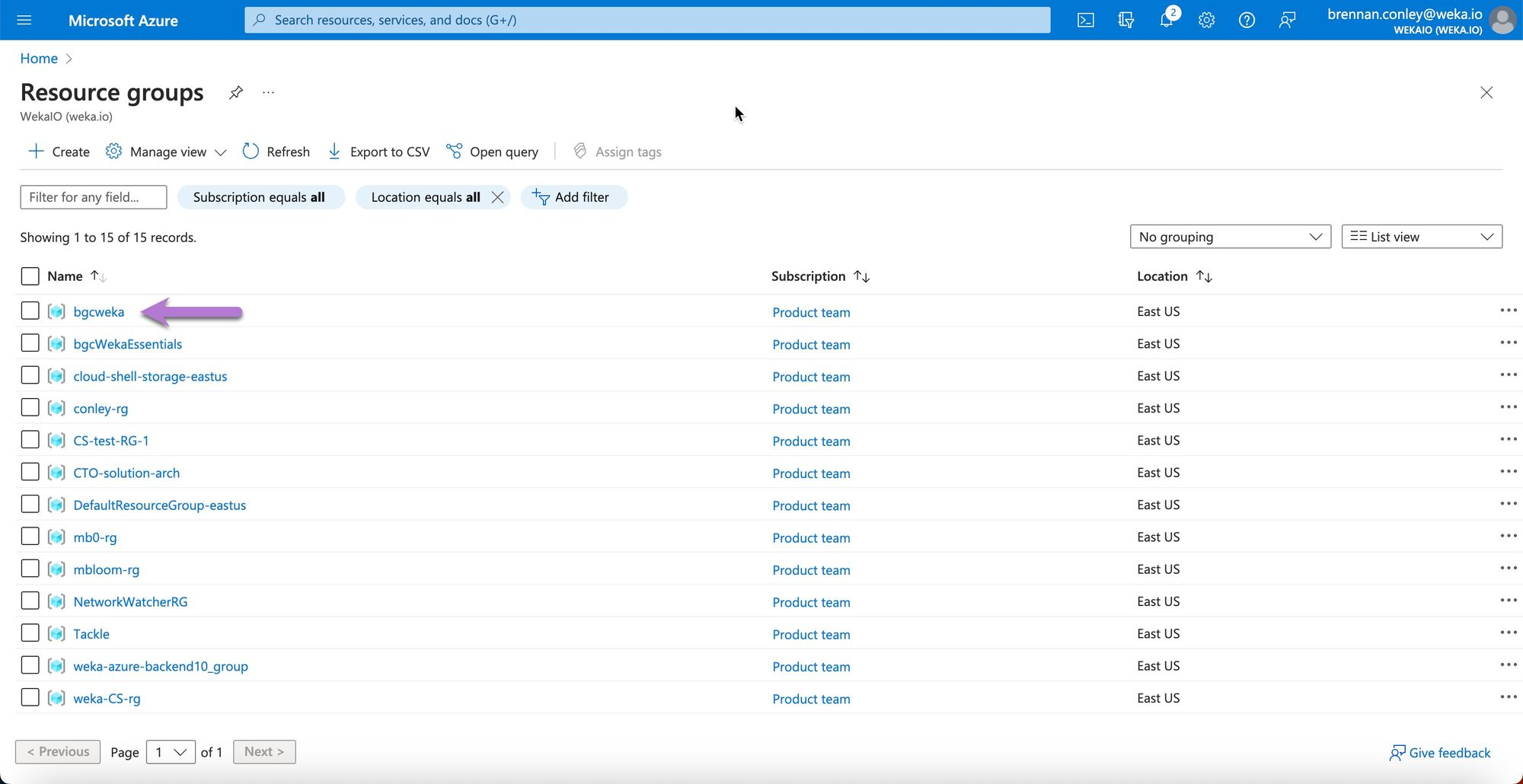
### Create a Resource Group
A Microsoft Azure Resource Group is a fundamental organizational unit that acts as a logical container for resources within an Azure Subscription. It holds resources such as virtual machines, VNets, security groups, and storage accounts. A Resource Group must be available for deploying WEKA and its dependencies.
{% hint style="info" %}
If corporate policies require separating WEKA compute or client instances from network resources, Terraform deployment scripts can accommodate this, as detailed in a later section.
{% endhint %}
#### Procedure
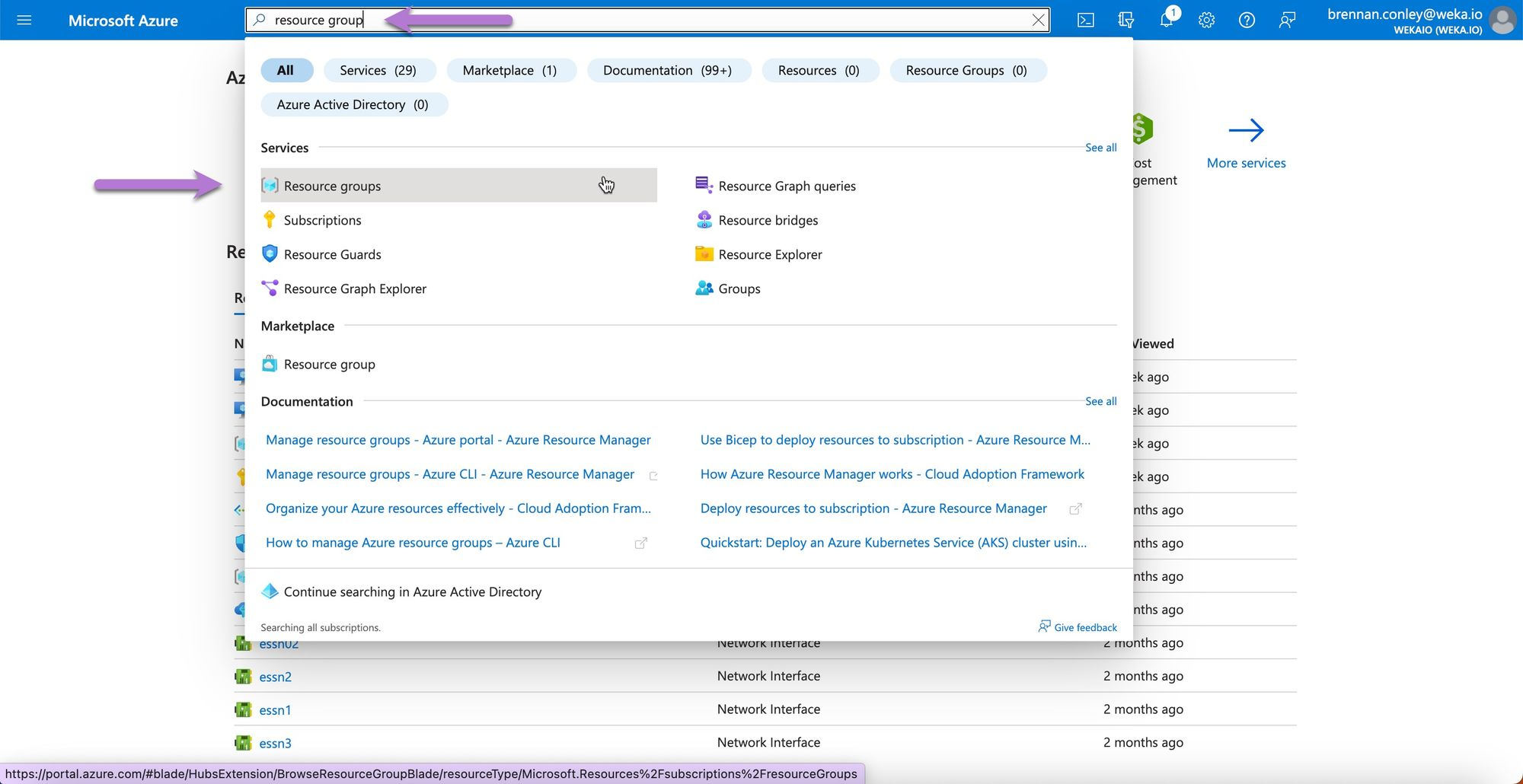
1. In the Azure Portal, search for **Resource groups** and select it.
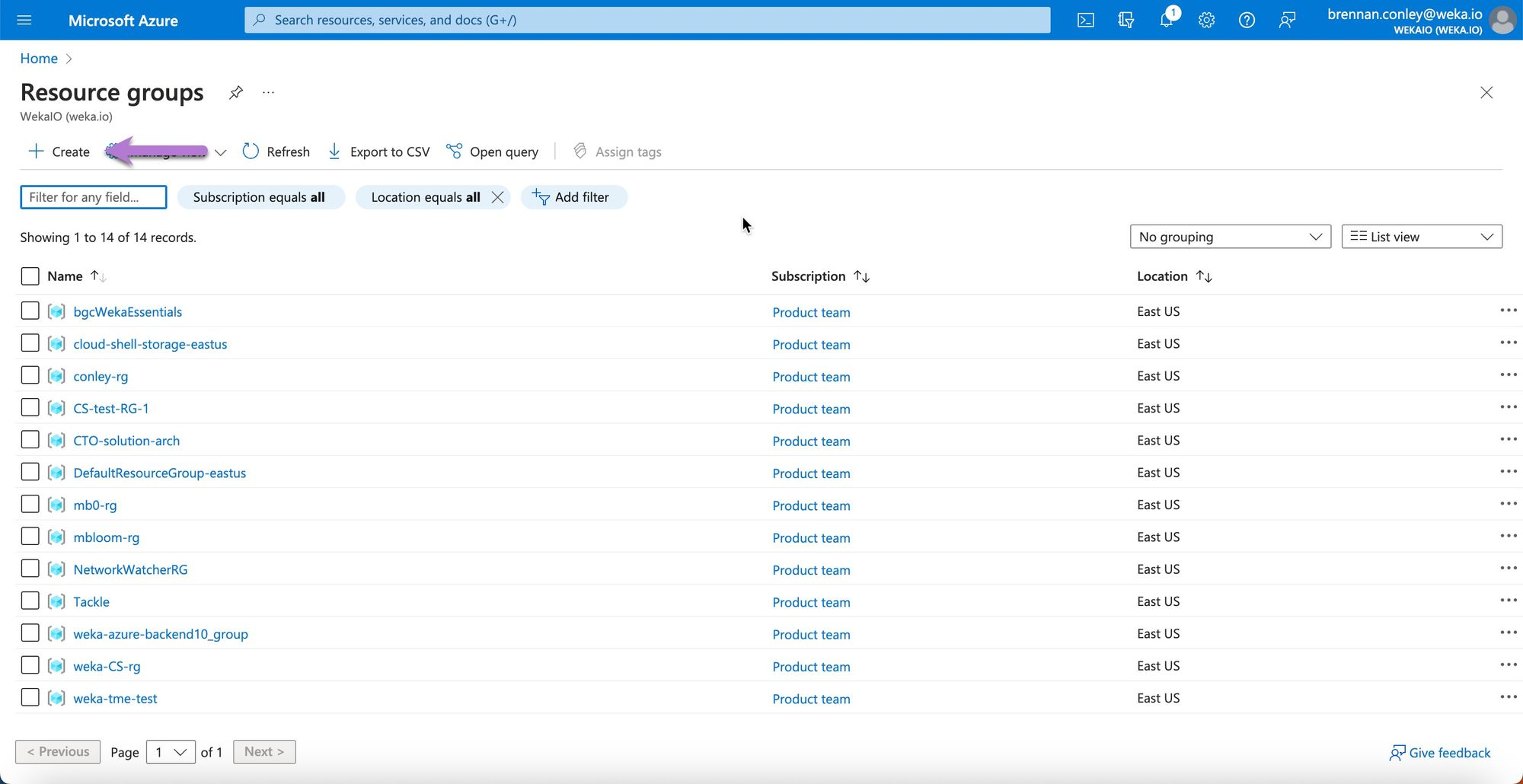
2. On the Resource groups page, select **Create**.
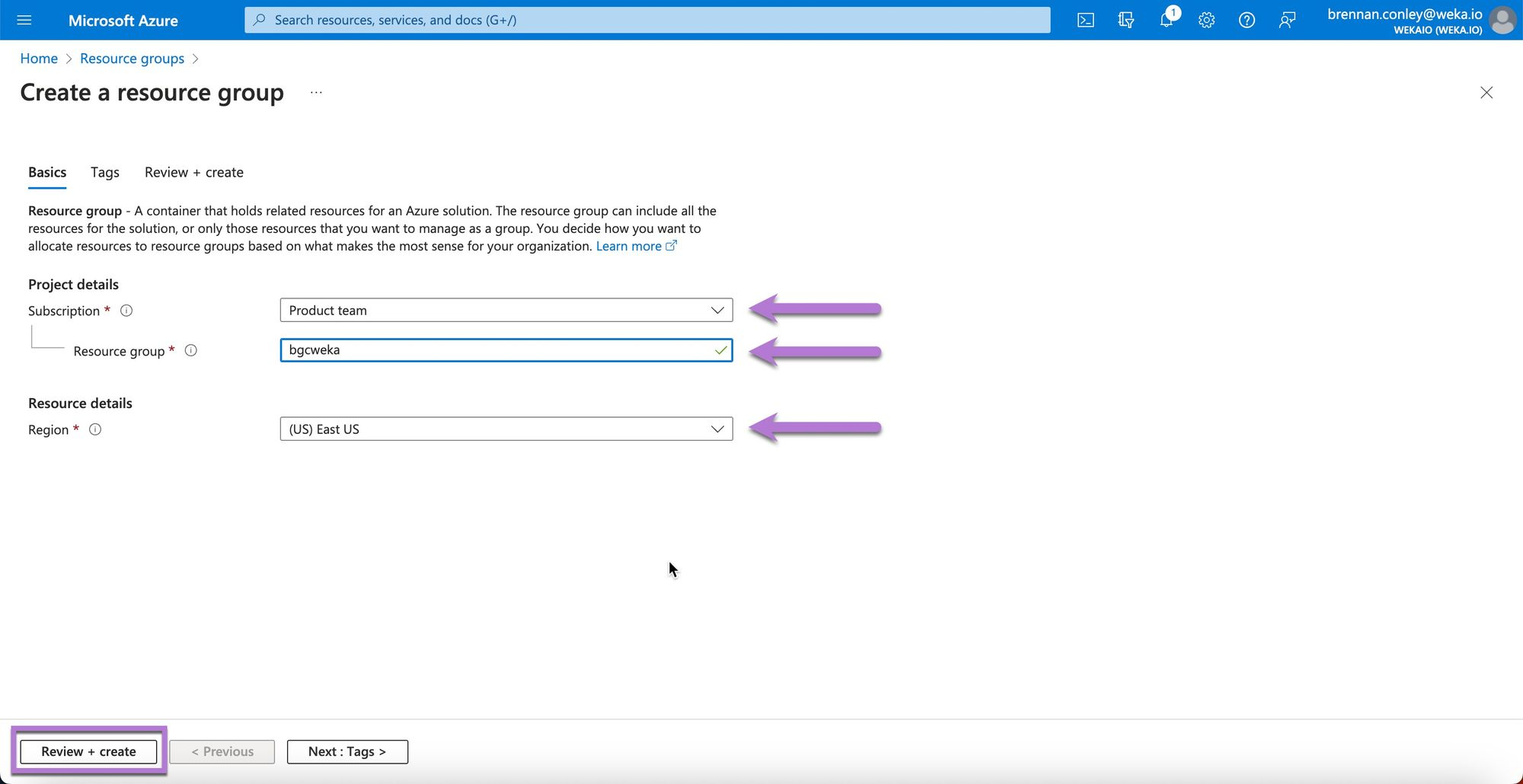
3. On the Create resource group page, enter the required details, ensuring you select the correct subscription and region. Select **Review + create**.\
(Once named, a Resource Group cannot be renamed.)
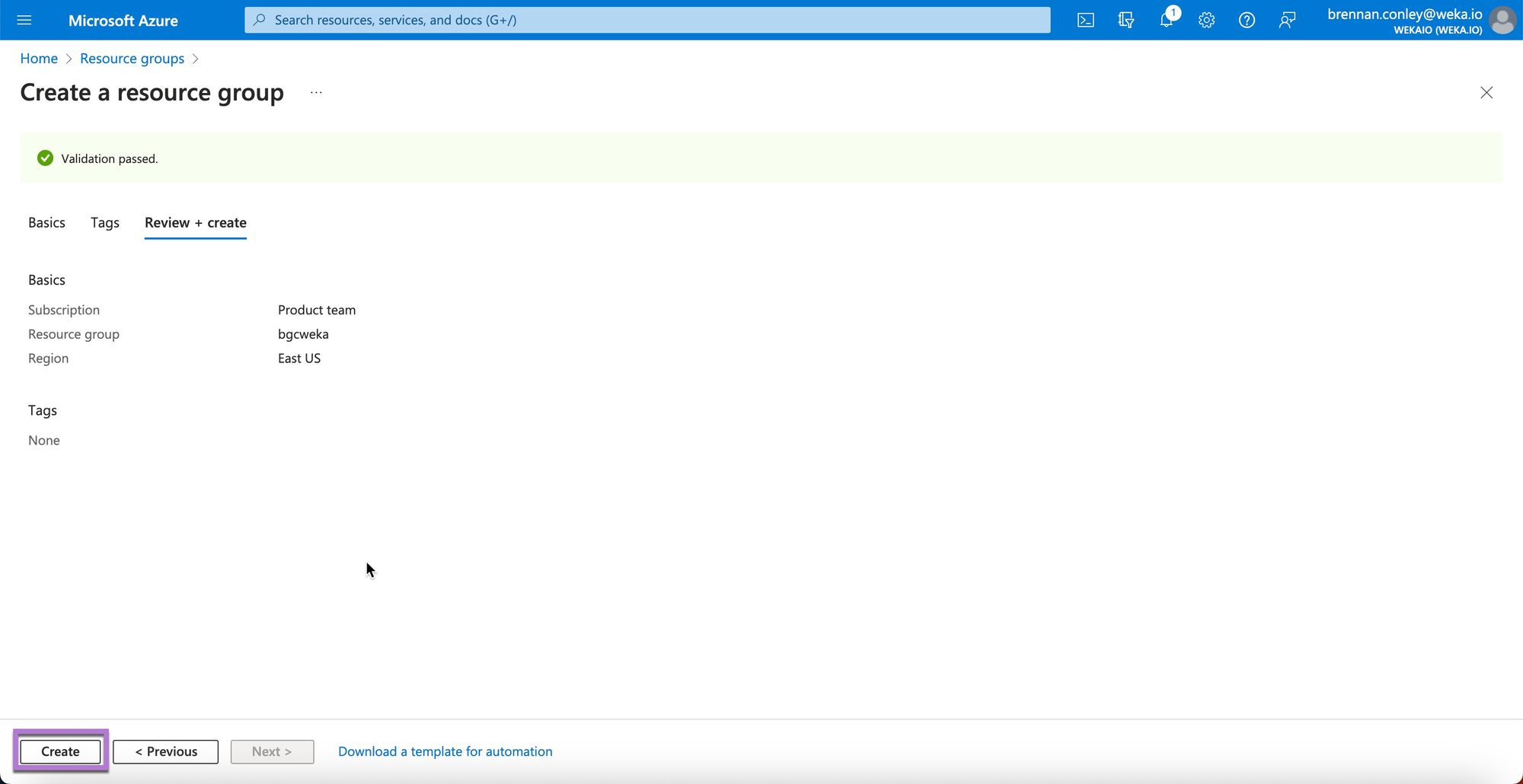
4. Select **Create** to confirm.
5. Review the newly created Resource Group.
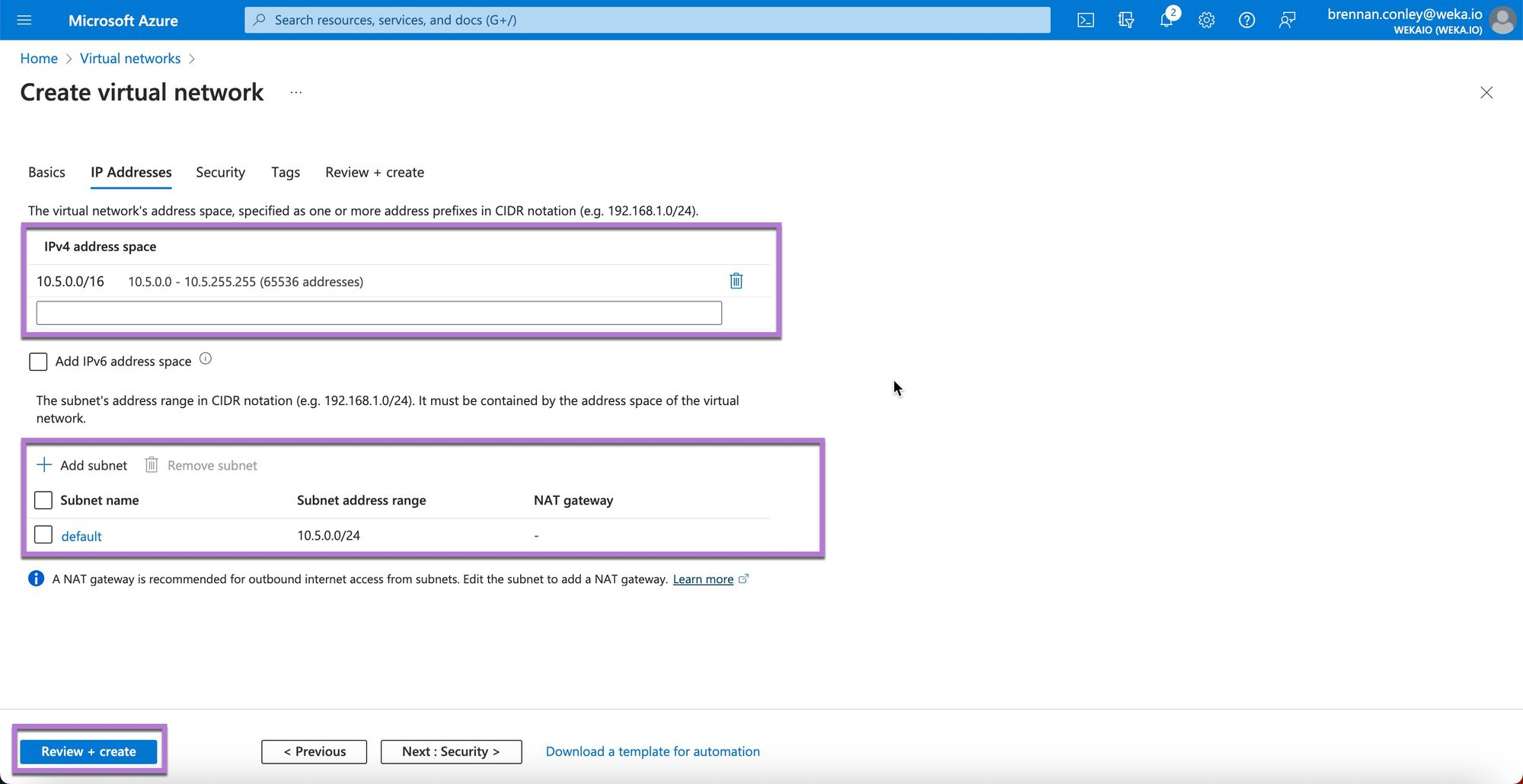
### Create a VNet
A Virtual Network (VNet) in Microsoft Azure is essential for secure communication between Azure resources, such as virtual machines (VMs), and for connecting to the internet and on-premises networks.
A VNet provides logical isolation within the Azure cloud, dedicated to a subscription, and includes subnets that allocate IP address space to VMs.
For WEKA deployment, both management and DPDK traffic must use VNets, with all WEKA cluster backends and POSIX clients placed within the same VNet and subnet. Contact the the [Customer Successes Team](/4.4/support/getting-support-for-your-weka-system.md) for additional guidance.
**Procedure**
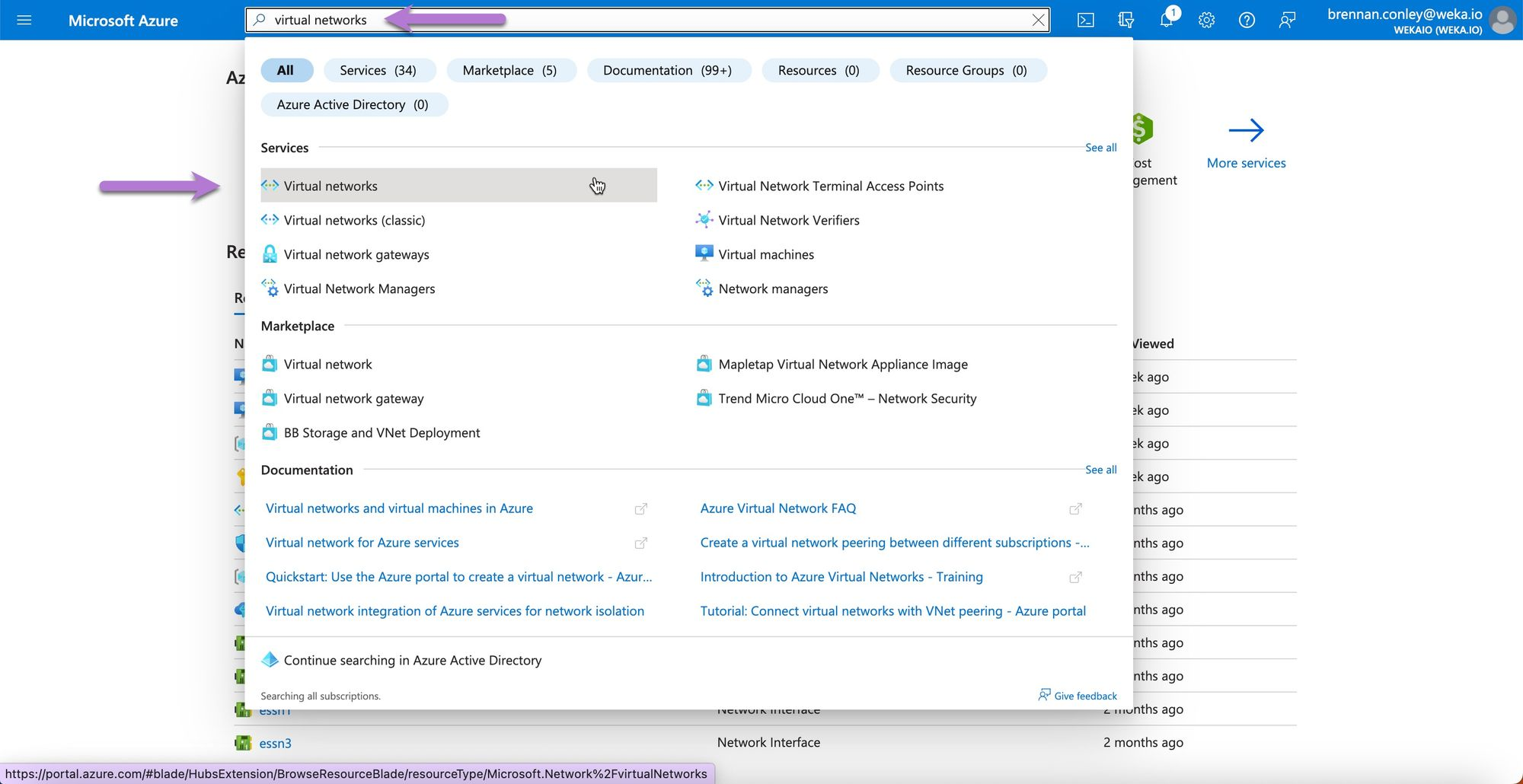
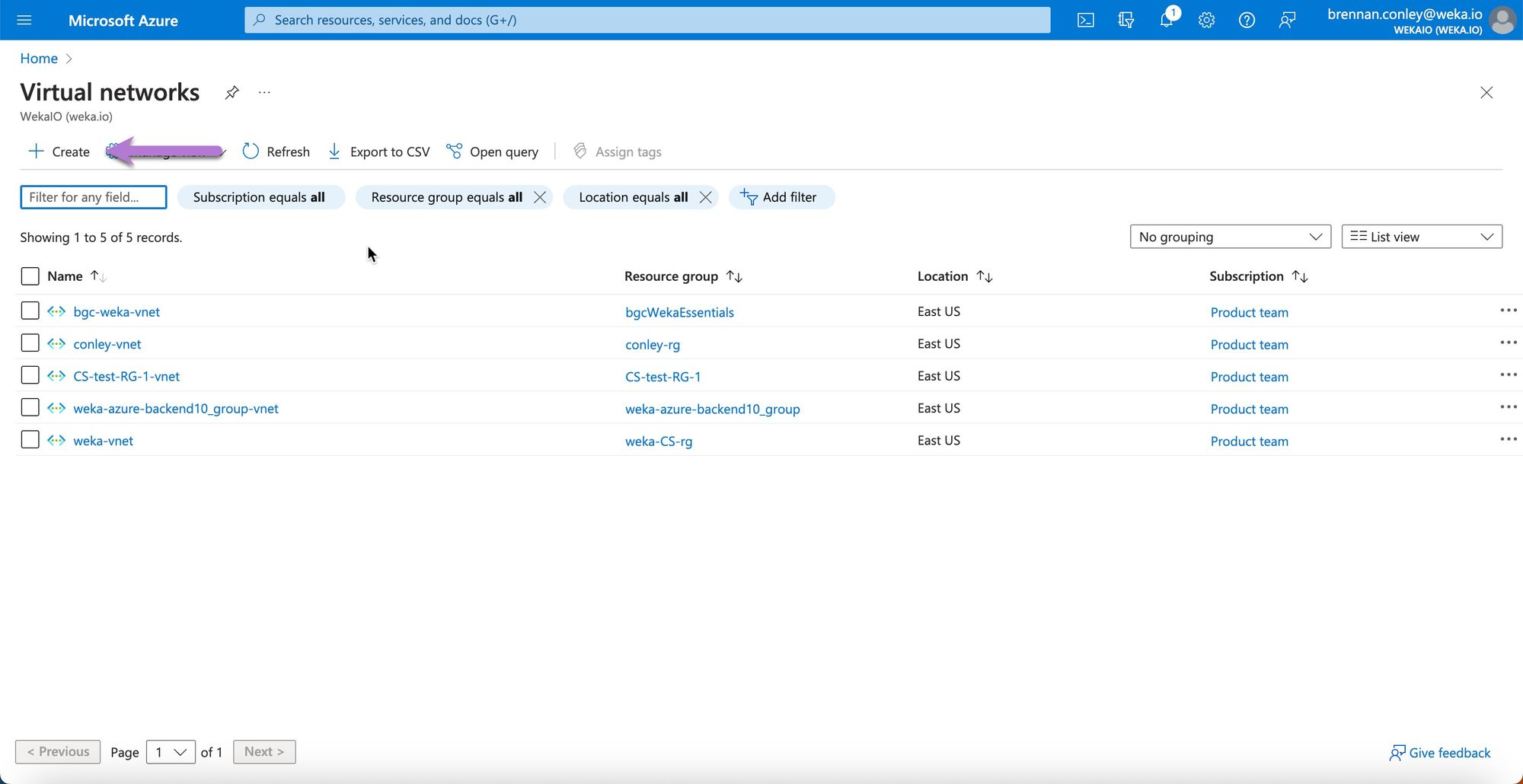
1. In the Azure Portal, search for **Virtual networks** and select it.
2. On the Virtual networks page, Select **Create**.
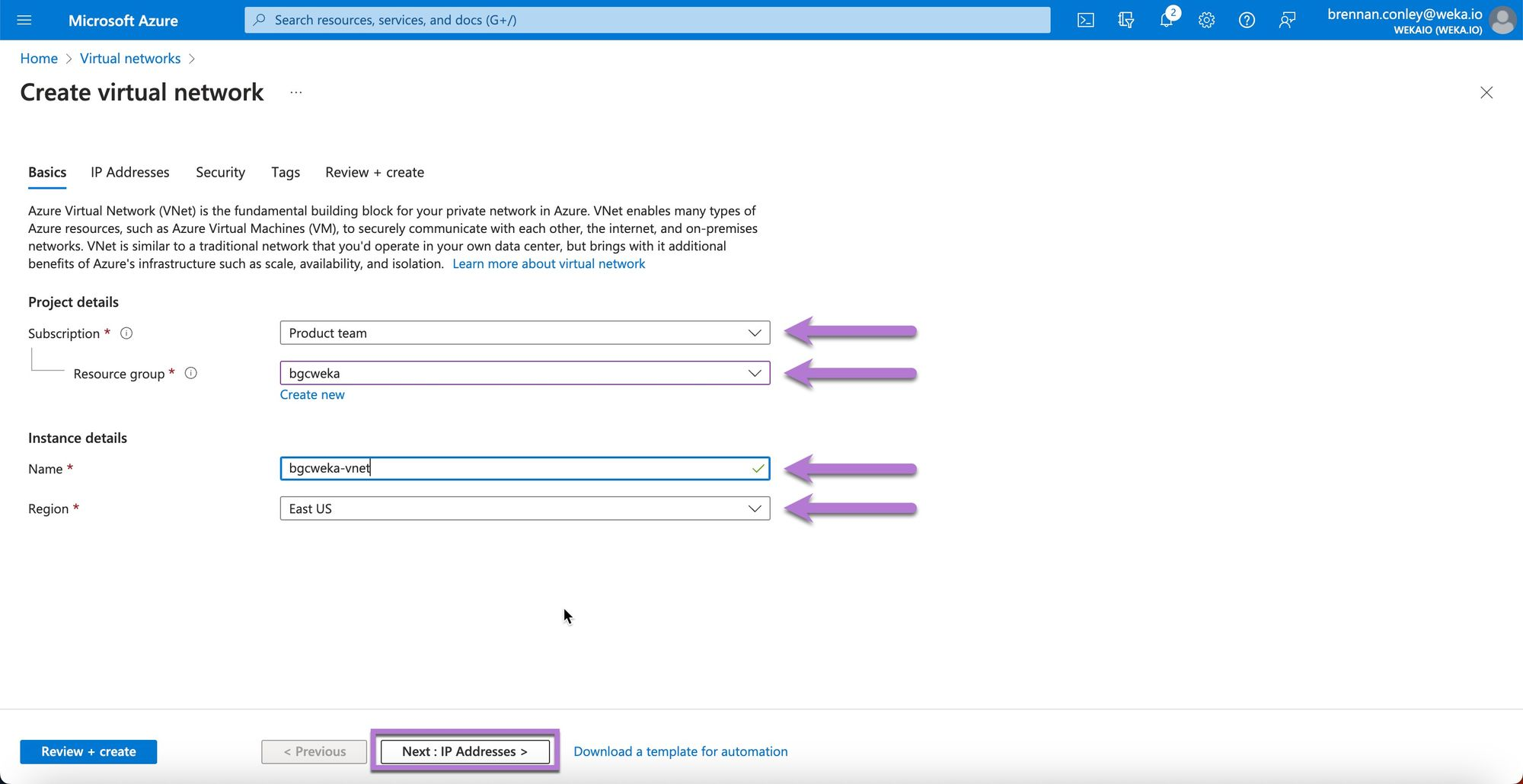
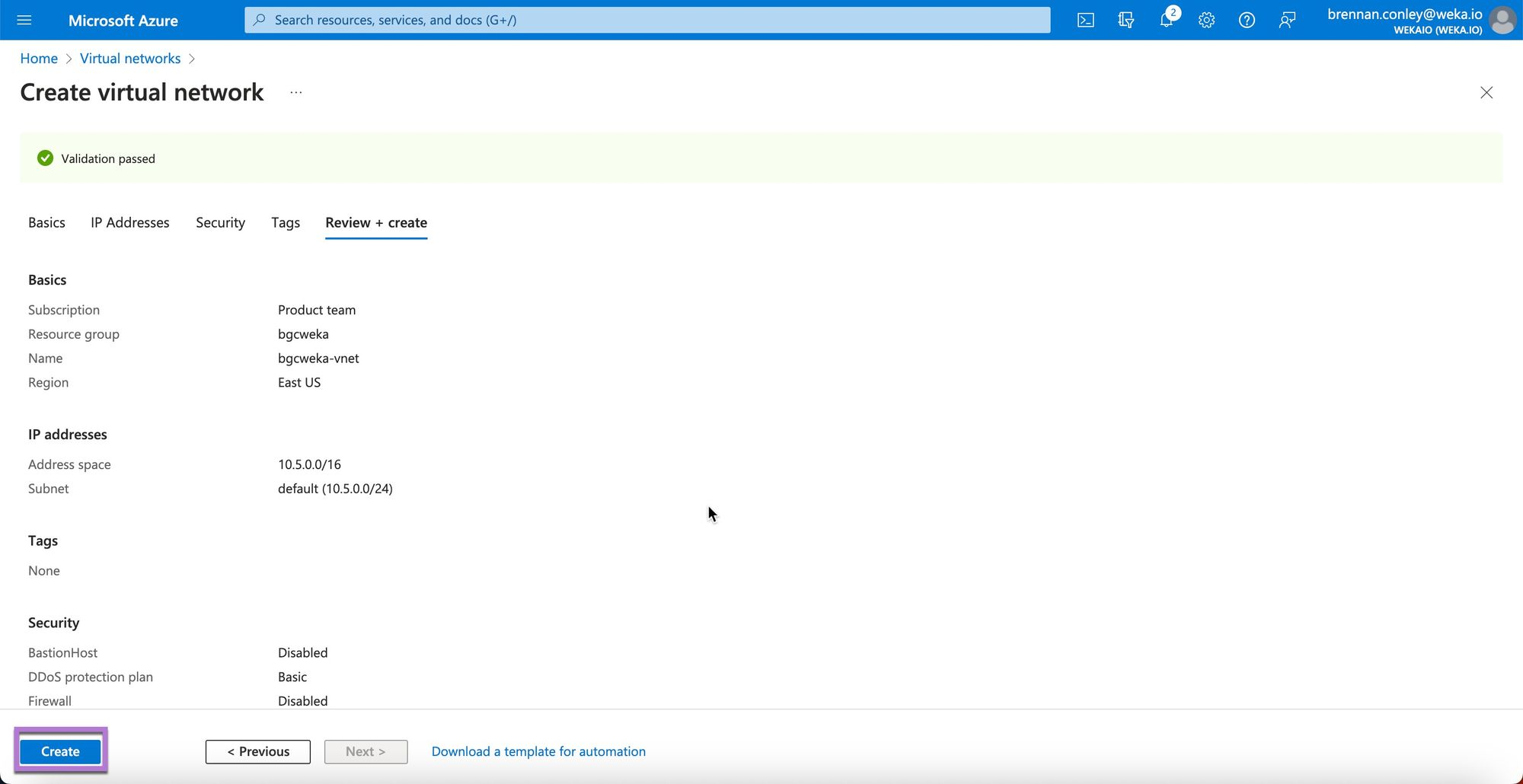
3. On the Create virtual network page, enter the VNet configuration details, including the subscription and resource group from the previous step. Provide a VNet name and region, then Select **Next: IP Addresses**.
4. In the IP Addresses section, specify the IP address space and adjust the default subnet configuration as needed. Select **Review + create** when done.
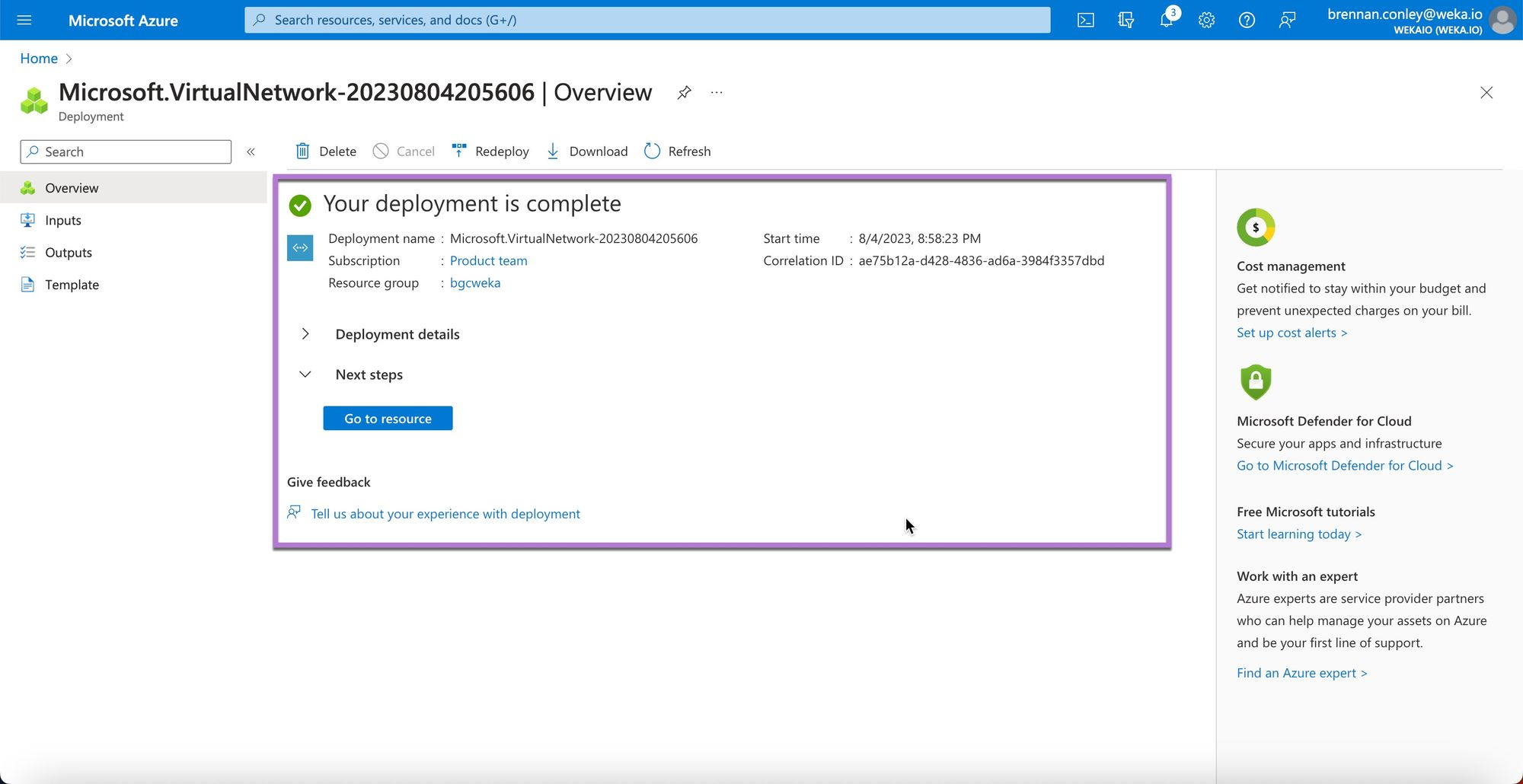
5. Select **Creat**e to confirm.
6. After creation, review the confirmation page and verify the new VNet.
### Create a Network Security Group (NSG)
A Network Security Group (NSG) manages network traffic to Azure resources by applying security rules to control ingress (incoming) and egress (outgoing) traffic. It functions as a firewall for network interfaces (NICs), virtual machines (VMs), and subnets.
{% hint style="info" %}
NSGs start with default rules for basic connectivity, such as allowing outbound communication and denying all inbound traffic from the internet. Custom rules can override these defaults.
{% endhint %}
#### Procedure
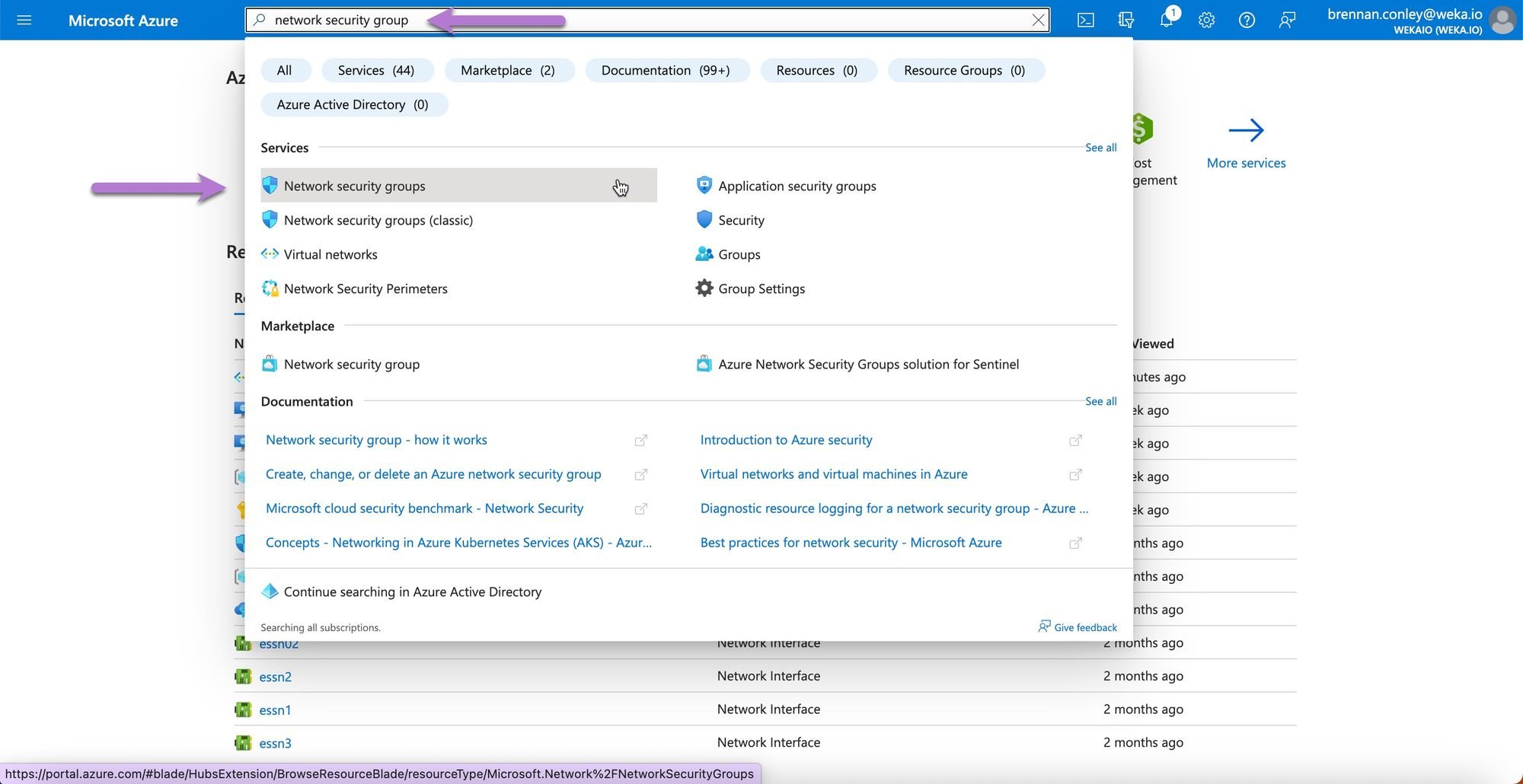
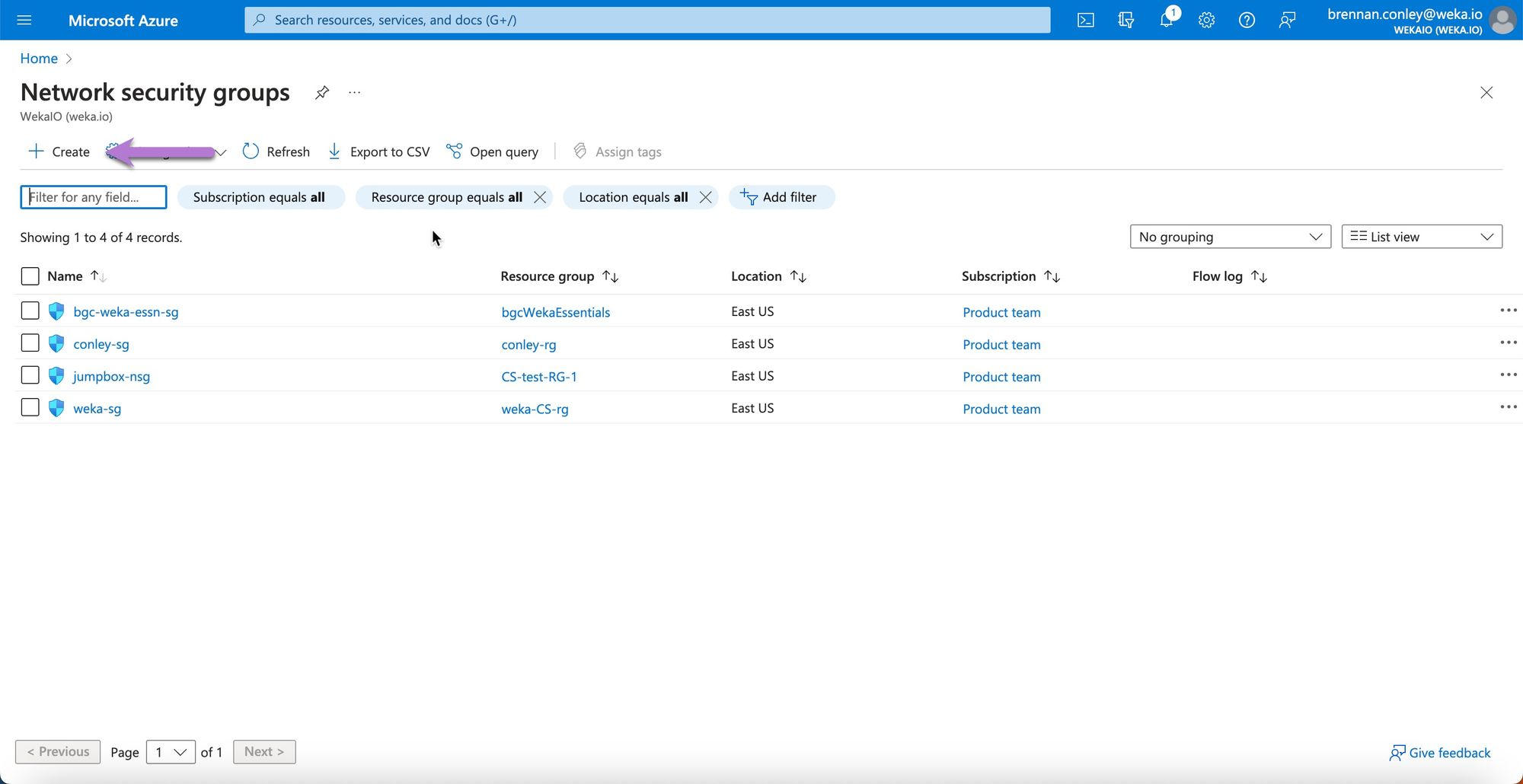
1. In the Azure Portal, search for **Network security groups** and select it.
2. On the Network security groups page, Select **Create**.
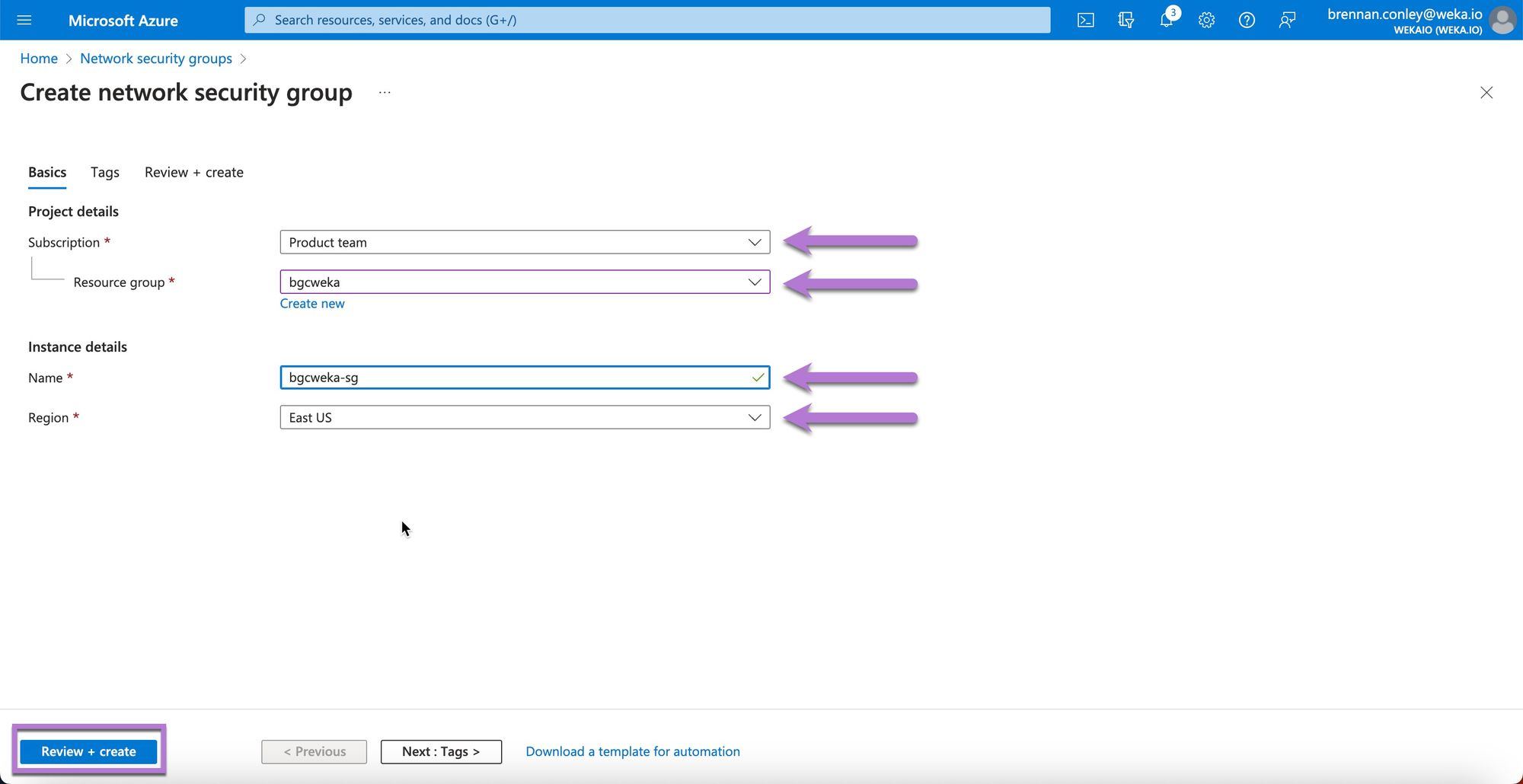
3. On the Create network security group page, enter the required details, including the subscription and resource group from earlier steps. Ensure the region matches other resources. Select **Review + create**.
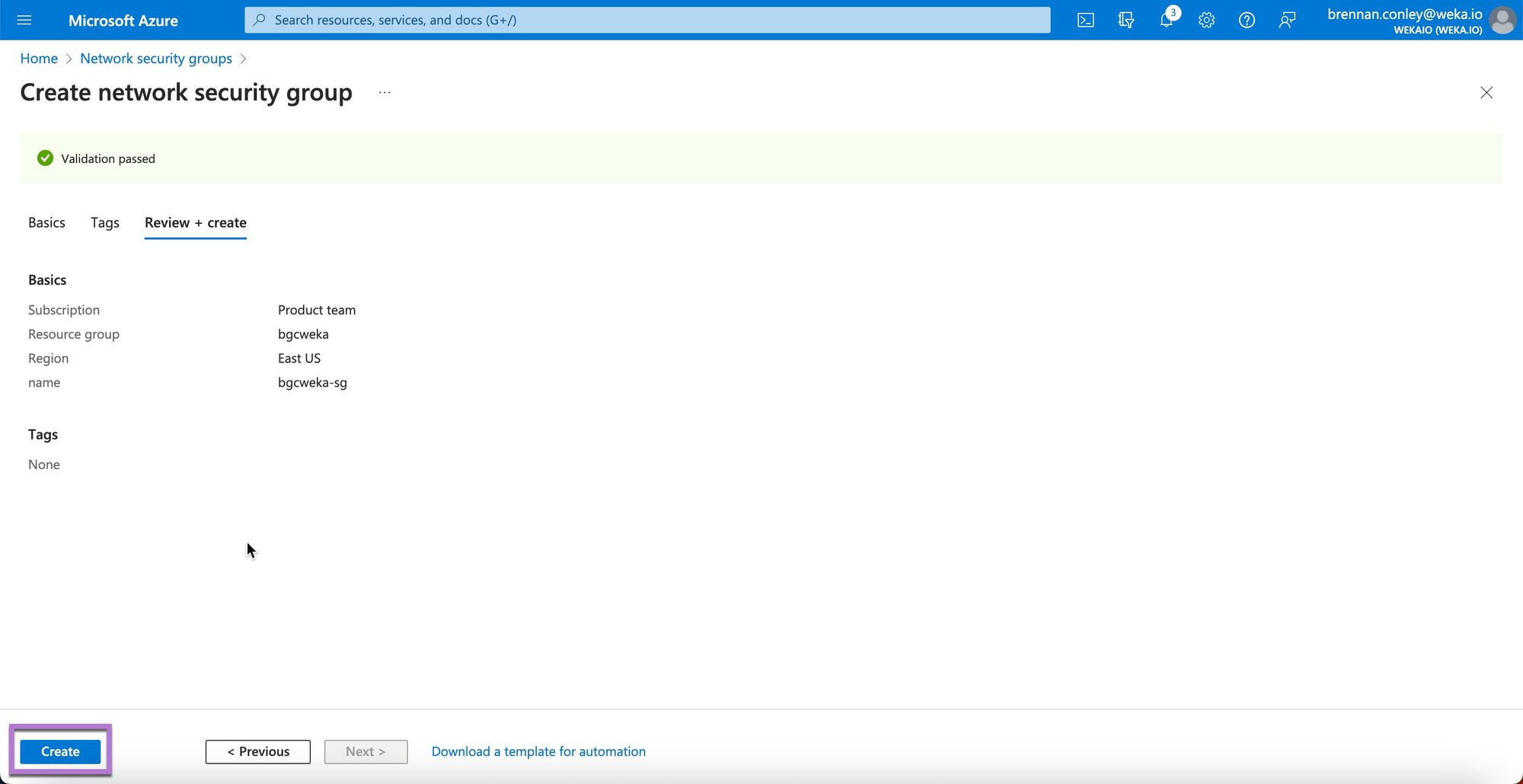
4. Select **Create** to confirm.
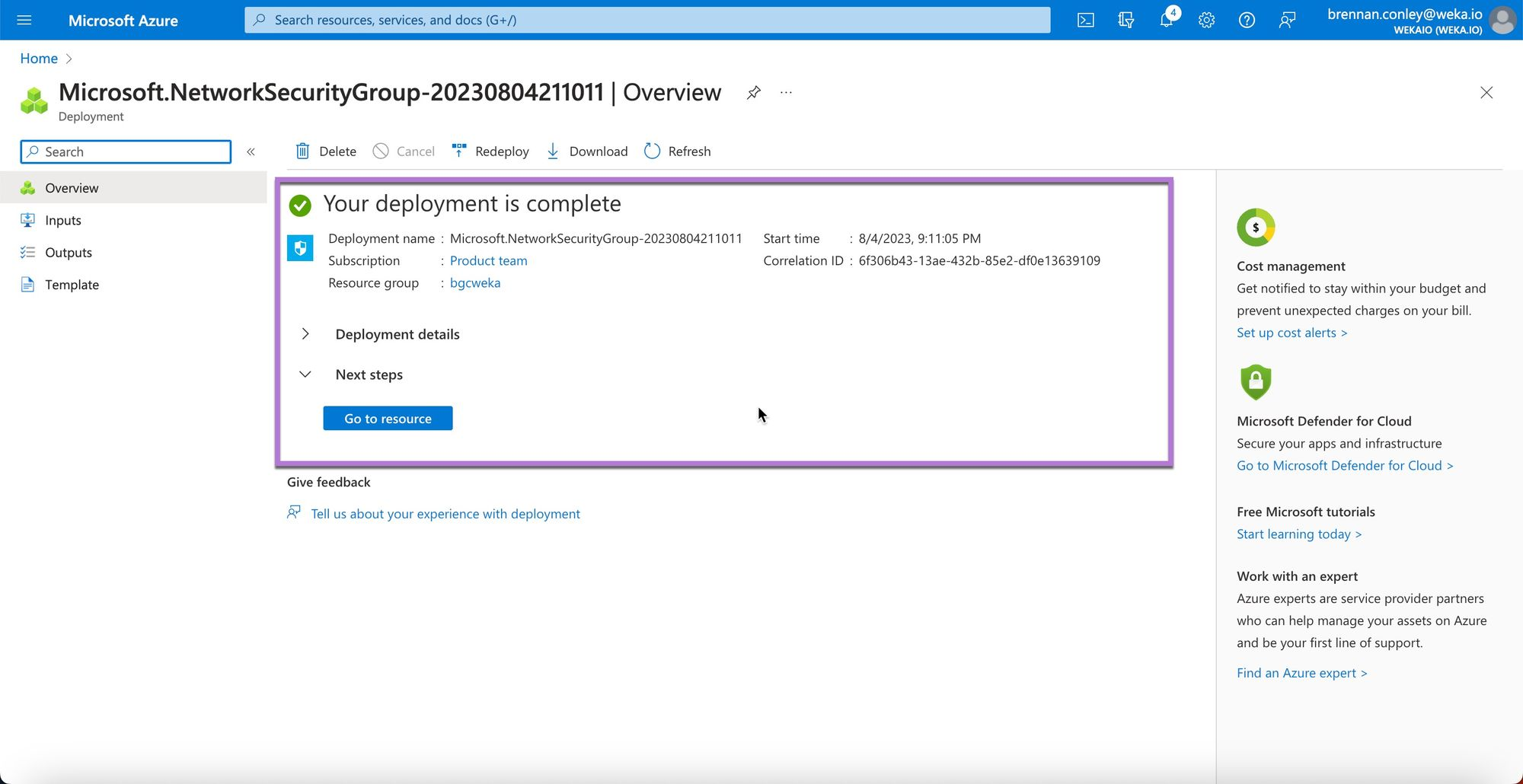
5. After creation, review the confirmation page and verify the new Network Security Group.
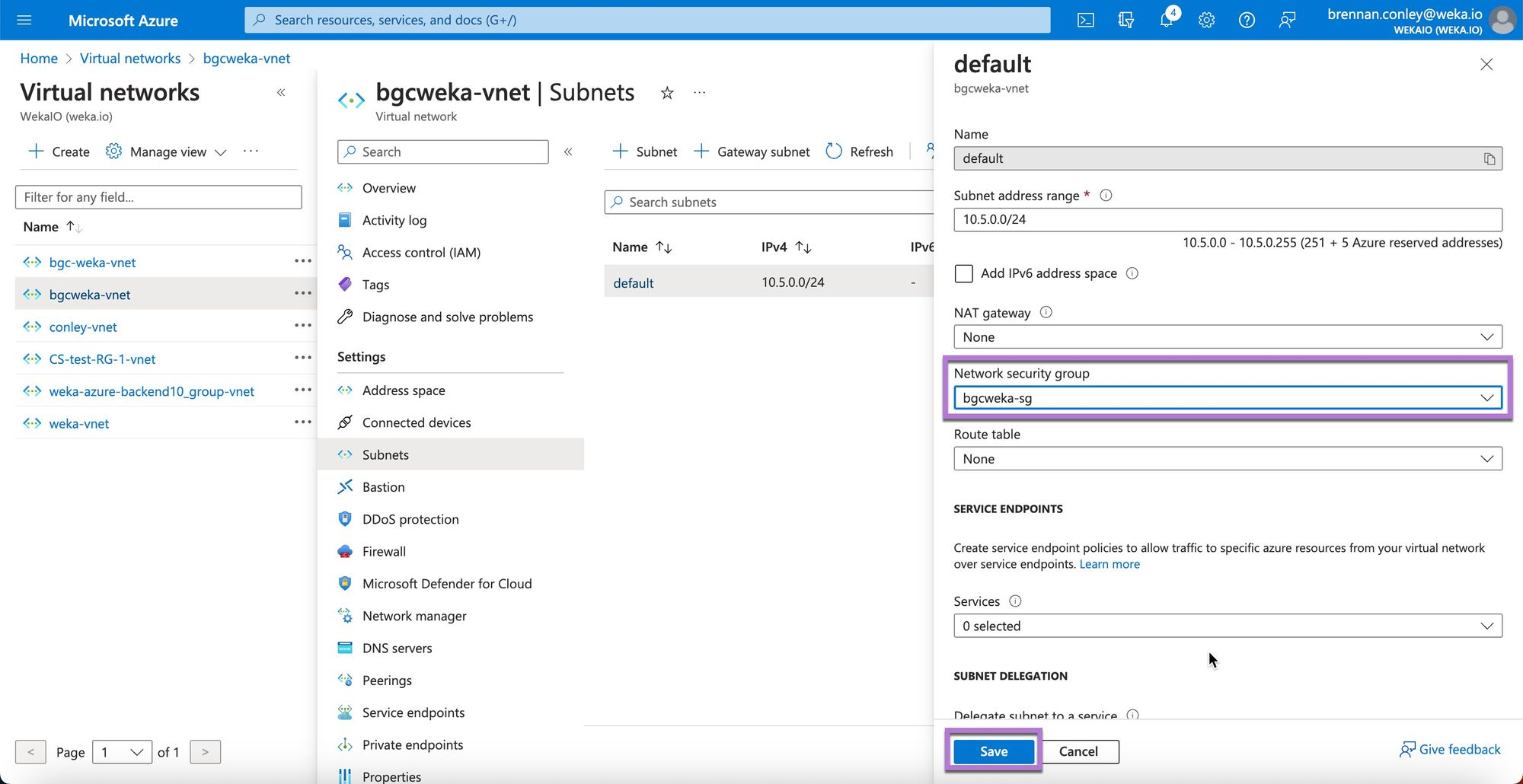
### Associate a Network Security Group with a Subnet
Azure Network Security Groups (NSGs) must be associated with either a subnet or a network interface card (NIC) to be effective. In this deployment example, associate the NSG with the subnet created earlier.
In a customer environment, it might be necessary to adapt these associations based on the existing network architecture and security requirements.
**Procedure**
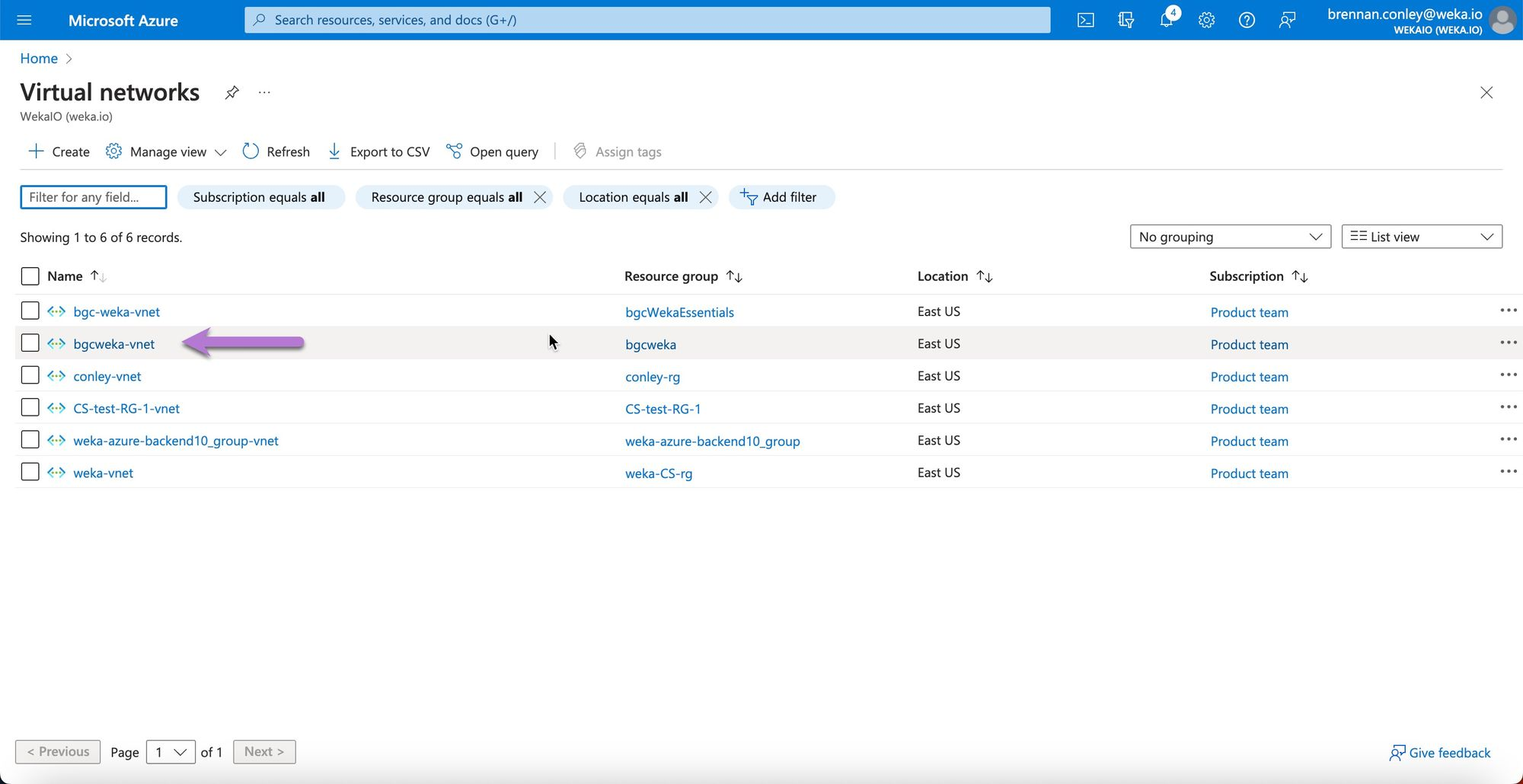
1. Search for **Virtual networks** in the Azure Portal and select it.
2. Select the relevant virtual network from the list.
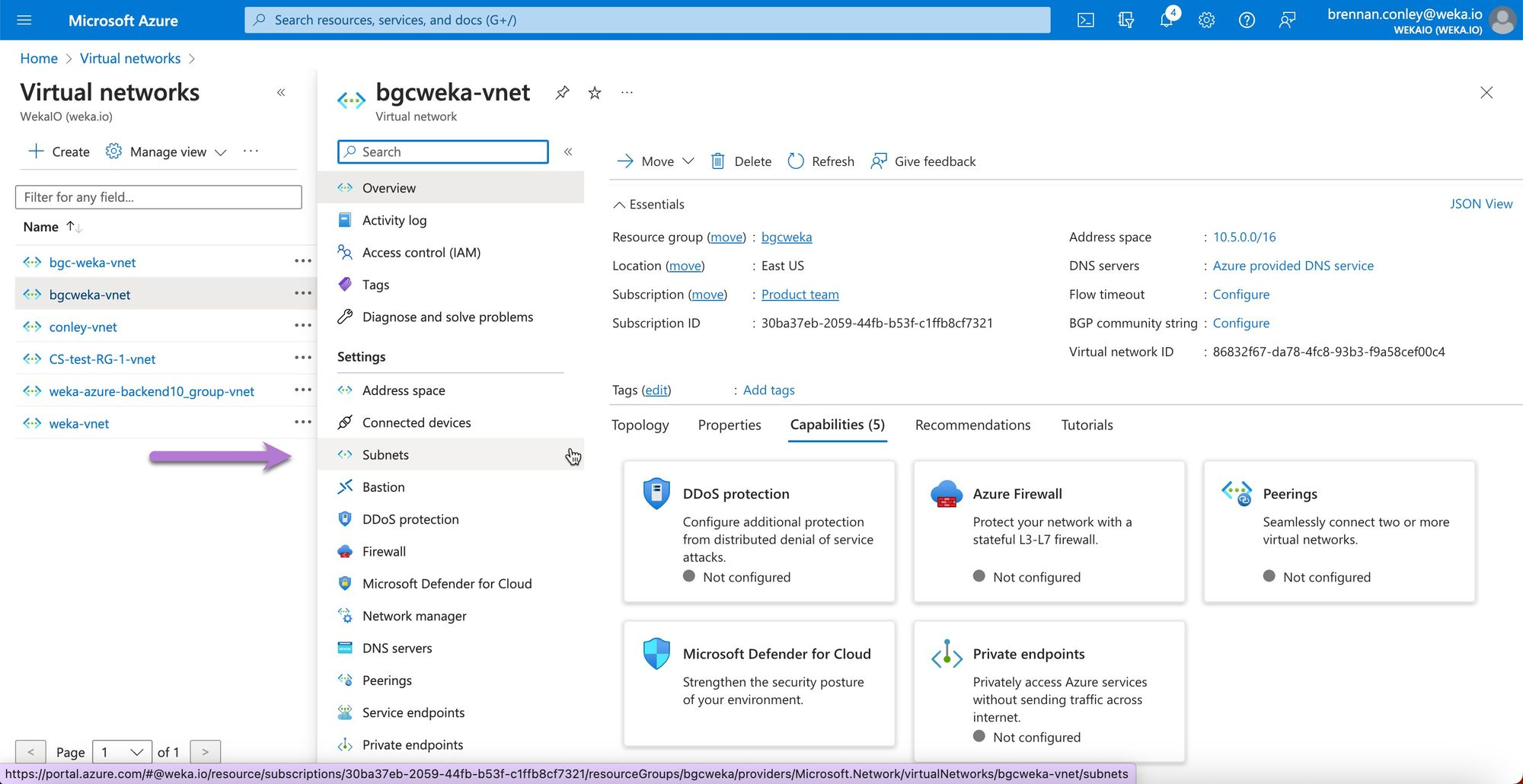
3. In the virtual network configuration screen, Select **Subnets**.
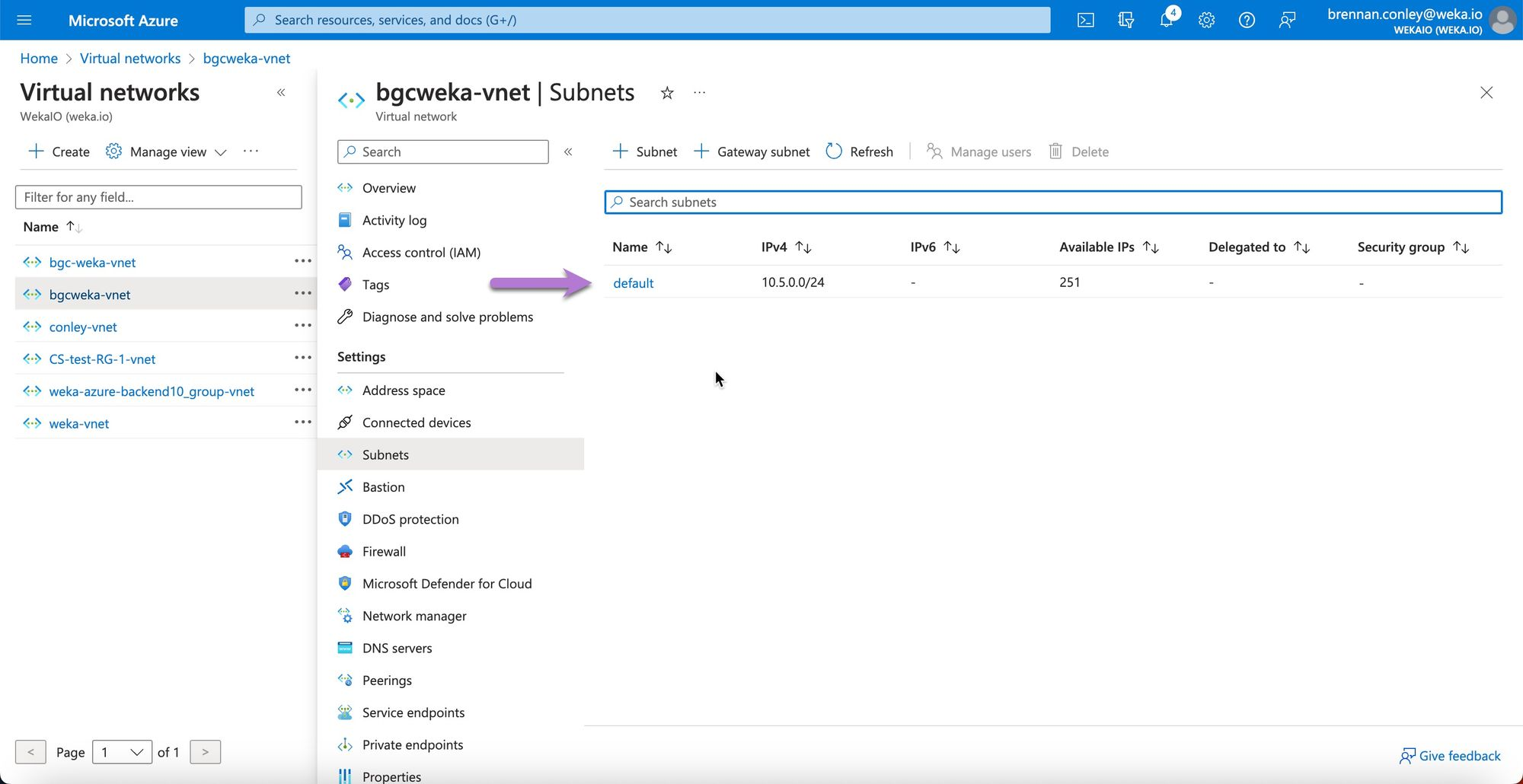
4. Select the relevant subnet (in this example, the default subnet).
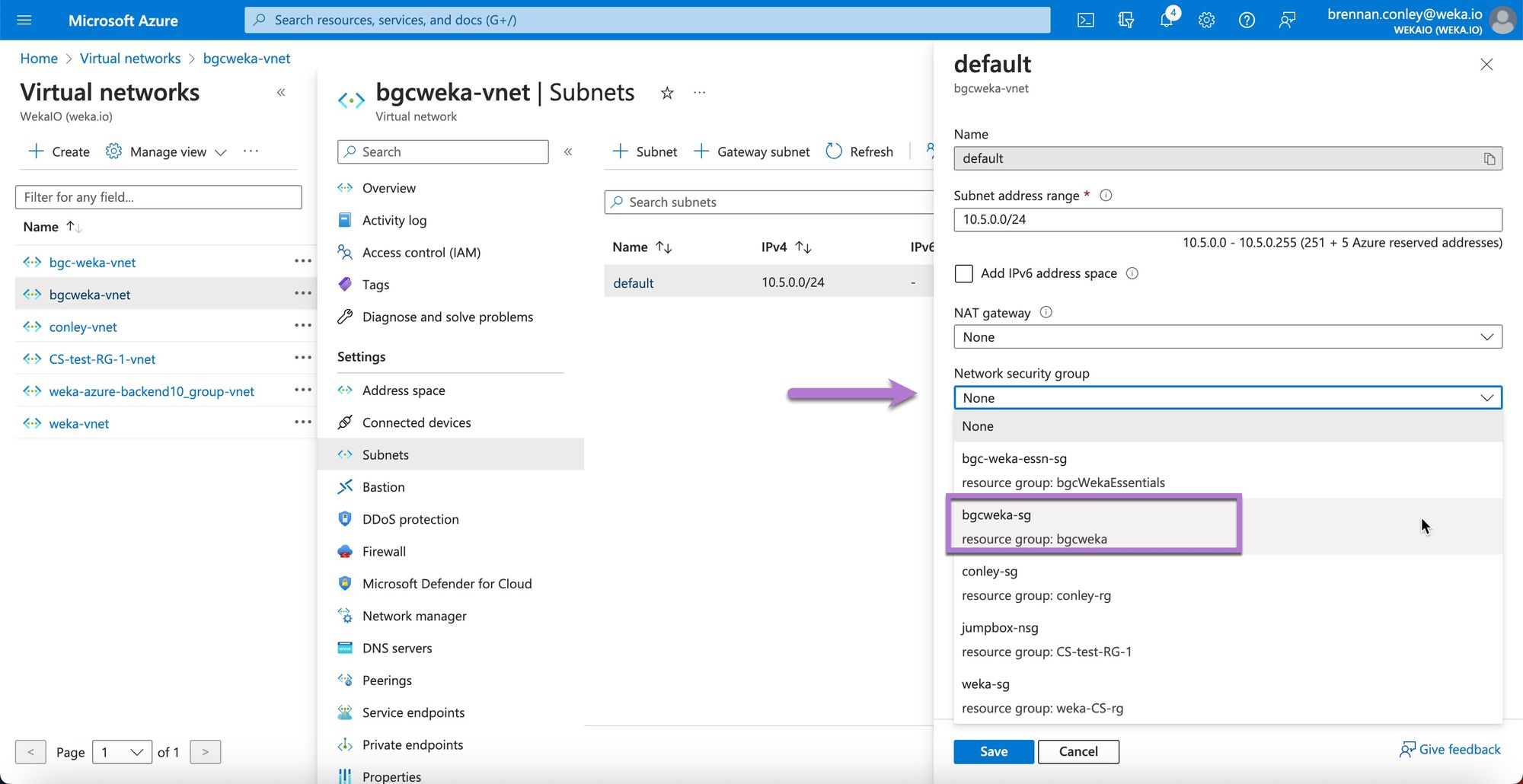
5. On the subnet configuration screen, locate the **Network security group** dropdown and select the previously created NSG.
6. Confirm the selection and select **Save**.
### Create and associate a NAT Gateway
Azure NAT (Network Address Translation) Gateway simplifies outbound-only Internet connectivity for virtual networks. It translates private IP addresses of VMs or other resources to a public IP address, allowing outbound internet access without exposing resources to inbound traffic.
For WEKA deployments, the NAT Gateway provides outbound internet access needed to reach repositories and obtain installation binaries, enhancing security by avoiding public IP assignments on individual instances.
In environments with restricted internet access, alternative solutions are covered later in this document.
NAT Gateways must be created and associated with the subnet needing outbound internet access. The creation wizard facilitates both steps in one process.
**Procedure**
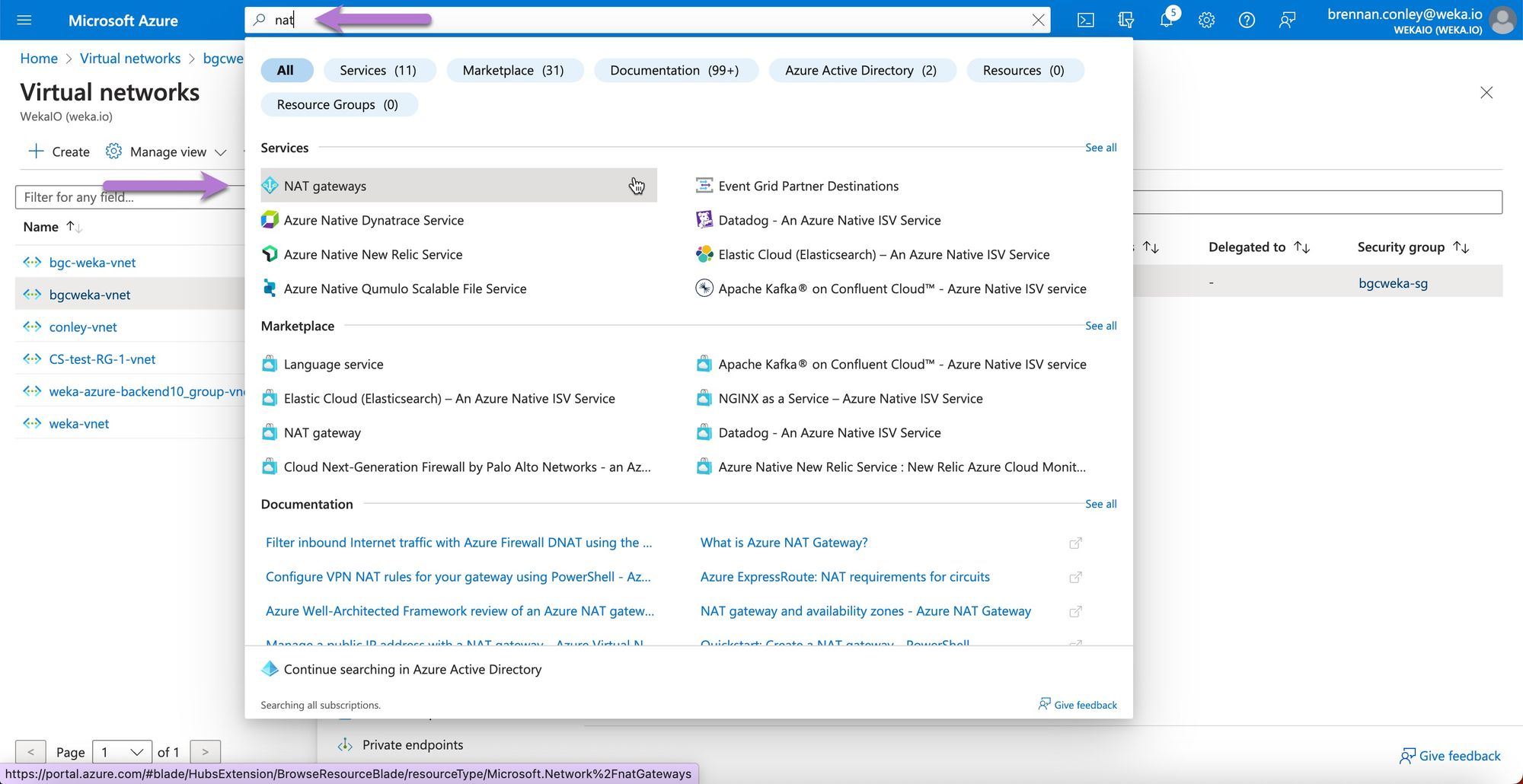
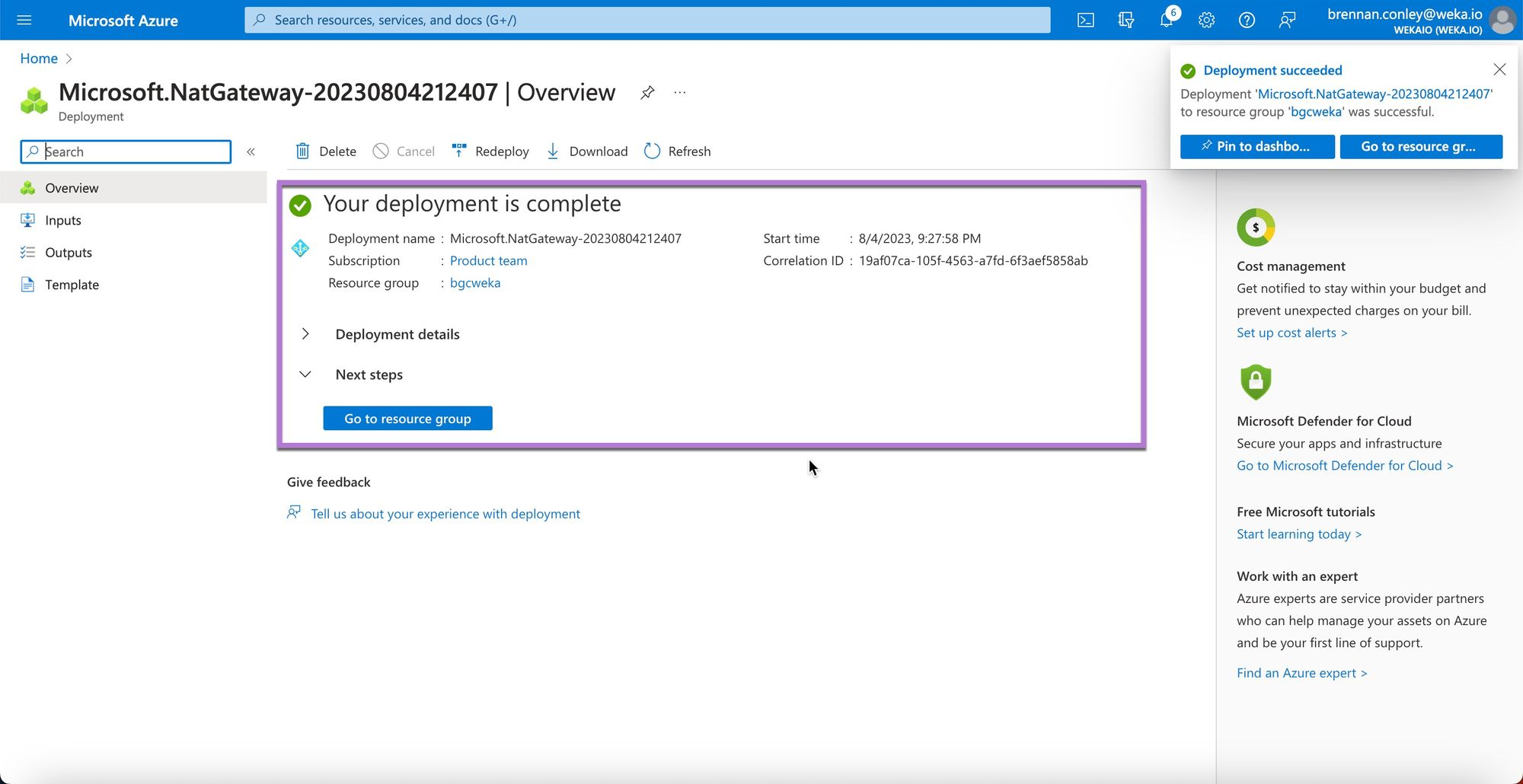
1. In the Azure Portal, search for **NAT gateways** and select it.
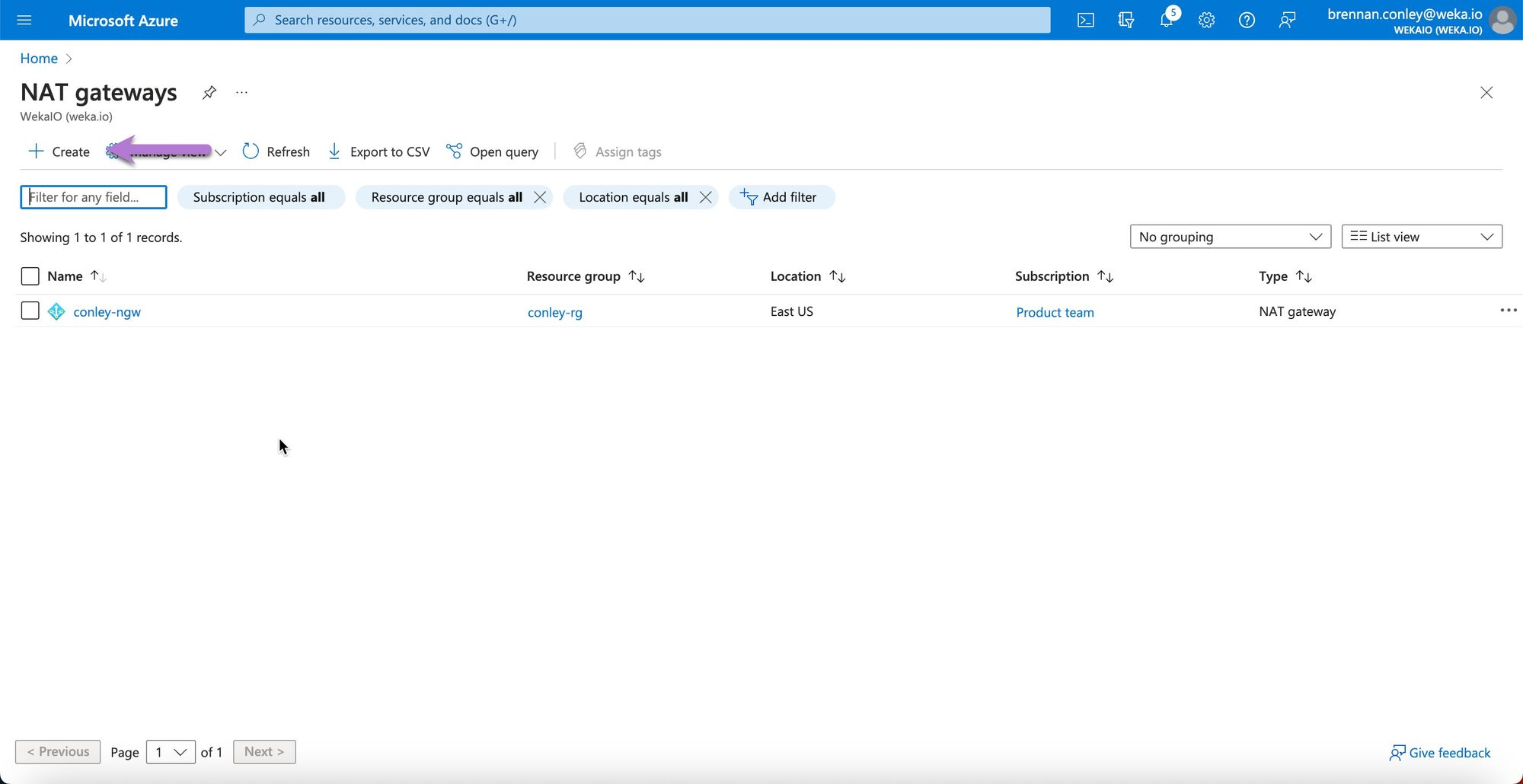
2. On the NAT gateways page, select **Create**.
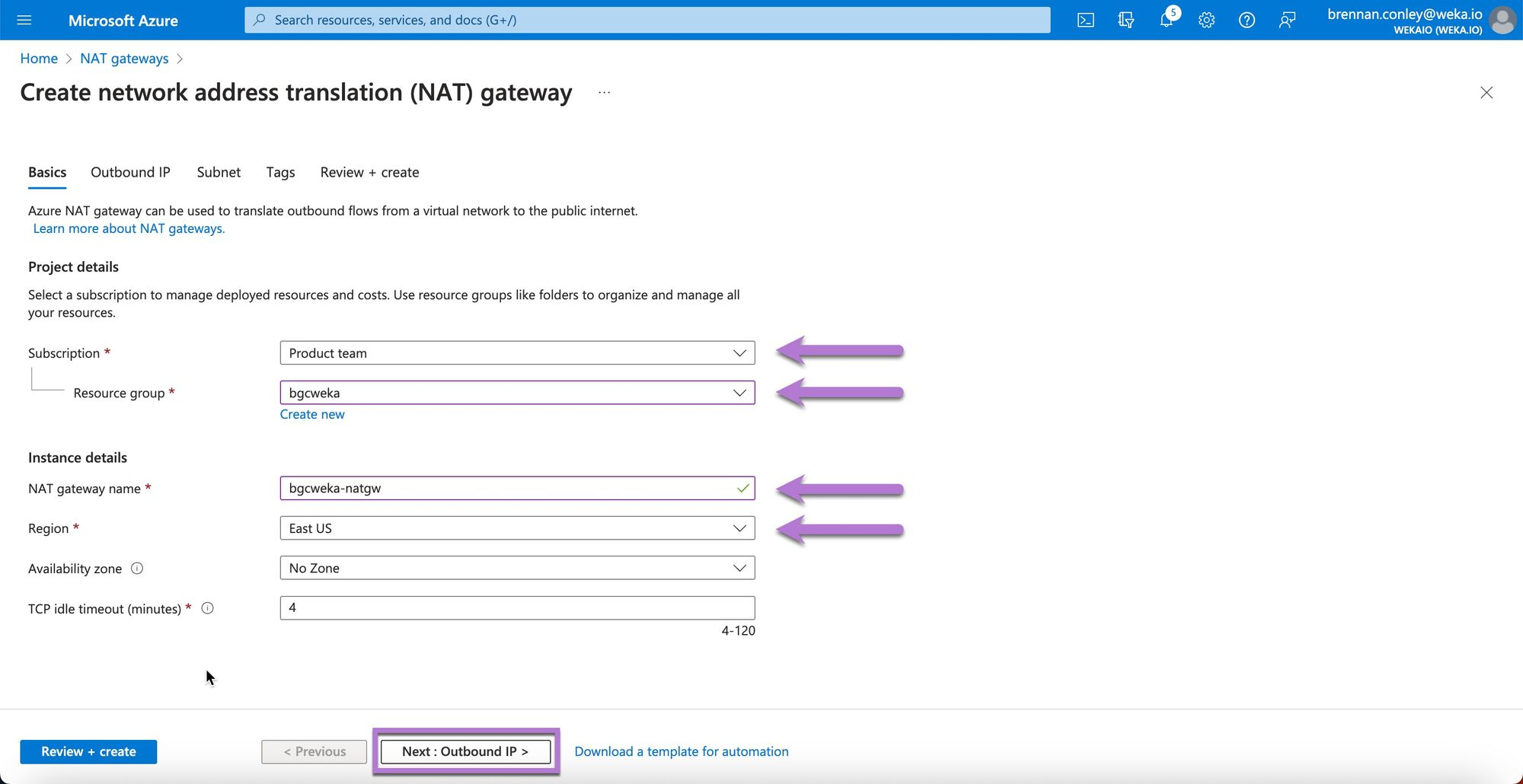
3. On the Create network address translation (NAT) gateway page, enter the required details. Select the correct subscription and resource group, specify a name and region, and select **Next: Outbound IP**.
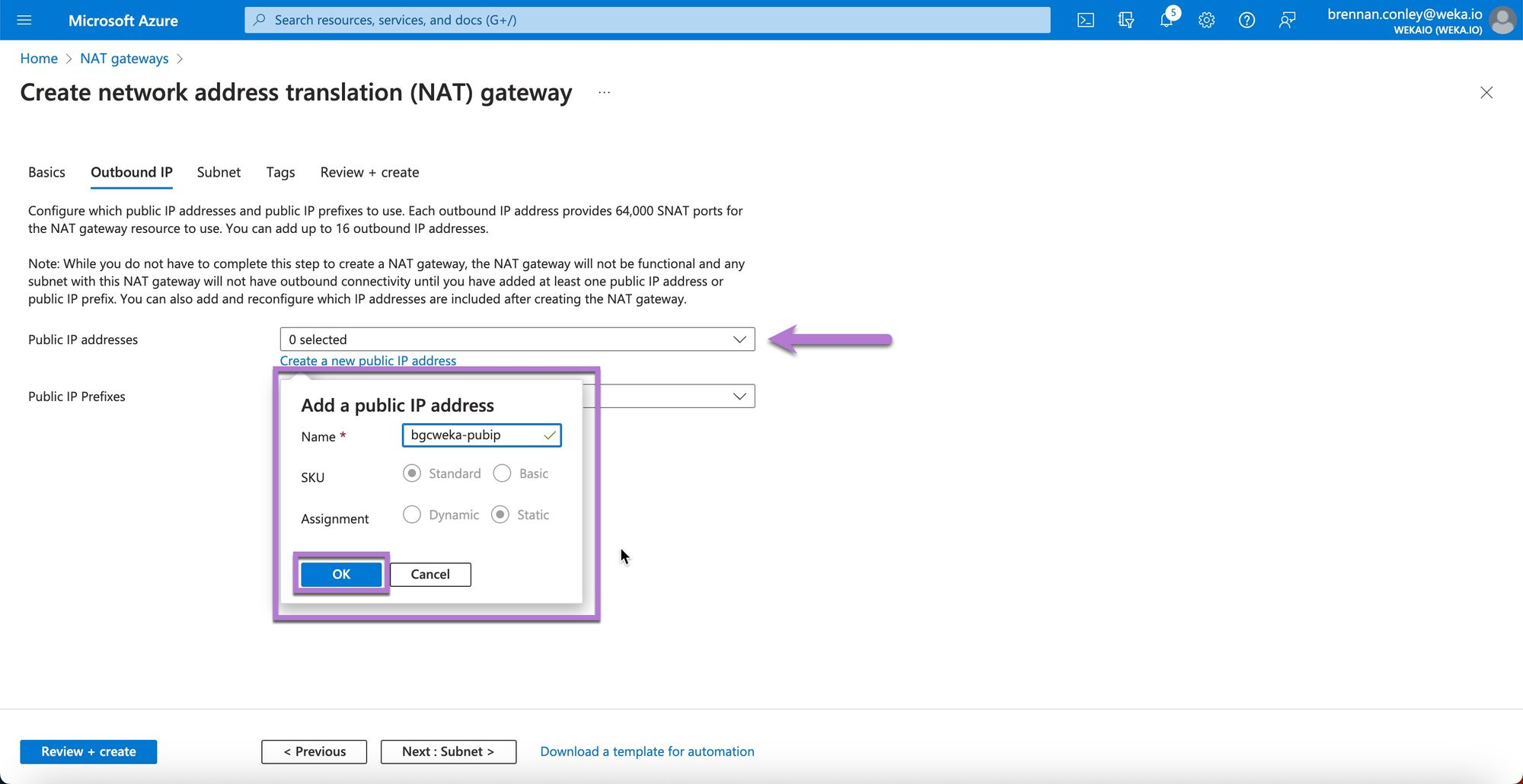
4. In the Outbound IP section, select **Create a new public IP address**, enter a name for the public IP, and select **OK**.
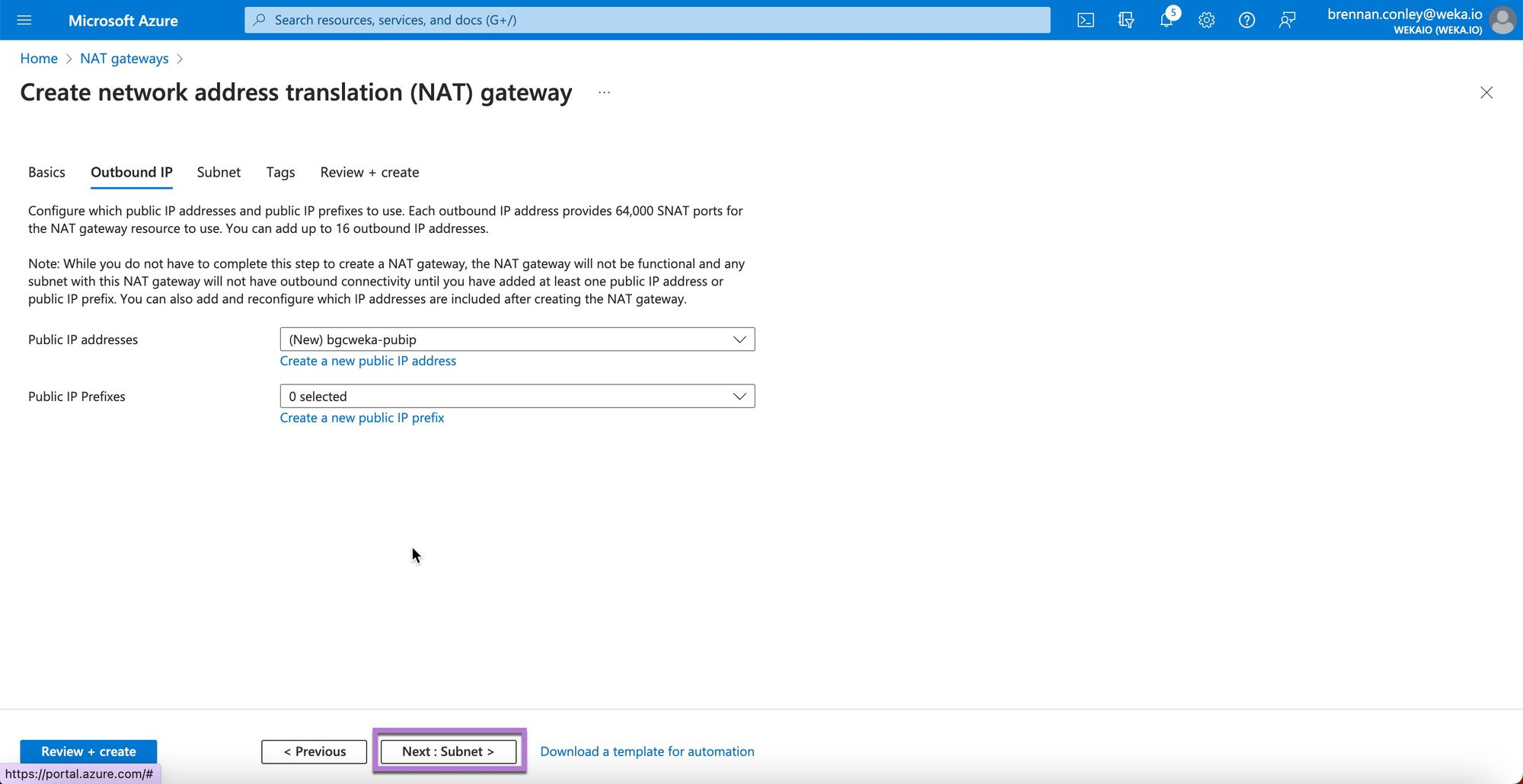
5. Ensure the Public IP address dropdown displays the newly created IP name. Select **Next: Subnet**.
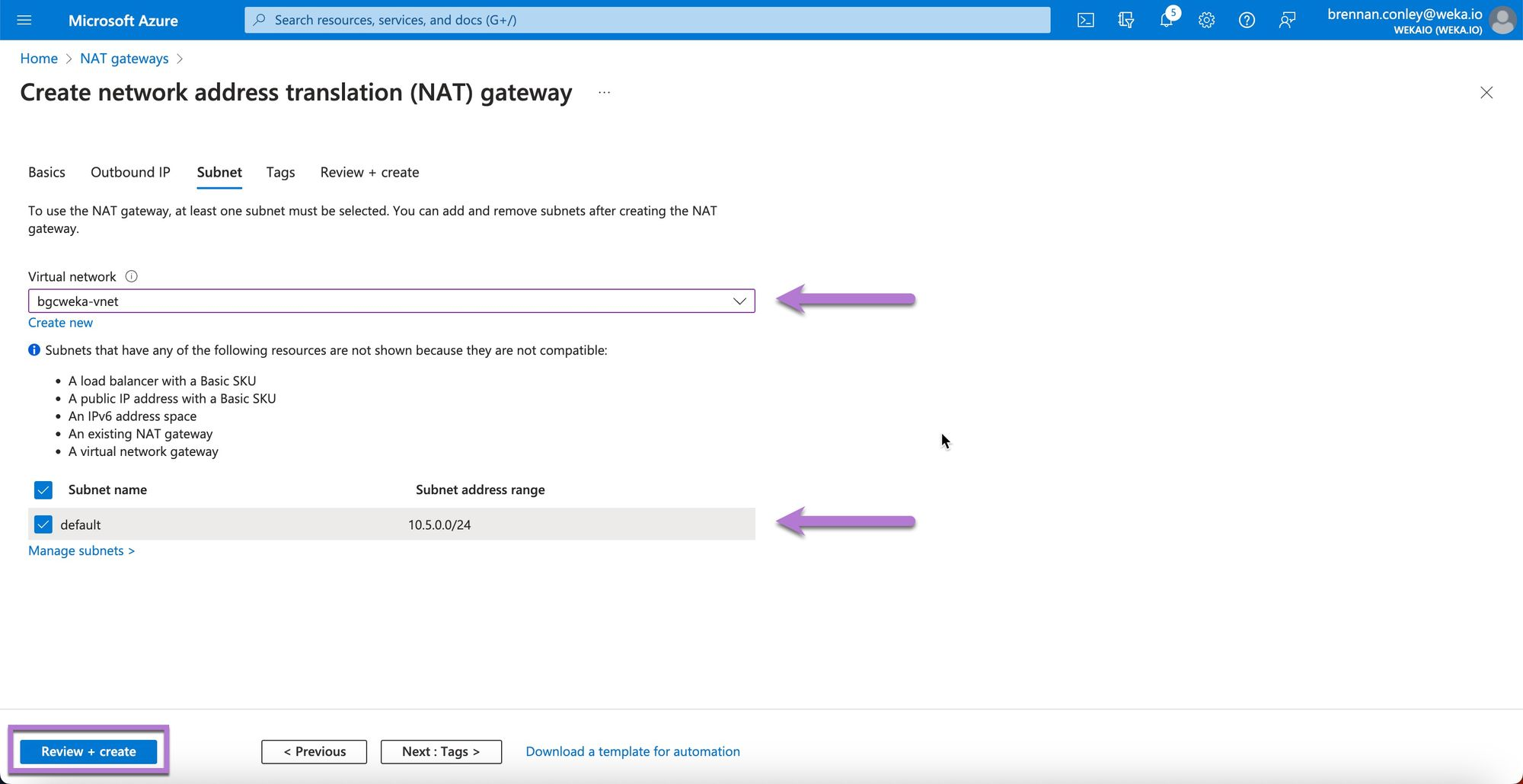
6. In the Subnet section, select the previously created VNet and subnet. Select **Review + create**.
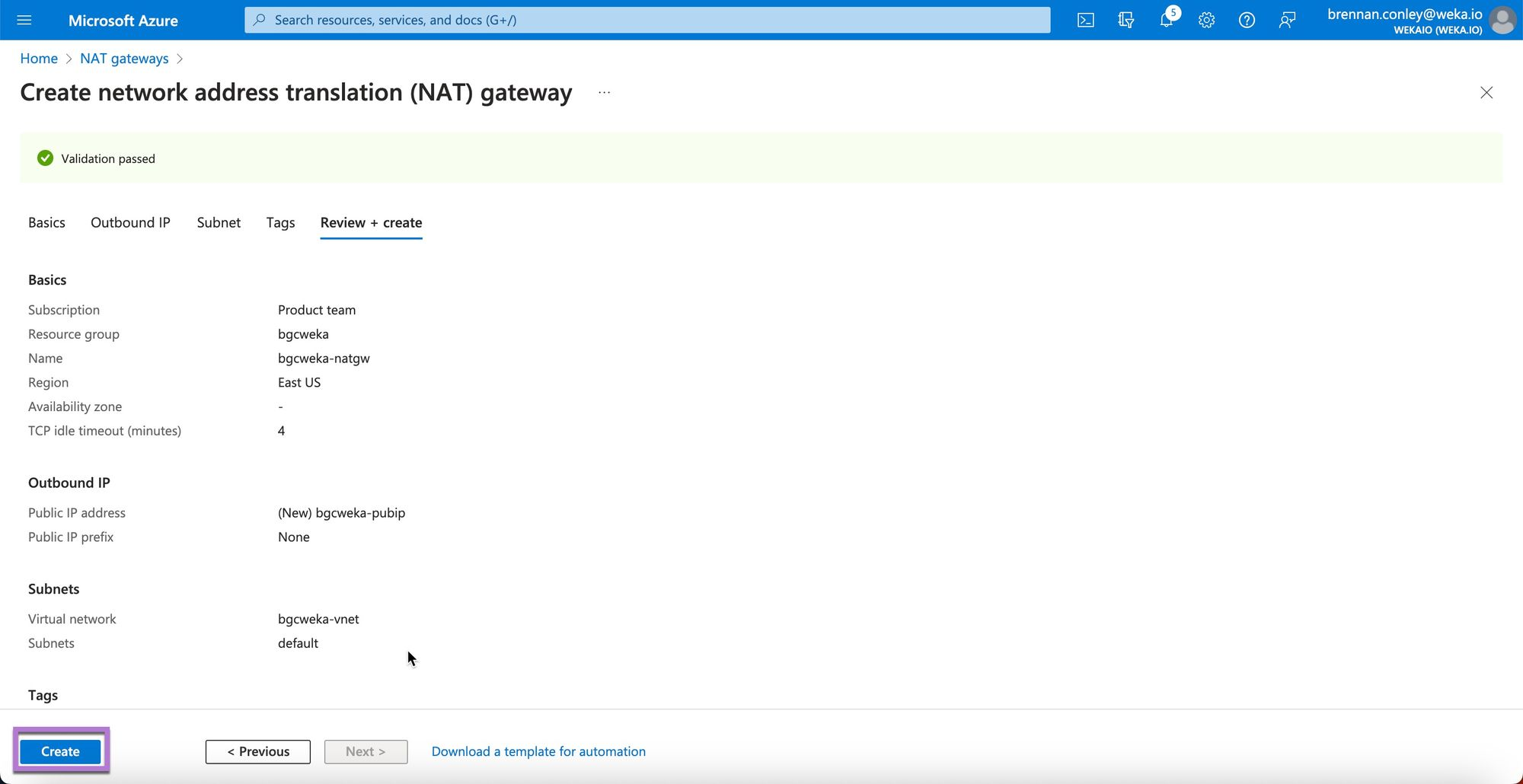
7. Select **Create** to confirm.
8. Upon completion, review the newly created NAT Gateway on the confirmation page.
#### Install AzureCLI
Terraform uses Azure CLI to pass commands to Azure. It is recommended to install the latest version. The following steps use version 2.50, which is current at the time of writing.
**Procedure**:
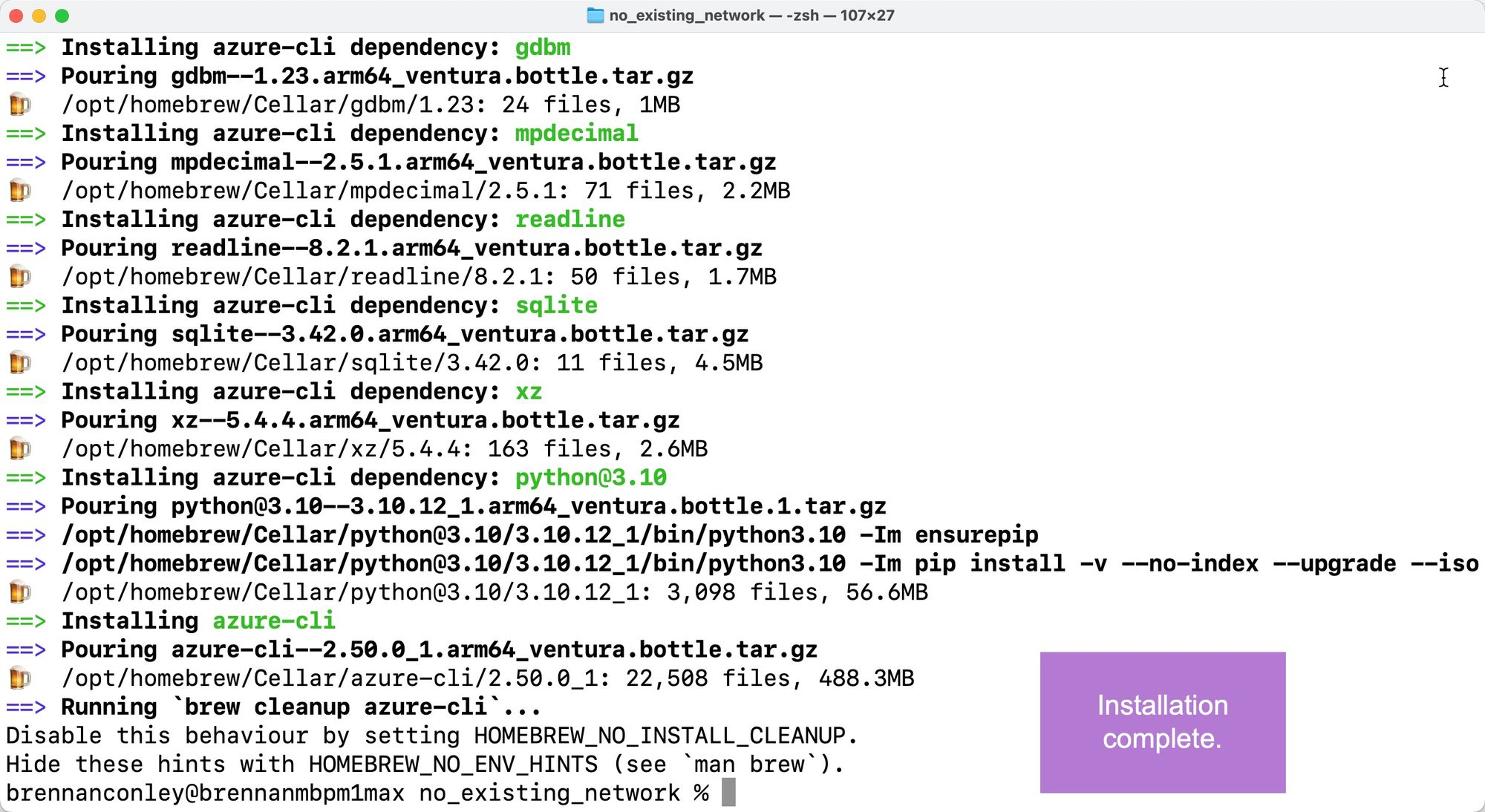
1. Open a terminal and run the following command to install Azure CLI through Homebrew:
```bash
brew update && brew install azure-cli
```
2. Wait for the installation to complete.
3. To confirm the installation, run:
```bash
az version
```
The installed version of Azure CLI is displayed.
### Log in to Azure CLI
Terraform uses Azure CLI to perform operations within an Azure subscription.
**Before you begin**
Before running Terraform, the Azure user must authenticate through the Azure CLI. See [#identify-your-azure-subscription](#identify-your-azure-subscription "mention")
**Procedure:**
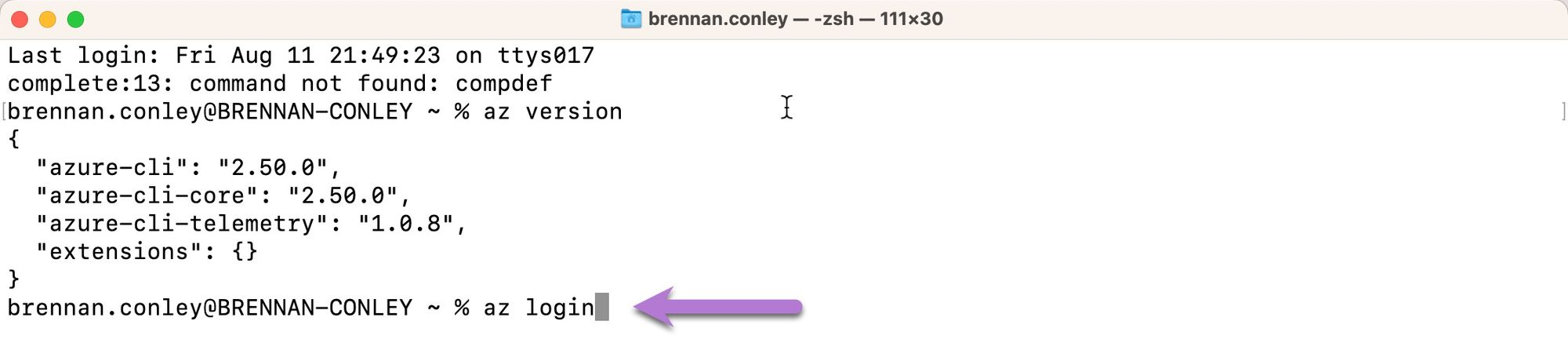
1. Open a terminal session and enter the command:
```bash
az login
```
2. A web browser opens, prompting the user to select an account for authentication. Select the user or enter the credentials.
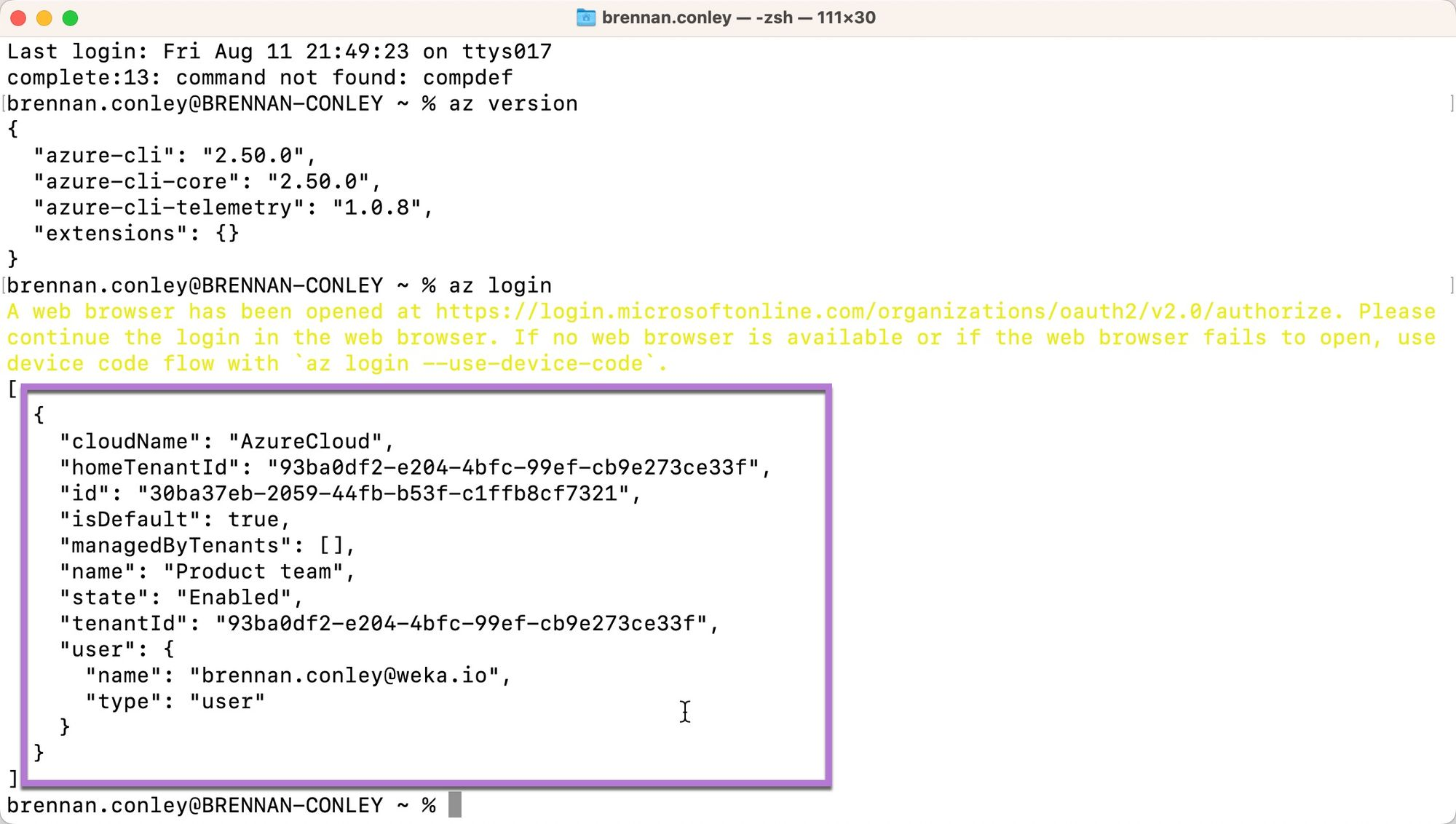
After successful authentication, a confirmation message appears.
3. Return to the terminal, where the authentication status of Azure CLI is displayed.
## Deploy WEKA in Azure using Terraform Registry
The **Terraform Registry** is a repository of modules and resources that simplifies the deployment process by providing reusable components.
Before deploying WEKA in Azure with Terraform, several prerequisites must be met. These requirements depend on the type of deployment—whether you're integrating with an existing Azure network and resources or allowing the WEKA Terraform package to automatically create the necessary infrastructure.
The following section outlines the required Azure dependencies for Terraform, explaining each in the context of a successful WEKA deployment.
### Terraform dependencies and constructs
When deploying WEKA in Azure using Terraform, several Azure resources must be created either automatically by Terraform or manually in advance, depending on your deployment method. These resources include:
* **Virtual Machine Scale Set (VMSS):** Azure's VMSS service enables the deployment and management of identical virtual machine instances that scale automatically based on demand. In a WEKA deployment, the VMSS hosts all backend instances and uses Placement Groups to optimize performance.
* **Placement Groups:** These groups control the distribution of VM instances within a scale set, optimizing network traffic and providing fault tolerance. For WEKA, only single-placement groups are supported, allowing up to 100 VM instances in a backend cluster.
* **Resource Groups:** Azure Resource Groups act as logical containers for cloud resources. A Resource Group must be available to organize and deploy all WEKA and Azure dependencies, including virtual machines, VNets, and security components.
* **Virtual Network (VNet):** A VNet is a core networking component that allows secure communication between Azure resources and external networks. WEKA uses VNets for management and DPDK traffic to ensure optimal performance. VNets also contain subnets, which assign IP addresses to virtual machines.
* **Subnet:** Subnets are IP address ranges within a VNet, providing network segmentation to organize and secure resources in a structured manner.
* **Delegated Subnets:** Delegated subnets allow specific Azure services to create resources within a designated subnet. In WEKA deployments, these are used for function and logic apps that enable cluster scaling and auto-healing.
* **Network Security Group (NSG):** An NSG acts as a firewall, filtering network traffic to and from Azure resources based on security rules. For WEKA, a self-referencing rule is recommended to facilitate secure communication within the network.
* **Private DNS Zone:** This zone provides DNS resolution within Azure VNets for private network environments. In a WEKA deployment, it enables name resolution for VMs, application services, and WEKA components connected to the VNets.
### Deployment prerequisites
Before deploying WEKA using Terraform, ensure that any required resources are pre-created if Terraform will not be provisioning them automatically. For example, if you plan to use an existing VNet, it must be created in advance. In most customer environments, many of these resources are likely already available.
The steps in this guide are educational and serve as general guidelines for creating Azure prerequisites, as previously outlined.
#### Navigate the Terraform Registry and obtain the files
Using the Terraform Registry simplifies managing the latest Terraform releases, ensures clean version control, and requires only one `main.tf` file for configuration.
1. Access the WEKA namespace on the Terraform Registry: [Terraform Registry WEKA Namespace](https://registry.terraform.io/namespaces/weka).
2. Select **weka/weka** module to create weka cluster on Azure using TF.
3. From the **Examples** options, select the deployment type (`public_network` in this example).
4. Select the **GitHub source code** link.
5. On the GitHub page, select the `main.tf` file for the **public\_network** example.
6. Click **Download raw file** to save the `main.tf` file.
{% hint style="info" %}
Examples serve as a starting point. Customize the variables to match your specific deployment needs. Do not use the example "as is" expecting it to deliver the exact outcome for your environment.
{% endhint %}
#### Resources and guidance in the Terraform Registry page
This module provides extensive resources and guidance, divided into several sections:
* **README:** Serves as a detailed guide on how the module works, replacing the traditional GitHub README file.
* **Inputs:** Lists all configurable variables, such as VNet selection, resource groups, and instance types. This is where you tailor your WEKA deployment.
* **Outputs:** Lists outputs available after running `terraform apply`, such as cluster status, auto-created WEKA password retrieval from KeyVault, and SSH keys.
* **Dependencies:** Describes provider dependencies automatically installed during `terraform init`.
* **Resources:** Lists Azure resources the module may create, depending on user-configured variables.
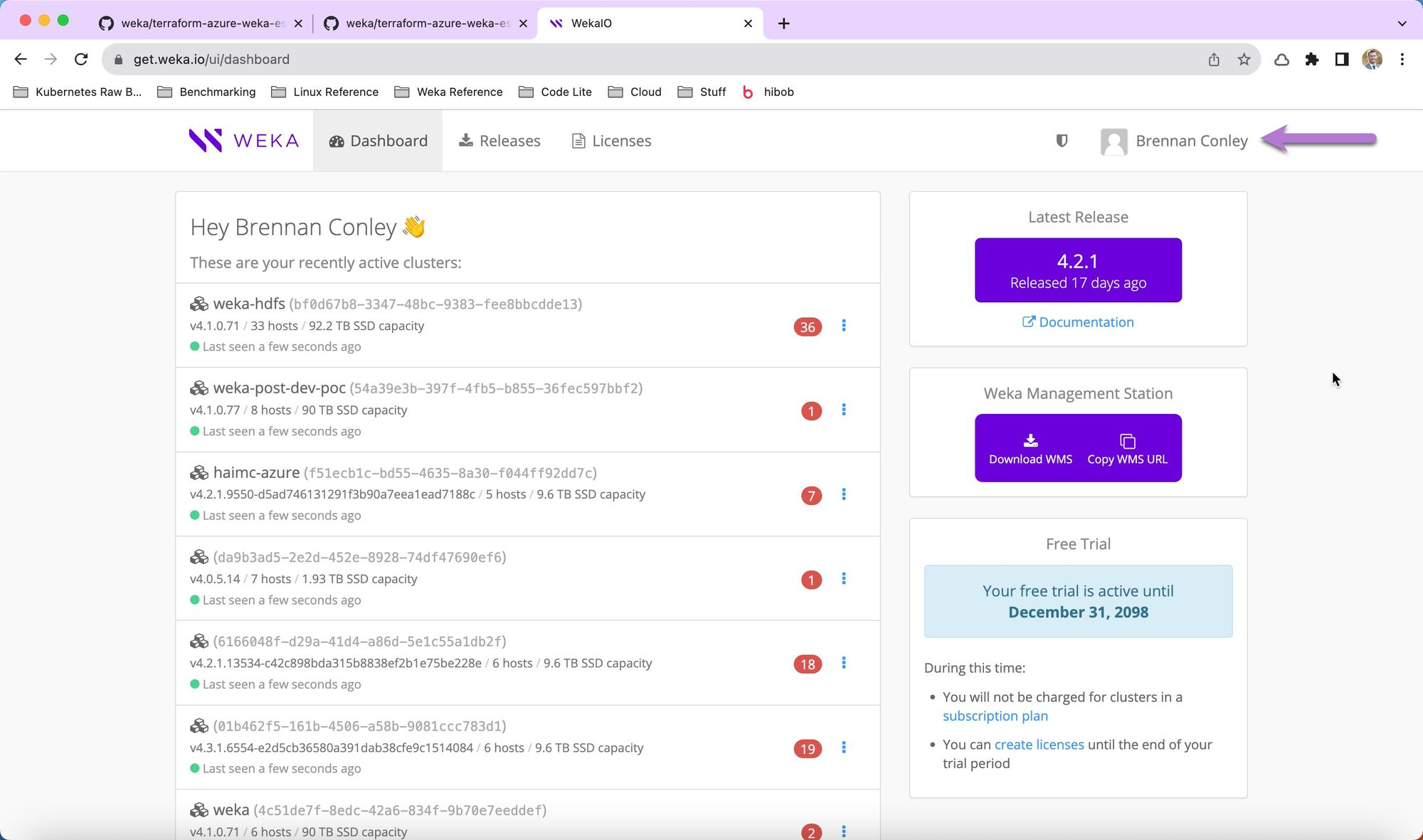
### Locate the user’s token in get.weka.io
The user's token in get.weka.io provides access to WEKA binaries and is required during installation.
**Procedure:**
1. Visit [get.weka.io](https://get.weka.io/ui/dashboard), and select the user’s name in the upper-right corner.
2. From the left-hand menu, select **API Tokens**. The user's API token is displayed on the screen and will be used later in the installation process.
### Select variables and edit the main.tf
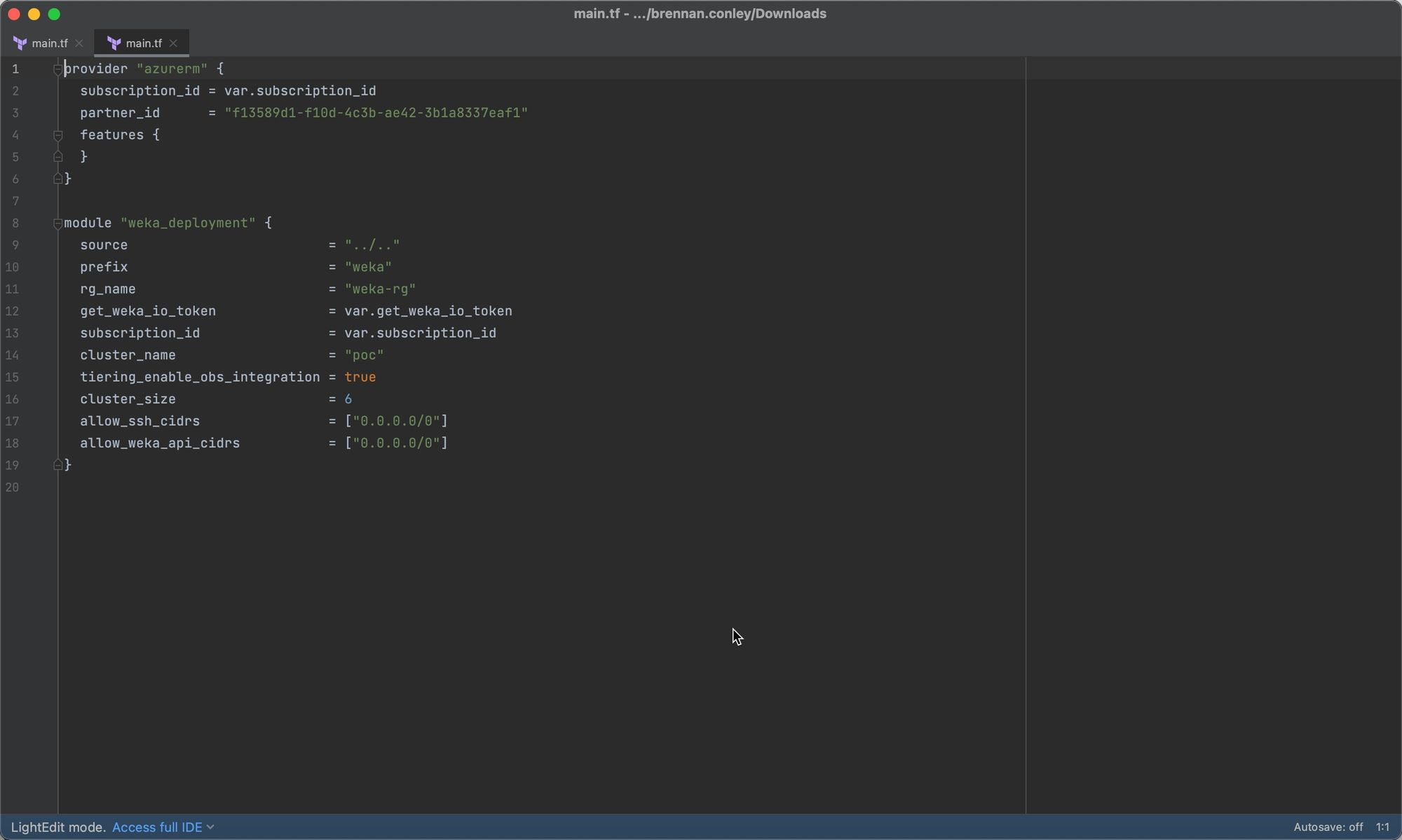
To configure the deployment, open the downloaded `main.tf` file in your preferred code editor. Follow these steps to customize the necessary variables for your environment:
1. **Under provider "azurerm":**
* Replace `subscription_id` with the Azure subscription ID for your deployment environment.
* Leave the `partner_id` as `f13589d1-f10d-4c3b-ae42-3b1a8337eaf1` (this identifies WEKA as a partner for Azure resource spend).
2. **Under module "weka\_deployment":**
* Set `source = "../../"` to specify the module source location.
* Update `prefix = "weka"` to define the cluster prefix for Azure resources.
* Set `rg_name = "weka-rg"` to reference the pre-created Azure resource group.
* Replace `get_weka_io_token = var.get_weka_io_token` with your unique WEKA software download token from [get.weka.io](https://get.weka.io).
* Ensure `subscription_id = var.subscription_id` is set to your Azure subscription ID.
* Change `cluster_name = "poc"` to your desired custom cluster name (this will be appended to the prefix).
* Set `tiering_enable_obs_integration = true` to enable object tiering if required.
* Adjust `cluster_size = 6` to define the number of WEKA backend members for the cluster.
* Set `allow_ssh_cidrs = ["0.0.0.0/0"]` to allow SSH access to cluster members from a defined WAN address range (since this is a public network).
* Set `allow_weka_api_cidrs = ["0.0.0.0/0"]` to allow API access to WEKA from a defined WAN address range.
Several default example variables will be modified, and others will be added to align with this guide's deployment into an existing public network.
{% hint style="info" %}
**Important note:**\
Many of the Terraform variables listed on the [Terraform Registry page for the Azure WEKA module](https://registry.terraform.io/modules/weka/weka/azure/latest) under the [Inputs](https://registry.terraform.io/modules/weka/weka/azure/latest?tab=inputs) section have pre-set default values. If a variable is not explicitly defined in your `main.tf`, the defaults automatically apply. It is recommended to review these variables to ensure that the defaults meet your deployment needs.
{% endhint %}
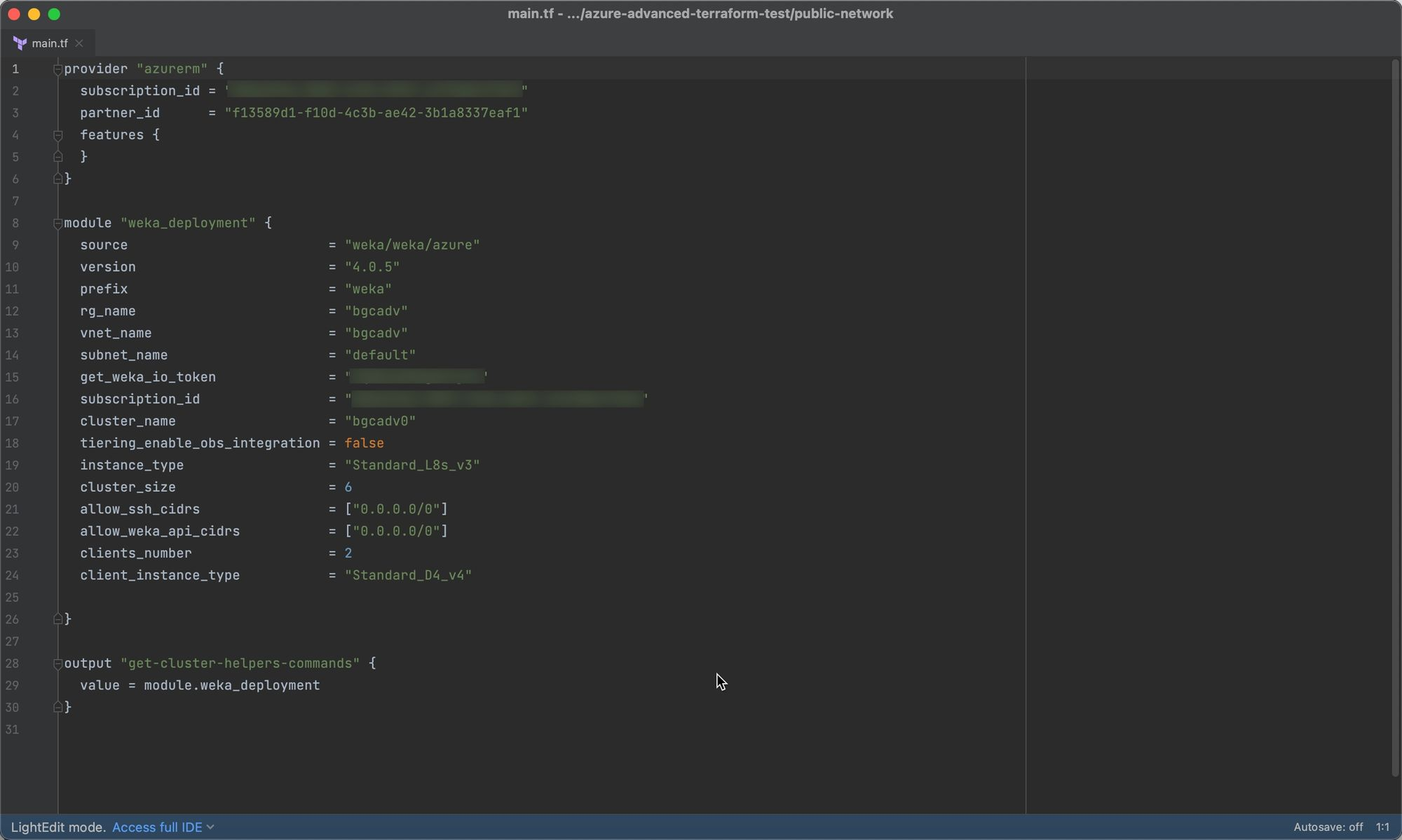
#### **Customized `main.tf` example**
The following is a customized version of the `main.tf` file, which will be used in this guide to deploy a WEKA cluster.
**Variable descriptions of the customized `main.tf` example:**
* **Under provider "azurerm":**
* `subscription_id = "azure_subscription_id_here"`: Fill this in with the Azure subscription associated with your deployment environment.
* **Under module "weka\_deployment":**
* `source = "weka/weka/azure"`: Specifies the Terraform Registry module source for WEKA on Azure.
* `version = "4.0.5"`: Sets the version of the WEKA Terraform module.
* `prefix = "weka"`: Prefix for the Azure resources created (customizable).
* `rg_name = "bgcadv"`: The name of the existing Azure resource group for deployment.
* `vnet_name = "bgcadv"`: The existing VNet where WEKA resources will be deployed.
* `subnet_name = "default"`: The existing subnet within the VNet for WEKA deployment.
* `get_weka_io_token = "your_token_here"`: WEKA download token.
* `subscription_id = "azure_subscription_id_here"`: The Azure subscription ID for deployment.
* `cluster_name = "bgcadv0"`: Name for the deployed cluster (appended to the prefix).
* `tiering_enable_obs_integration = false`: Disables object integration.
* `instance_type = "Standard_L8s_v3"`: Specifies the Azure instance type for WEKA backend servers.
* `cluster_size = 6`: Defines the number of WEKA backends for deployment.
* `allow_ssh_cidrs = ["0.0.0.0/0"]`: Allows SSH access to the cluster from any WAN address.
* `allow_weka_api_cidrs = ["0.0.0.0/0"]`: Allows API access from any WAN address.
* `clients_number = 2`: Specifies the number of WEKA clients to deploy and mount automatically.
* `client_instance_type = "Standard_D4_v4"`: Sets the instance type for the automatically deployed WEKA clients.
* The final entry instructs Terraform to output useful information for verifying the WEKA cluster's deployment and connection:
```hcl
output "get-cluster-helpers-commands" {
value = module.weka_deployment
}
```
### Initialize and run Terraform
Once the `main.tf` file is customized, do the following:
1. Open a terminal window on your local machine (or the machine where Terraform will be run).
2. Navigate to the directory containing the edited `main.tf` file.
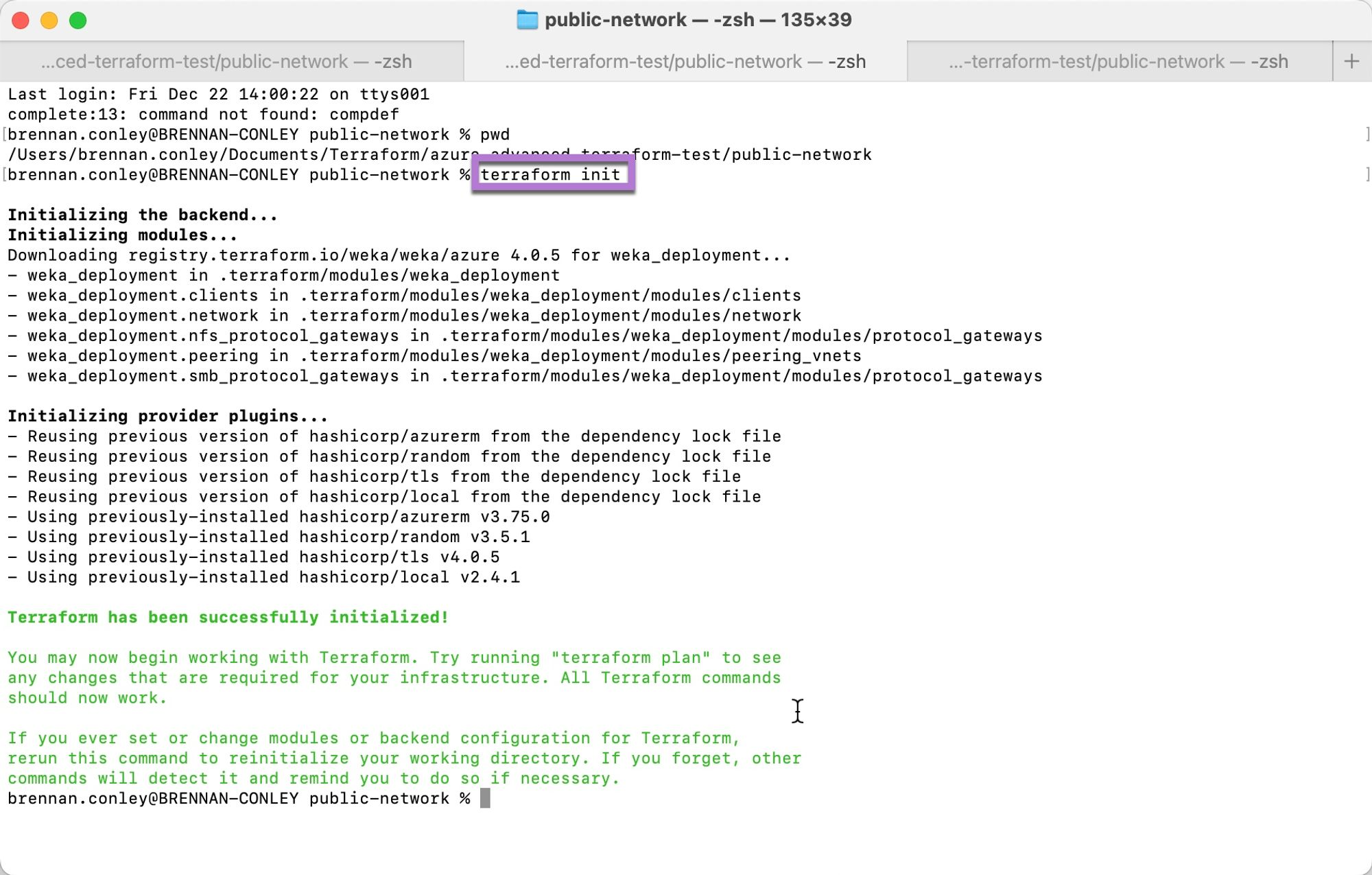
3. Run the following command to initialize Terraform:
```bash
terraform init
```
This action downloads the necessary WEKA Azure Terraform modules and provider plugins.
4. After initialization, run the following command to perform a dry run:
```bash
terraform plan
```
This action checks the deployment configuration for issues but cannot account for quota limitations or naming conflicts (for example, KeyVault).
5. Apply the deployment by running:
```bash
terraform apply
```
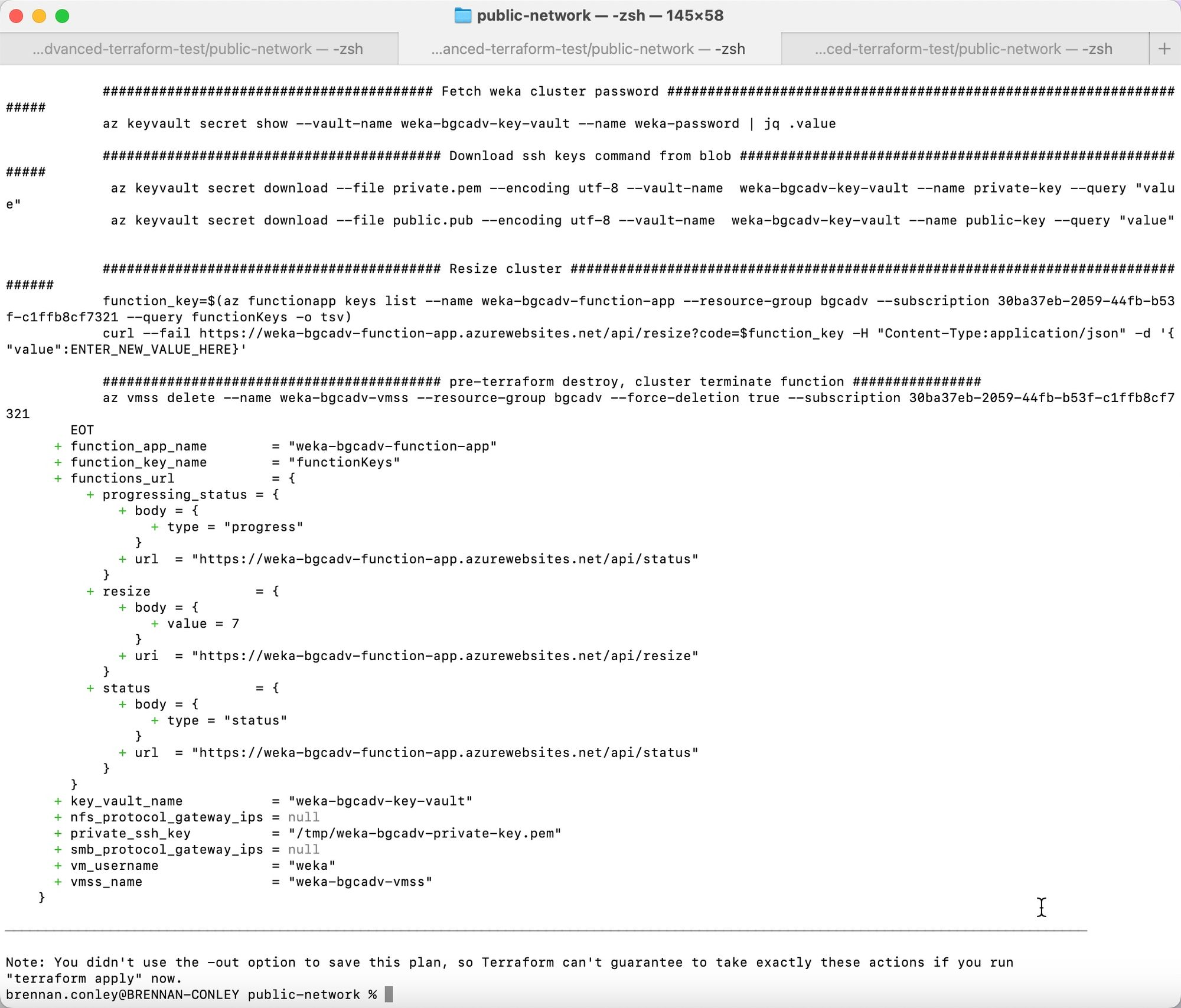
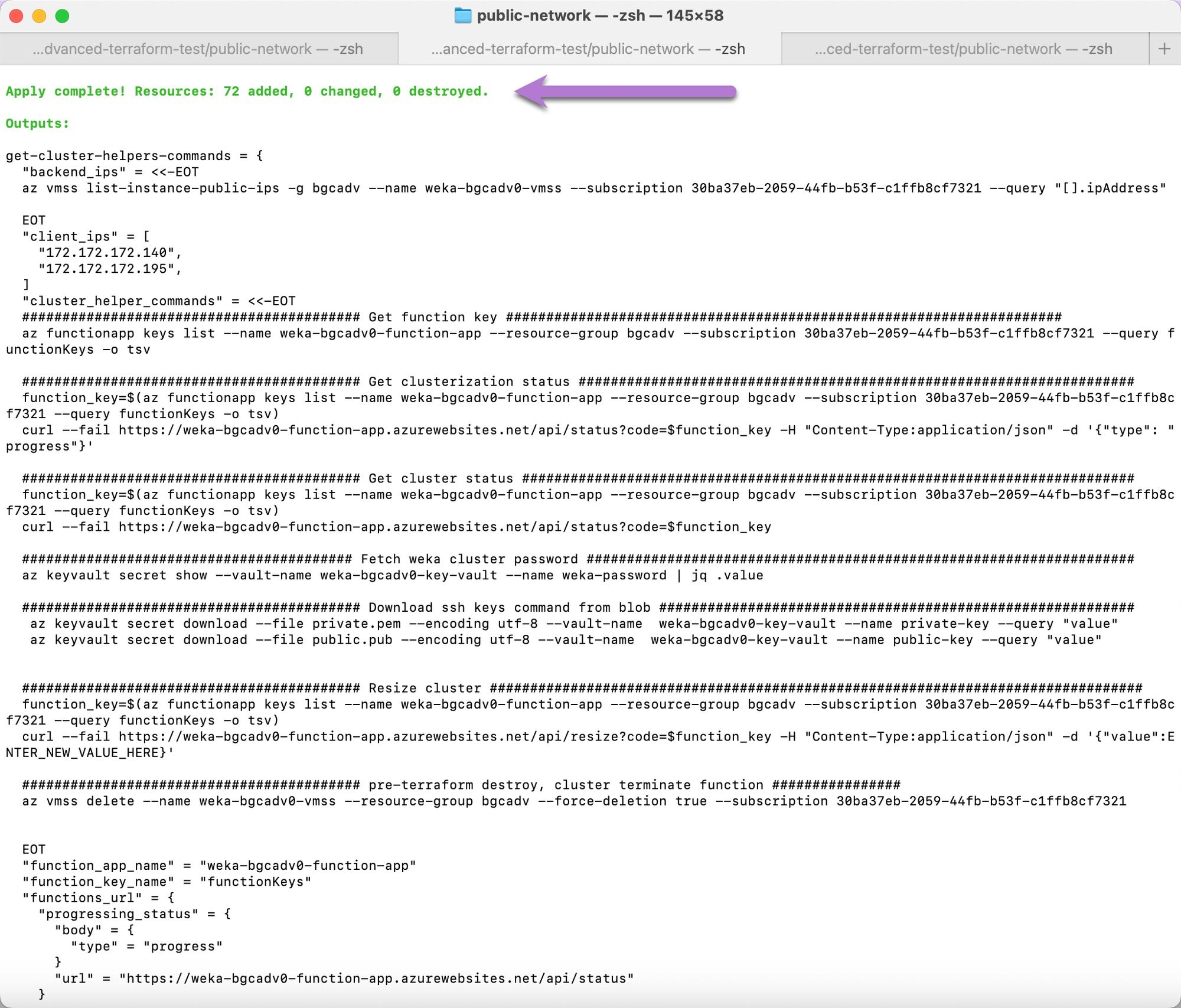
A successful deployment displays an output similar to the following example, including the `get-cluster-helpers-commands` output for connecting to and verifying the WEKA cluster.
#### Locate and copy the WEKA Cluster SSH Key to Azure Jump Box
The WEKA cluster SSH key created during terraform deployment is required to access the WEKA cluster backend members, as well as any WEKA clients that were deployed via terraform.
**Procedure**
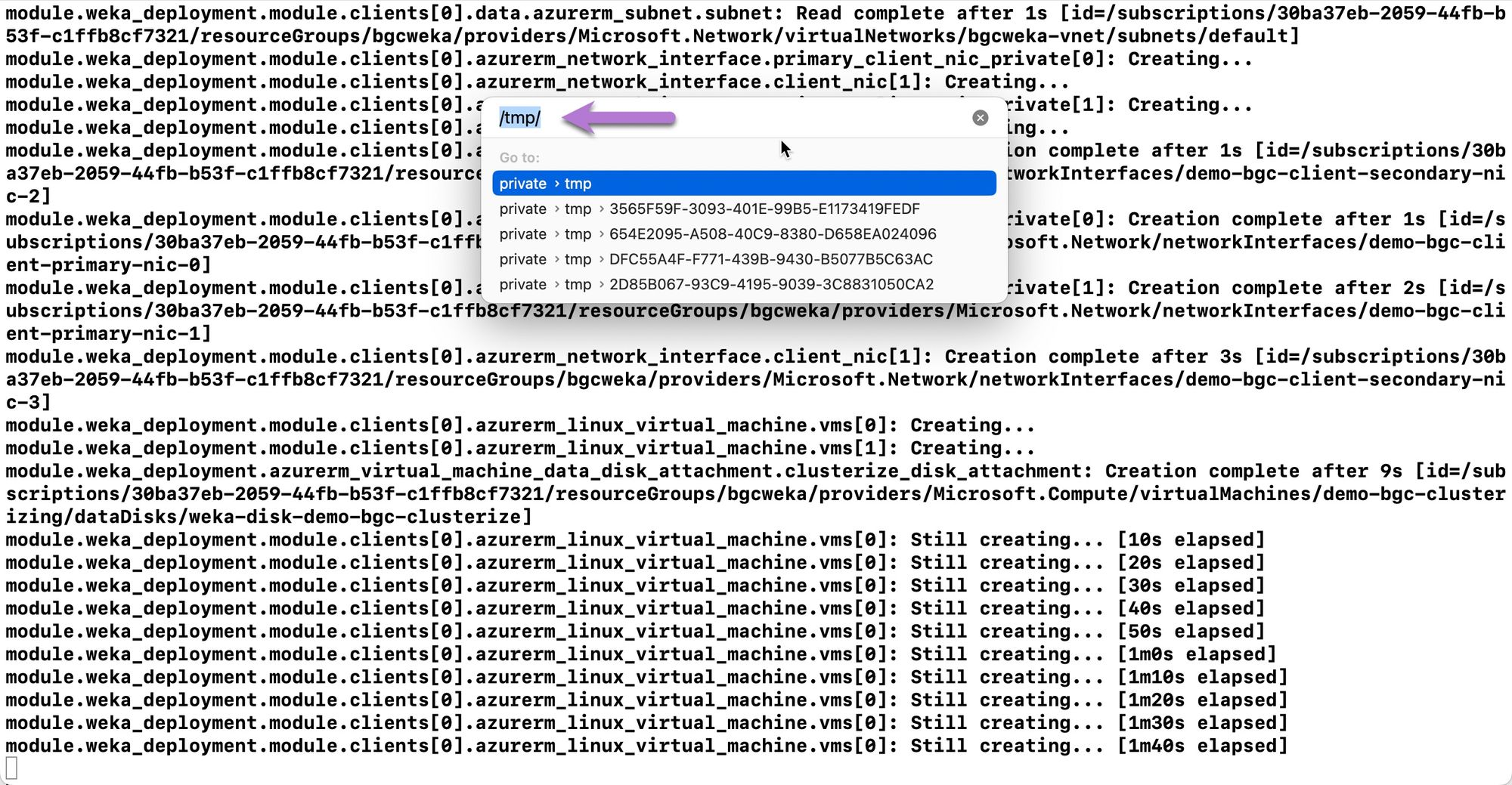
1. Navigate to the `/tmp/` directory.
2. Locate both the public (.pub) and private (.pem) key files.
3. Use SCP to transfer the private key (.pem) file from the local machine’s `/tmp/` directory to the Azure linux jump box. Text highlighted in purple should be copied and used directly for your specific SCP command. Text in green should be customized to your unique values.\
\
`azureuser` is the default user account created when creating a new virtual machine instance in Azure. It is recommended to keep this default. The first path highlighted in green is the path to the private key for your Azure jump box. The second path is for the private key for the newly created WEKA cluster you’d like to transfer to the Azure jump box. The IP address should be changed to the Azure public IP of your jump box. The WEKA cluster private key should be transferred to the `.ssh` directory in the default azureuser’s home directory on the jump box.
If the command has been configured correctly, an output similar to below should be printed to the terminal upon completion of private key transfer.
#### Monitor deployment status
When deploying into a customer’s Azure environment, it’s likely they’ll already have some means of connectivity to the vnet and subnet into which WEKA has been deployed. This could be by way of a VPN, [bastion host](https://azure.microsoft.com/en-us/products/azure-bastion), or preconfigured jump box. If the customer doesn’t have any means of accessing the WEKA cluster on the isolated subnet, they’ll need to configure one of the methods mentioned above. In this example, a preconfigured Ubuntu linux jump box with a publicly assigned IP will be used. The jump box is in the same vnet, network security group, and subnet as the WEKA cluster, though inbound access rules have been applied to the network security group to facilitate access from the outside on SSH port 22.
Some form of access to the WEKA cluster will be crucial for monitoring the deployment progress and ensuring everything completes successfully.
**Procedure**
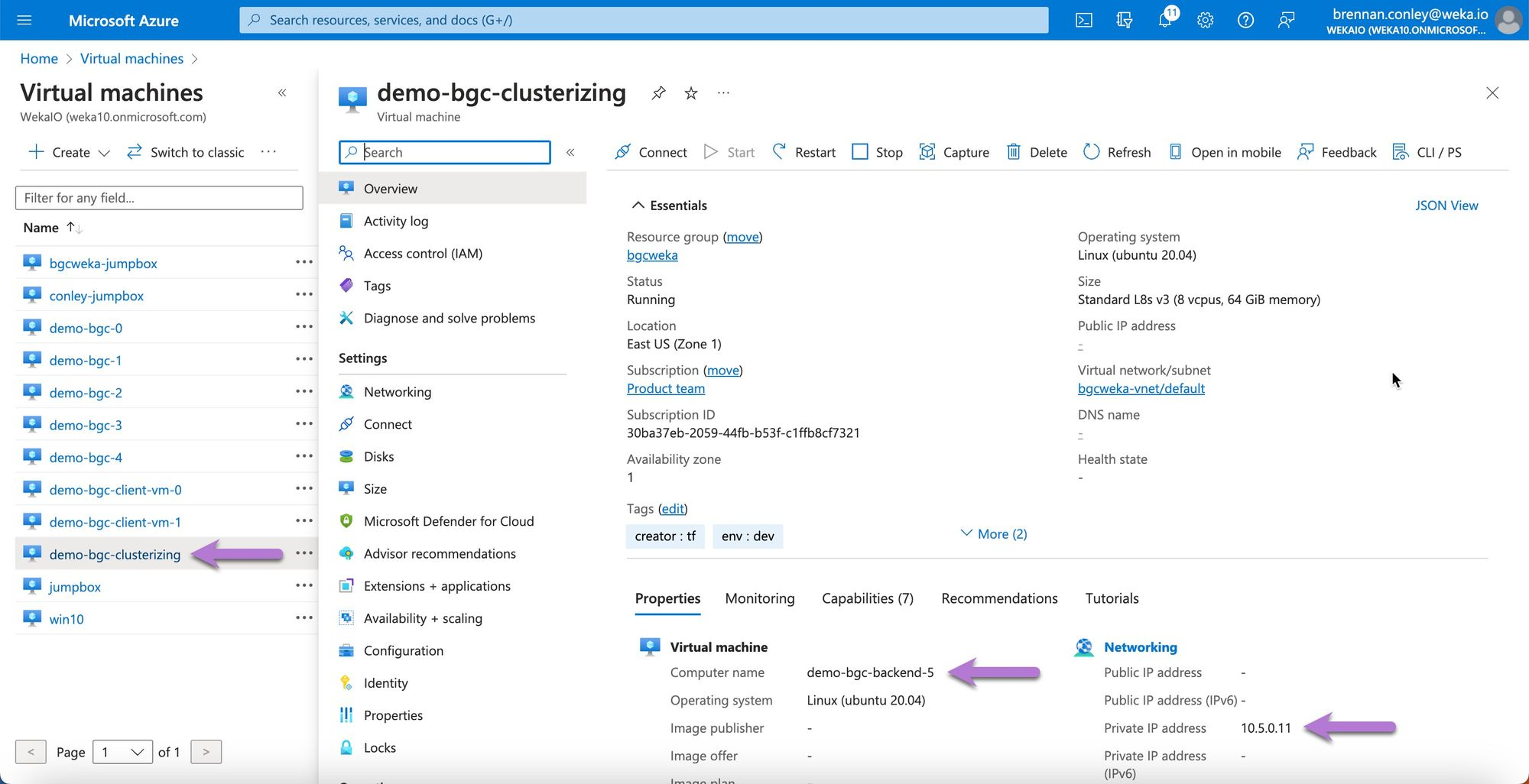
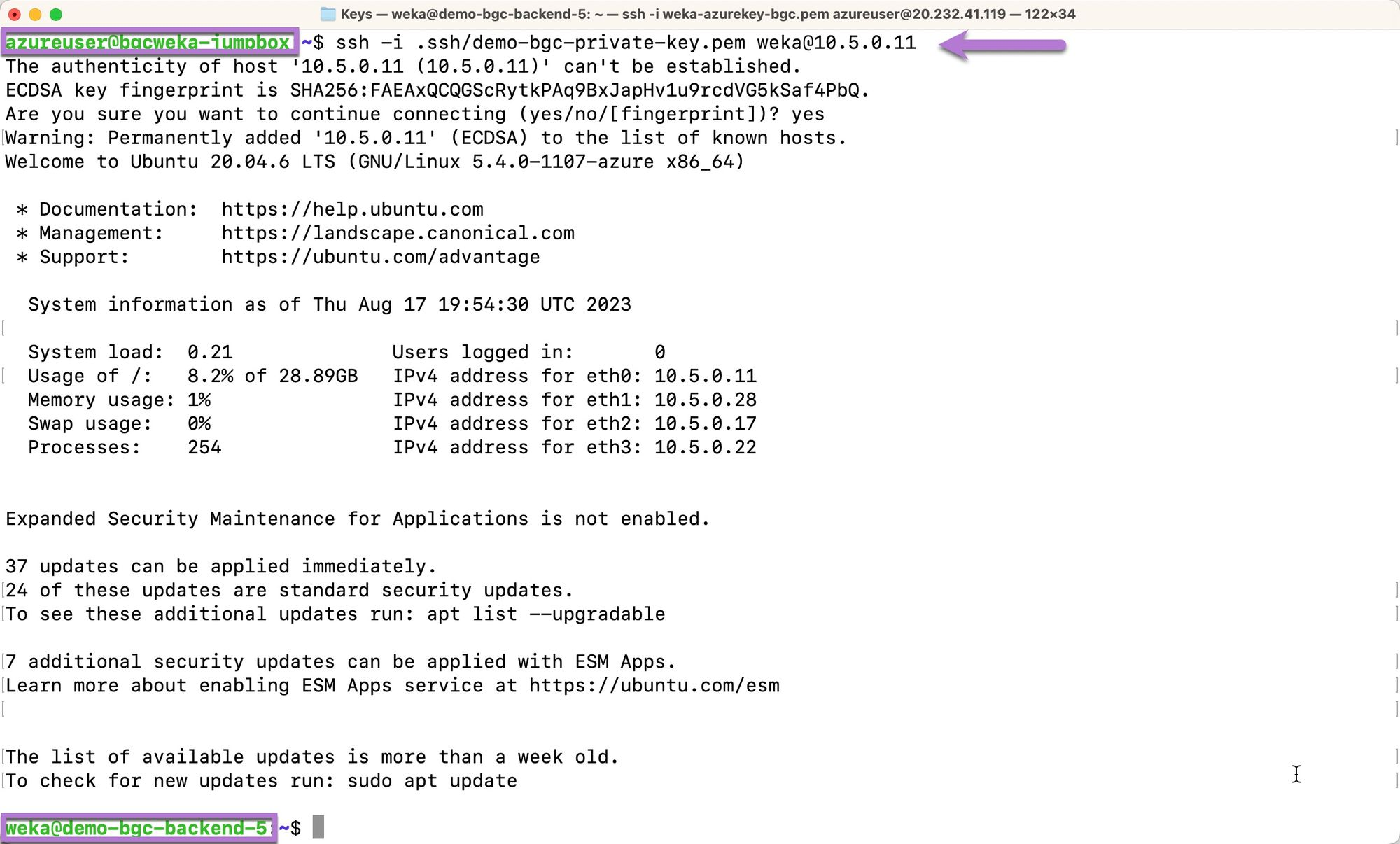
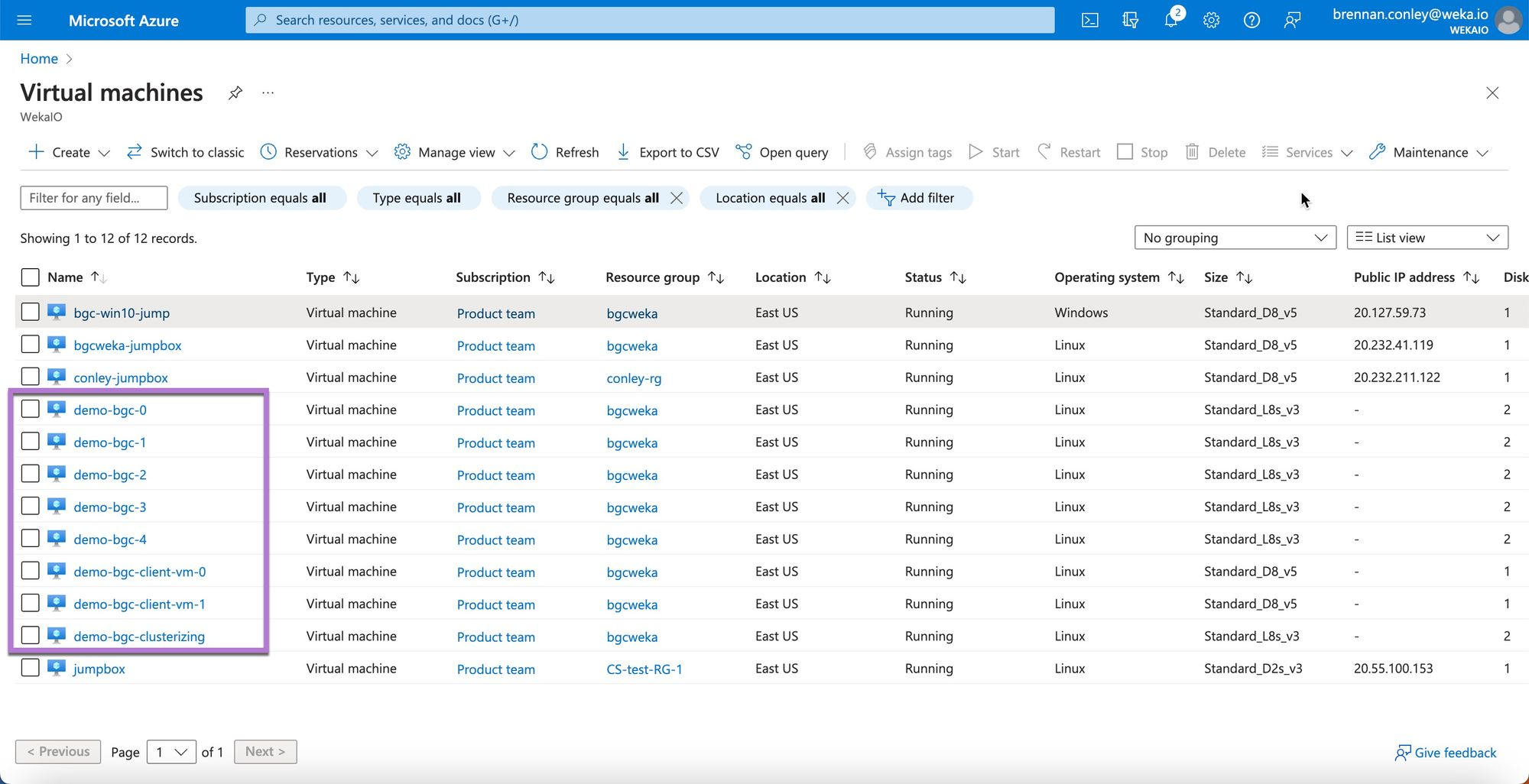
1. Navigate to Virtual Machines in the Azure portal. Locate the virtual machine instance with the suffix `clusterizing` . The `clusterizing` suffix is only visible in the Azure portal to denote the WEKA backend cluster member that runs post resource deployment clusterization scripts. Note that the virtual machine’s actual name is `demo-bgc-backend-5`.
2. Identify the local network IP address of the `clusterizing` instance’s management interface. Take note of the IP address, as it will be used in the next step.
3. SSH to the Azure linux jump box using the applicable private key and public IP address. This private key is **not** the WEKA cluster SSH private key saved to the `/tmp/` directory by terraform. The jump box private key would’ve been specified or created and downloaded at the time the jump box was manually created in the Azure portal.
4. Once connected to the jump box, use the local IP address of the `clusterizing` instance identified in the previous step to SSH into the `clusterizing` instance, also known as `demo-bgc-backend-5`.
{% hint style="info" %}
The \`clusterizing\` instance will always be the last node of the cluster. For instance, if a 6 node cluster is deployed, the instances will have suffixes \`0-5\`. Instance \`5\` will be the \`clusterizing\` instance. If an 18 node cluster is deployed, the instances will have suffixes \`0-17\`. Instance \`17\` will be the \`clusterizing\` instance.
{% endhint %}
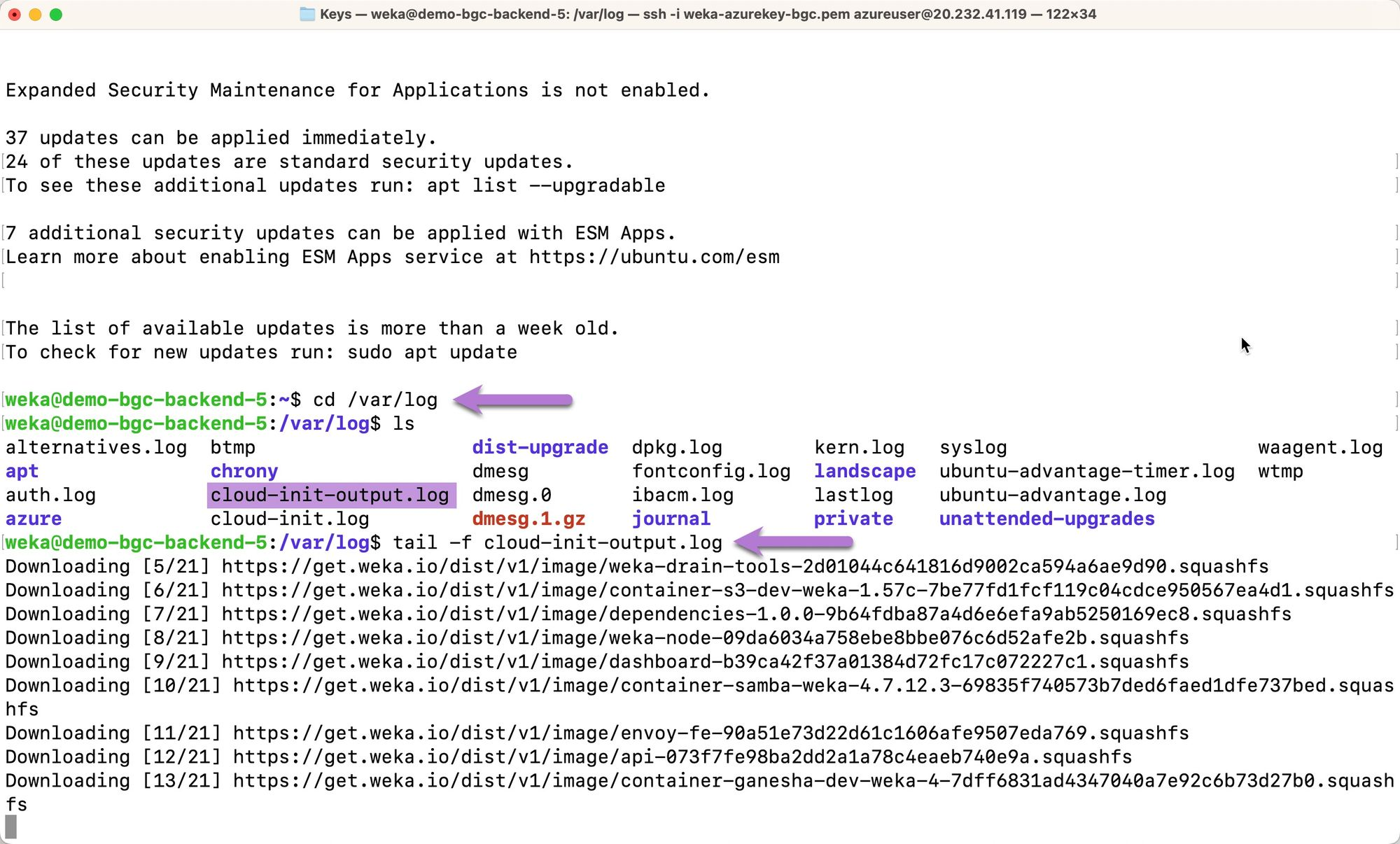
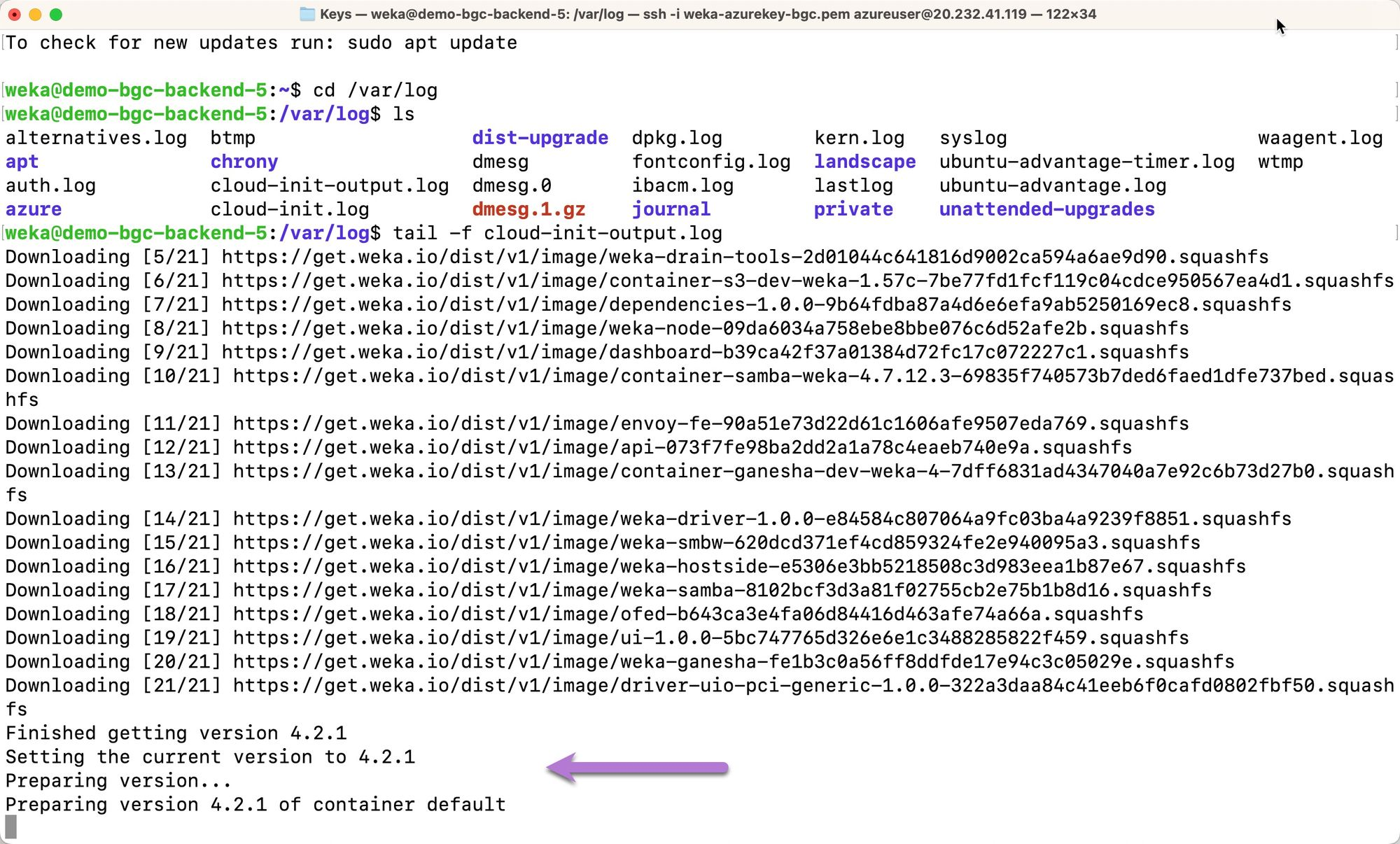
5. Once connected to the `clusterizing` instance, navigate to the `/var/log` directory. Locate the `cloud-init-output.log` file highlighted in purple. Run the command `tail -f cloud-init-output.log` to tail the logfile to check the status of the deployment. In the example below, the `tail` command was run while WEKA binaries were being downloaded from `get.weka.io`.
The WEKA containers are being configured as the WEKA installation continues.
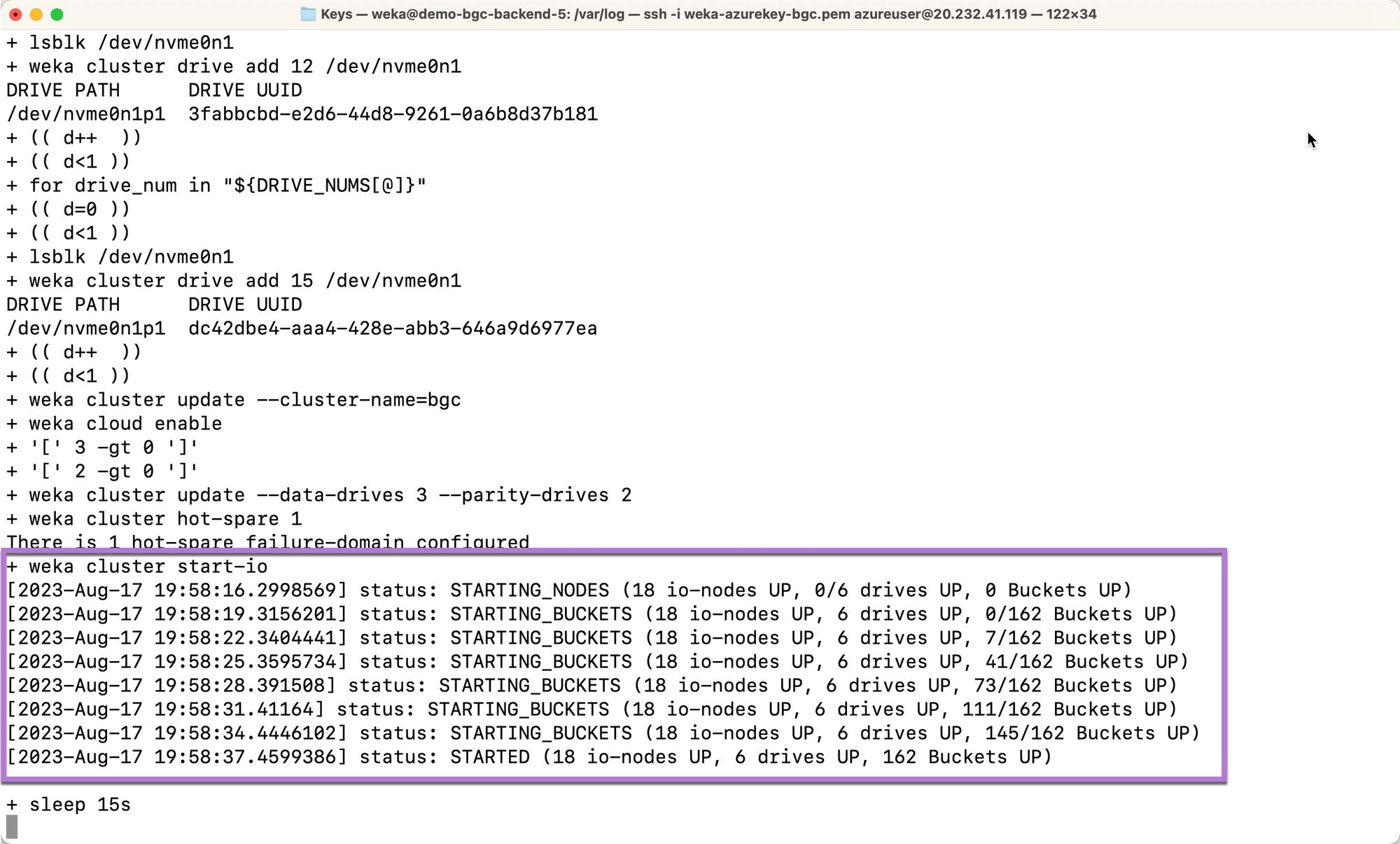
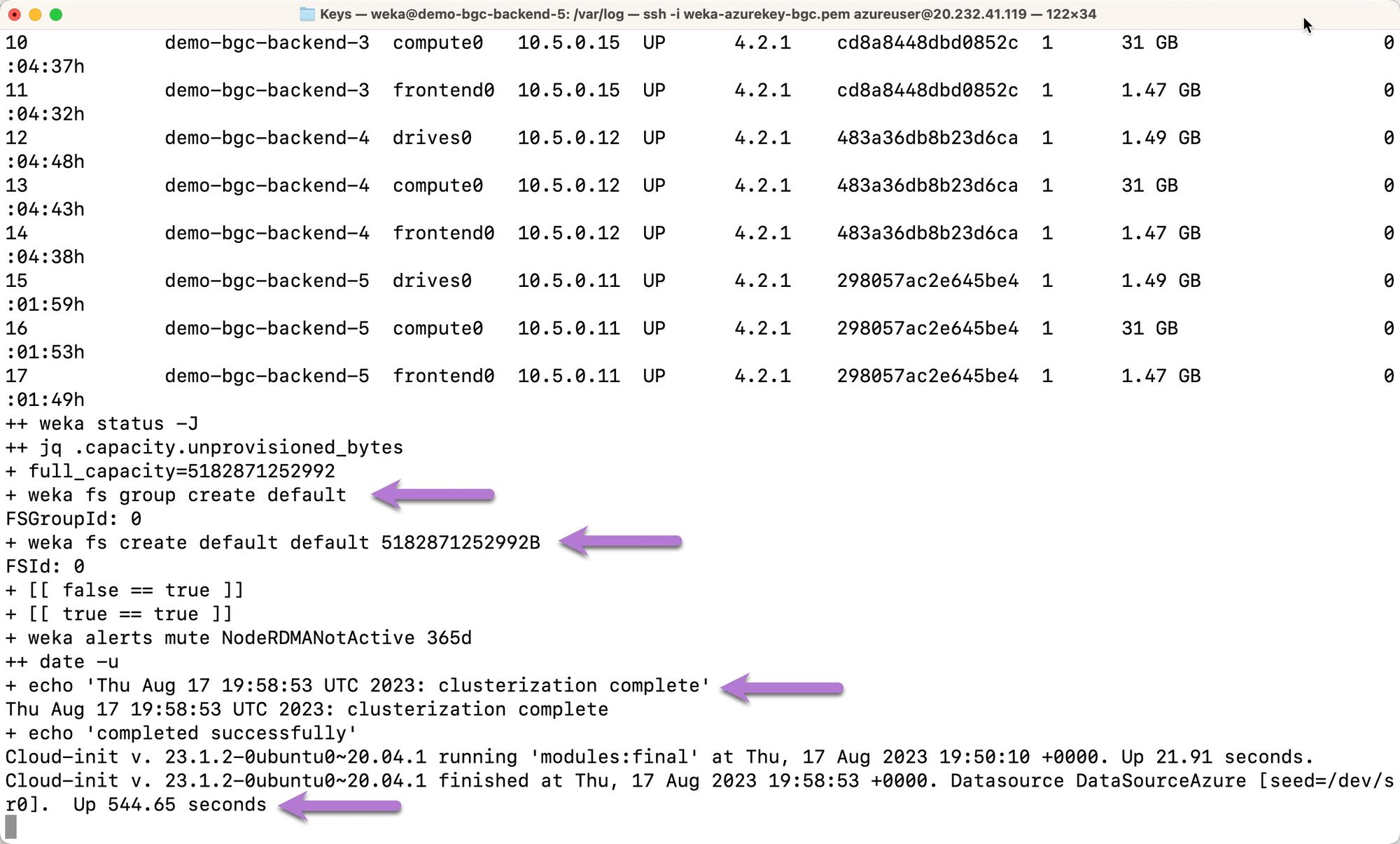
The install script will start-io. At this point, i-nodes and WEKA buckets will begin coming online.
Finally, the file system group `default` and file system `default` will be created. The date and time of cluster creation completion will be printed in UTC. The number of seconds required to perform clusterization is printed. This signifies that the WEKA installation and clusterization processes are complete.
{% hint style="info" %}
Stay logged into \`backend-5\` for the next section.
{% endhint %}
#### Weka Status and Client Status
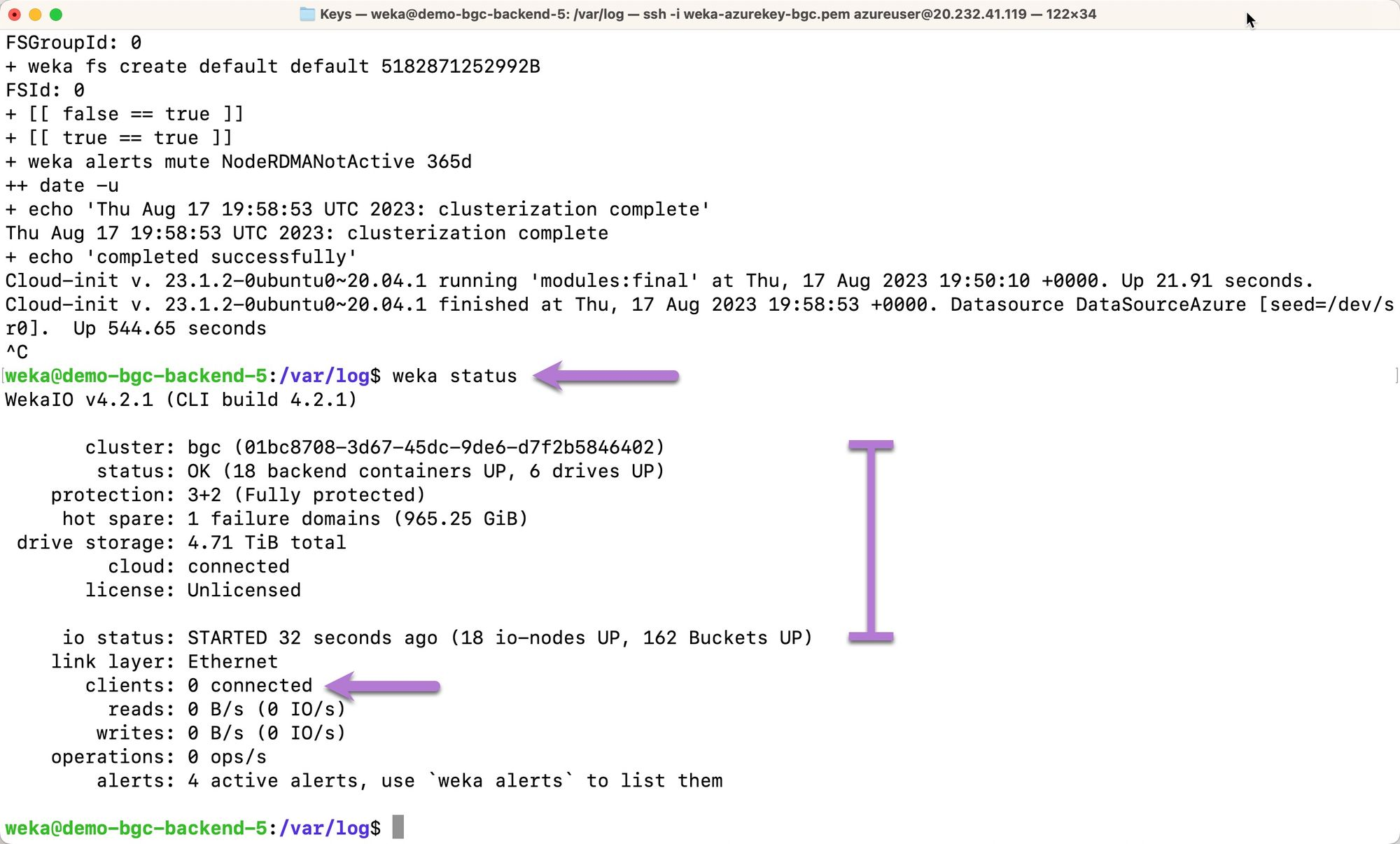
To confirm that the WEKA cluster is up and running, issue a `weka status` command on the `backend-5` cluster member. If the cluster is indeed up and running, an output identical to the below should be outputted.
{% hint style="info" %}
Note the \`status\`, \`protection\`, and \`io status\`.
{% endhint %}
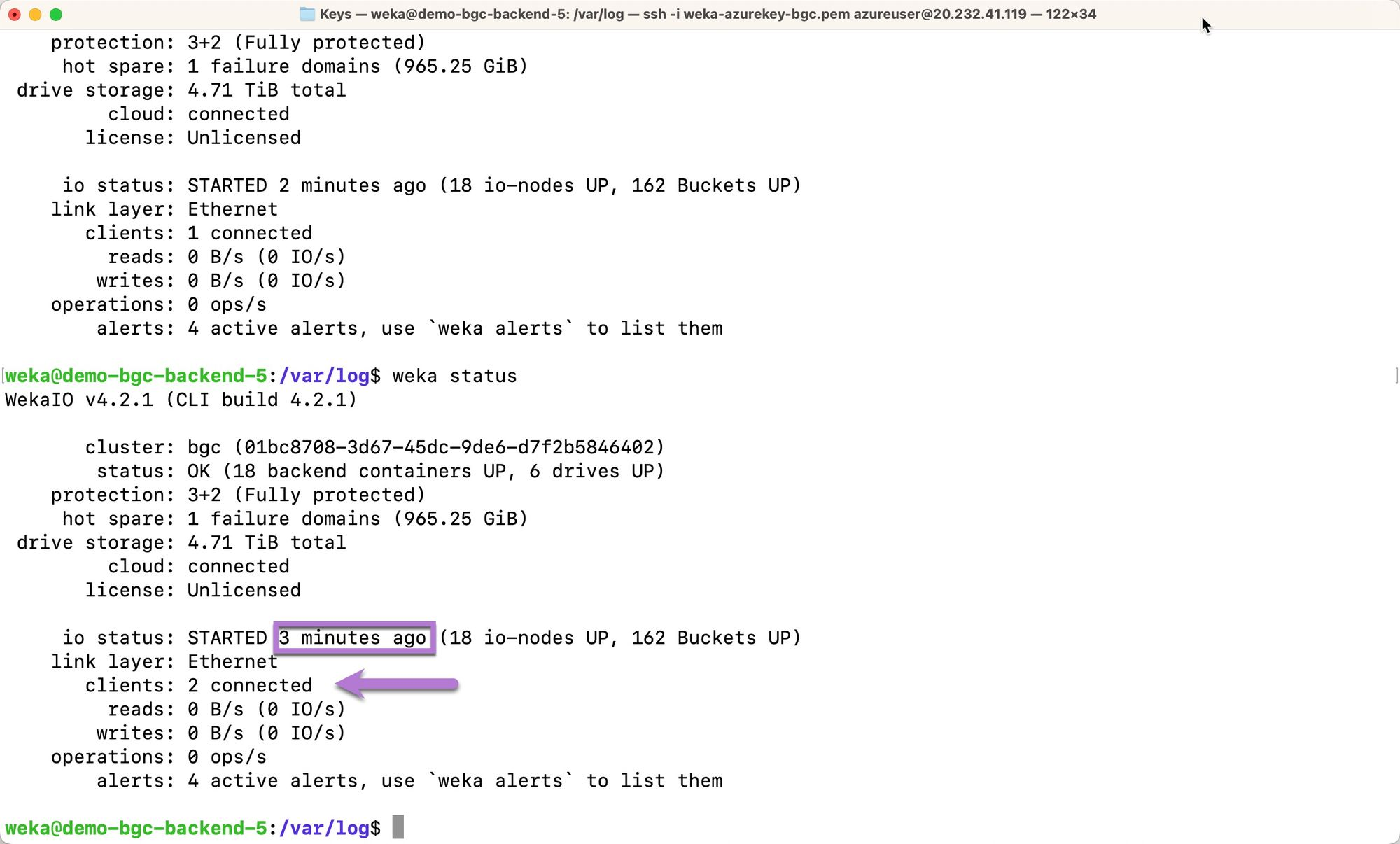
When the terraform `main.tf` file was configured for this deployment, two clients were specified for deployment in addition to the WEKA cluster backend members. Note that when `weka status` is initially run immediately following `cloud-init` script completion, those clients aren’t acknowledged. Note the entry for `clients: 0 connected`. **This is expected behavior**, as the clients are the last components to initialize. Depending on the number of clients deployed, 15 minutes can elapse before all clients are registered.
The following example shows that the two clients are successfully connected to the cluster three minutes after cluster io starts.
### Cluster helper commands
The cluster helper commands are executed through a terminal and a web browser. The function app, created during deployment, processes these commands, retrieves the necessary information, and returns it to the user.
#### **Retrieve clusterization status**
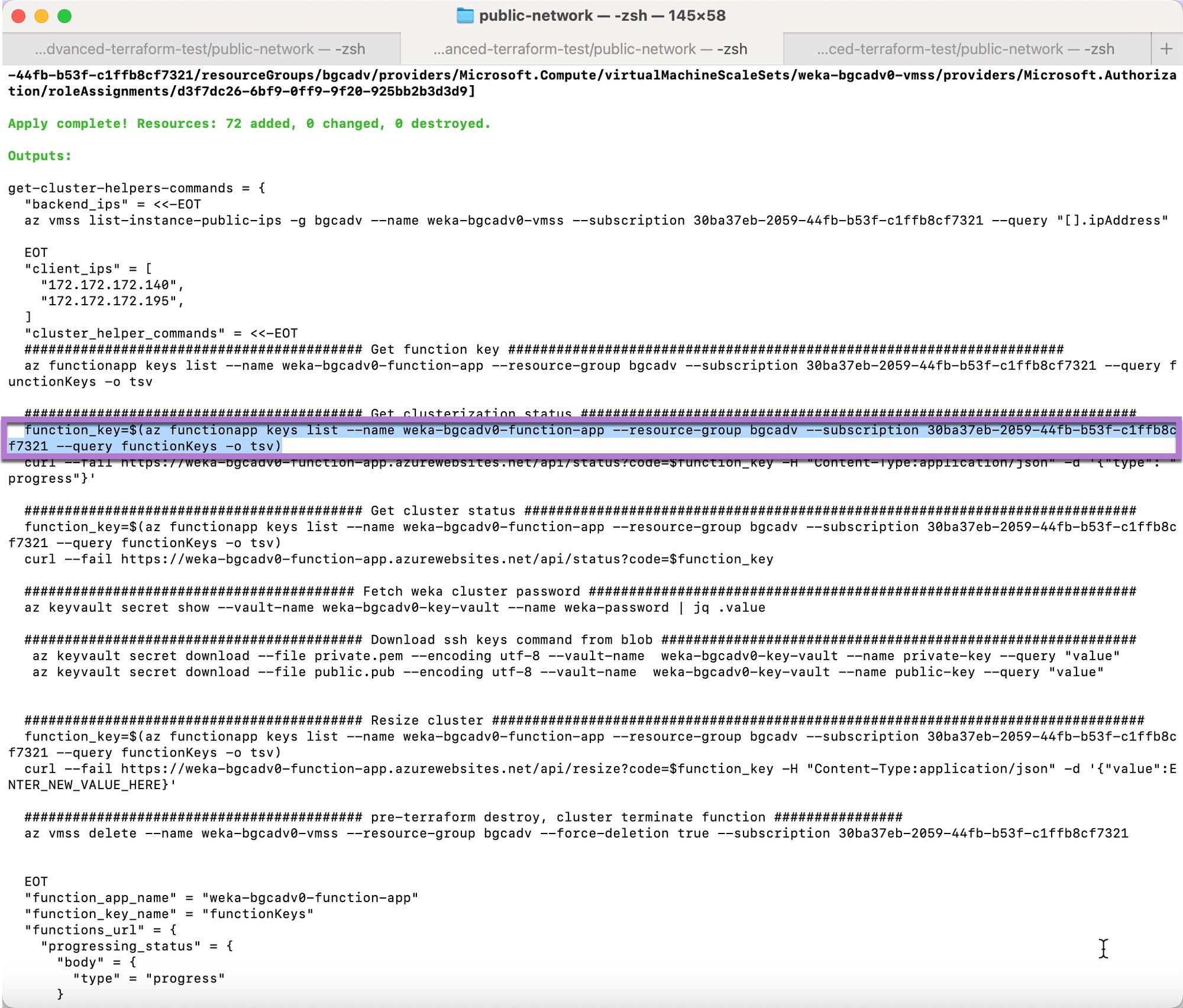
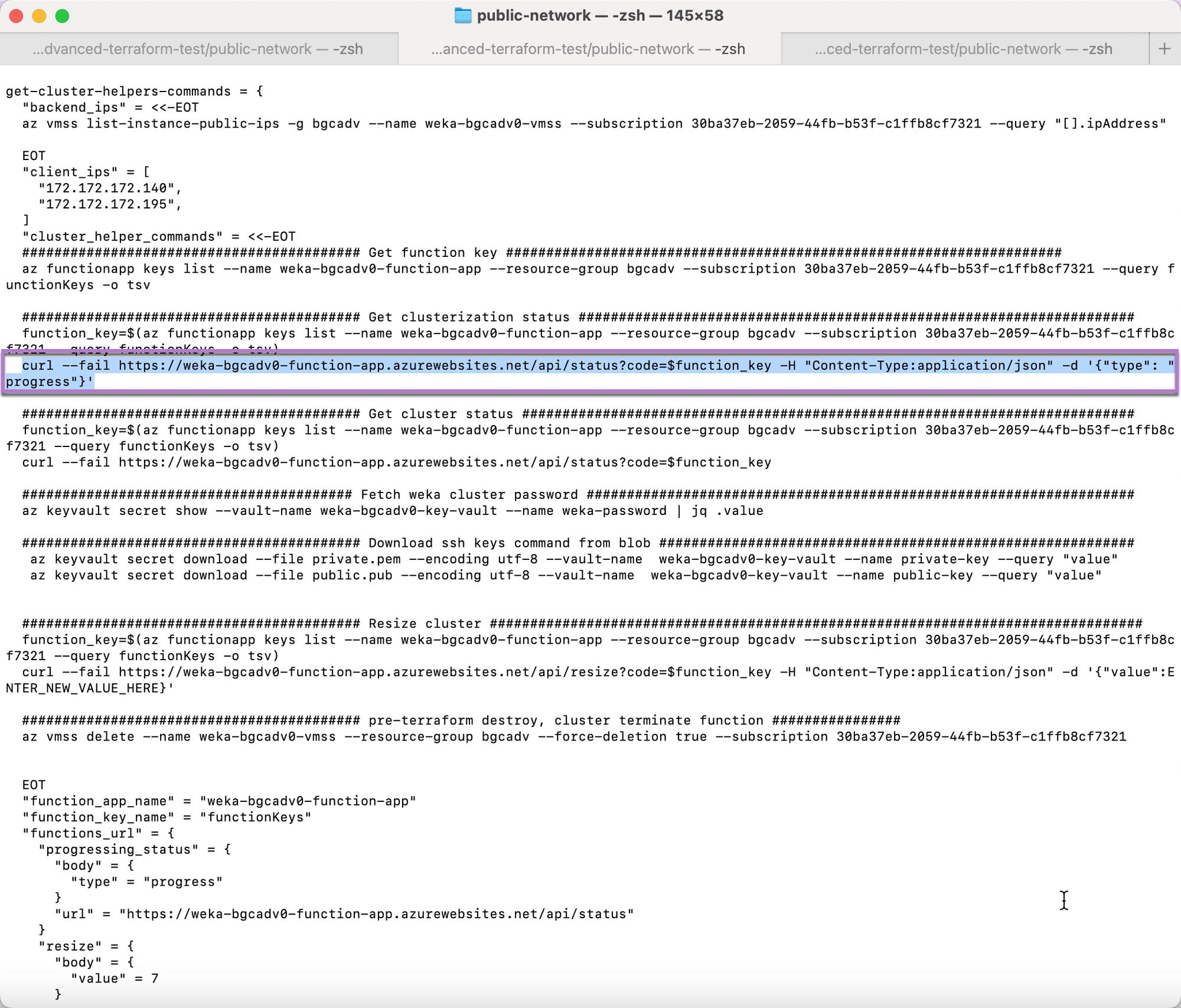
1. Under the **Get Clusterization Status** section, copy the first line of code.
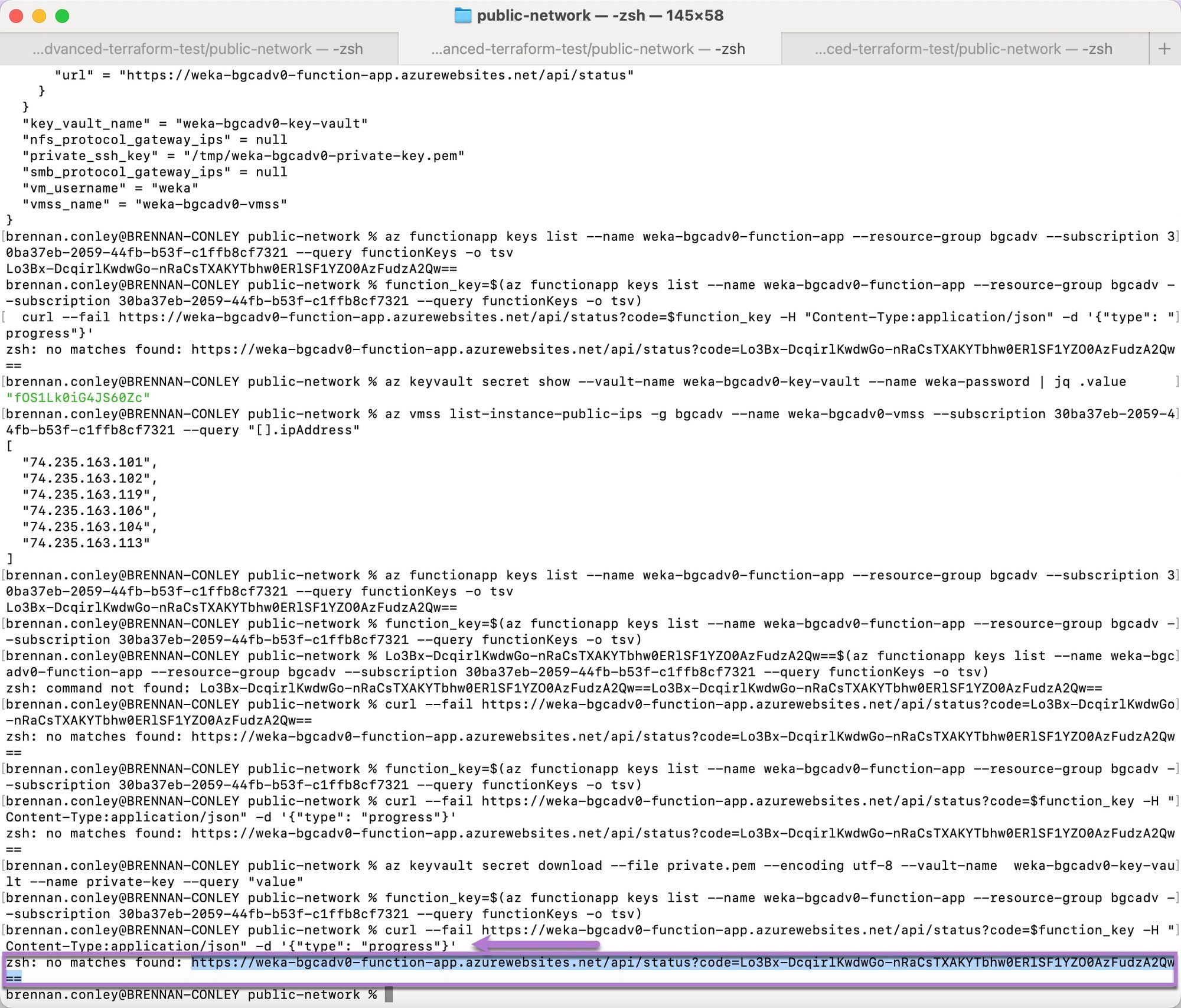
2. Paste the copied code into the terminal, and run. No output will appear—this is expected behavior.
3. Copy the second line of code from the **Get Clusterization Status** section.
4. Paste the copied URL into the terminal, and run. The command returns an error message along with a URL. The curl command is designed to fail, providing the URL needed to check the clusterization status.
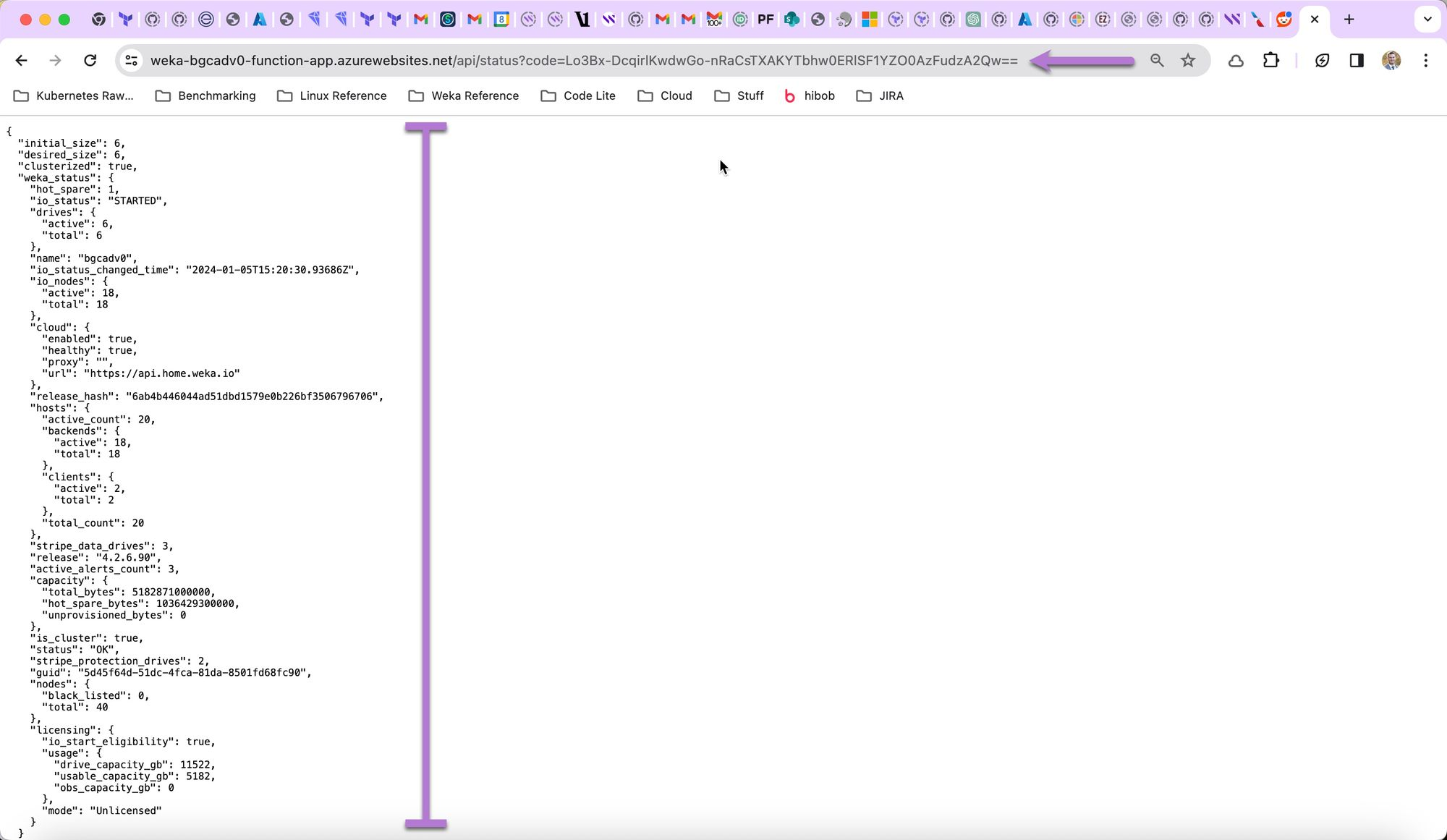
5. Copy the URL and paste it into a web browser. The clusterization status of the deployed WEKA cluster displays. Review the returned data to confirm the cluster deployment.
#### **Check cluster status**
1. Follow the same steps as retrieving the clusterization status to check the cluster status. This process returns the same information once clusterization completes.
**Retrieve the WEKA cluster password**
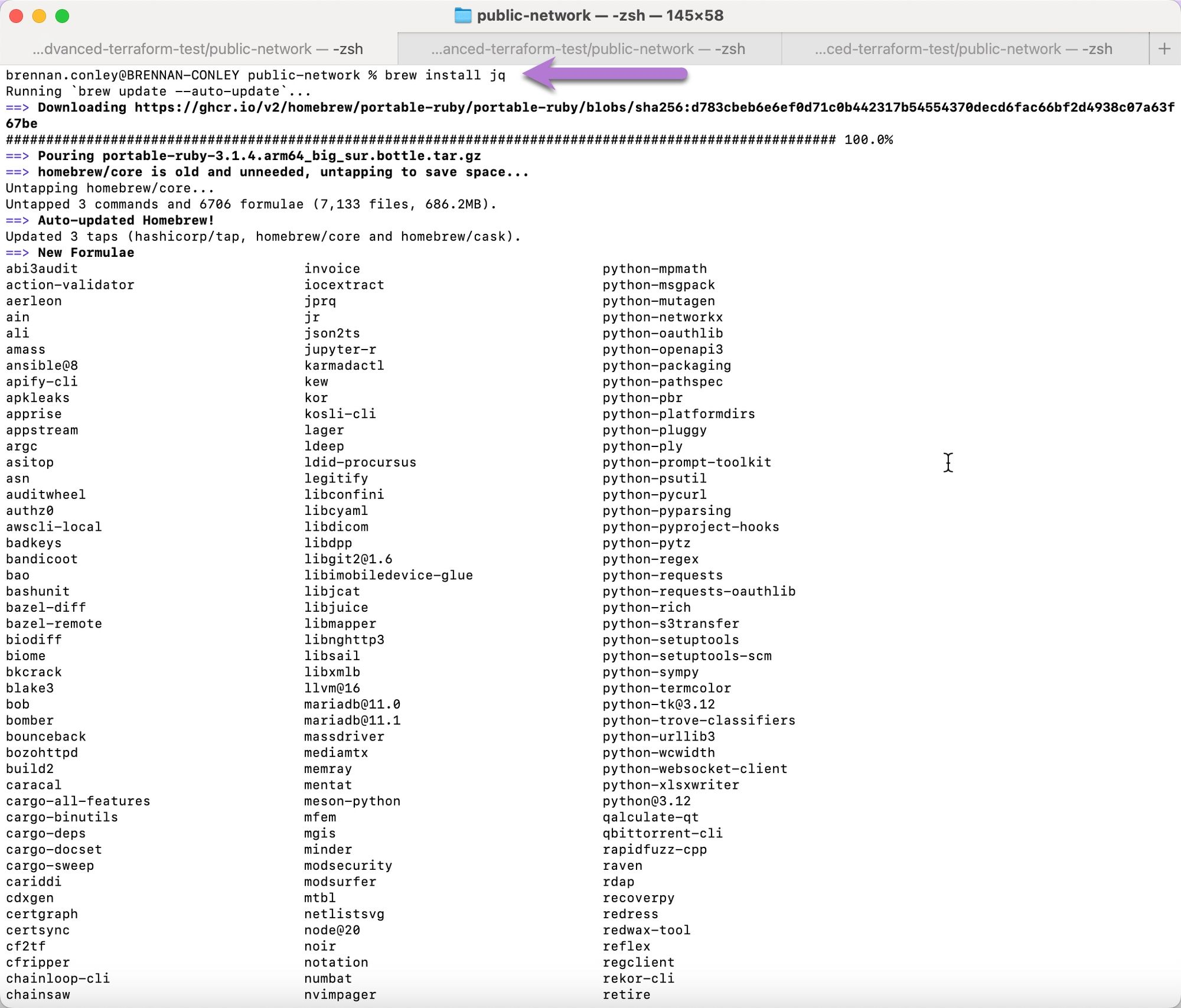
1. Ensure the `jq` tool is installed. `jq` is a lightweight command-line tool for processing JSON data, commonly used in system administration. On a Mac, install it using Homebrew by running the following command:
```
brew install jq
```
The process of installing `jq` begins. Installation completes once a command prompt is returned.
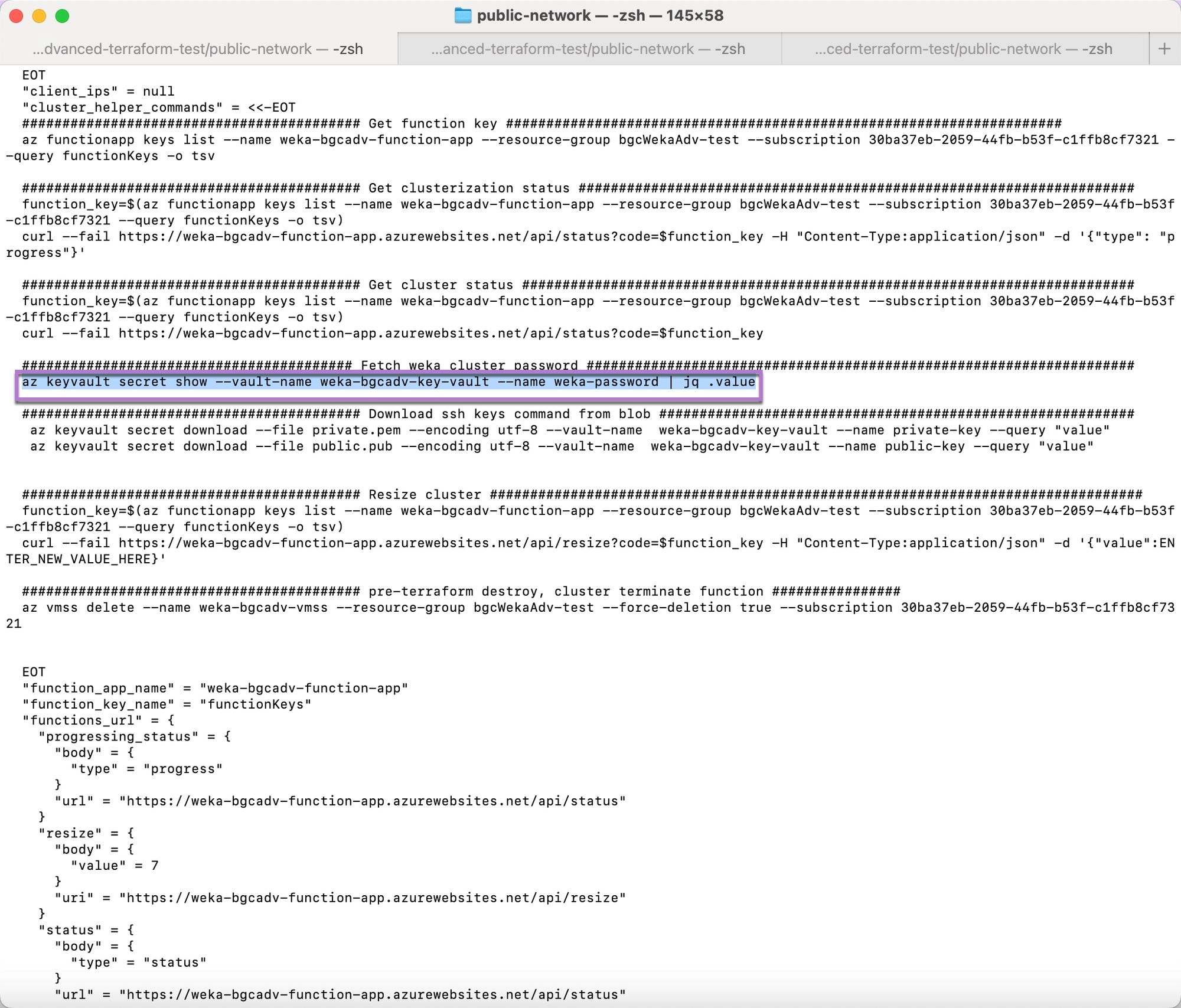
2. After `jq` installation, under the **Fetch WEKA Cluster Password** section, copy the command.
3. Paste the copied command into the terminal, and run it. The WEKA cluster password appears.
#### **Retrieve WEKA backend IP addresses**
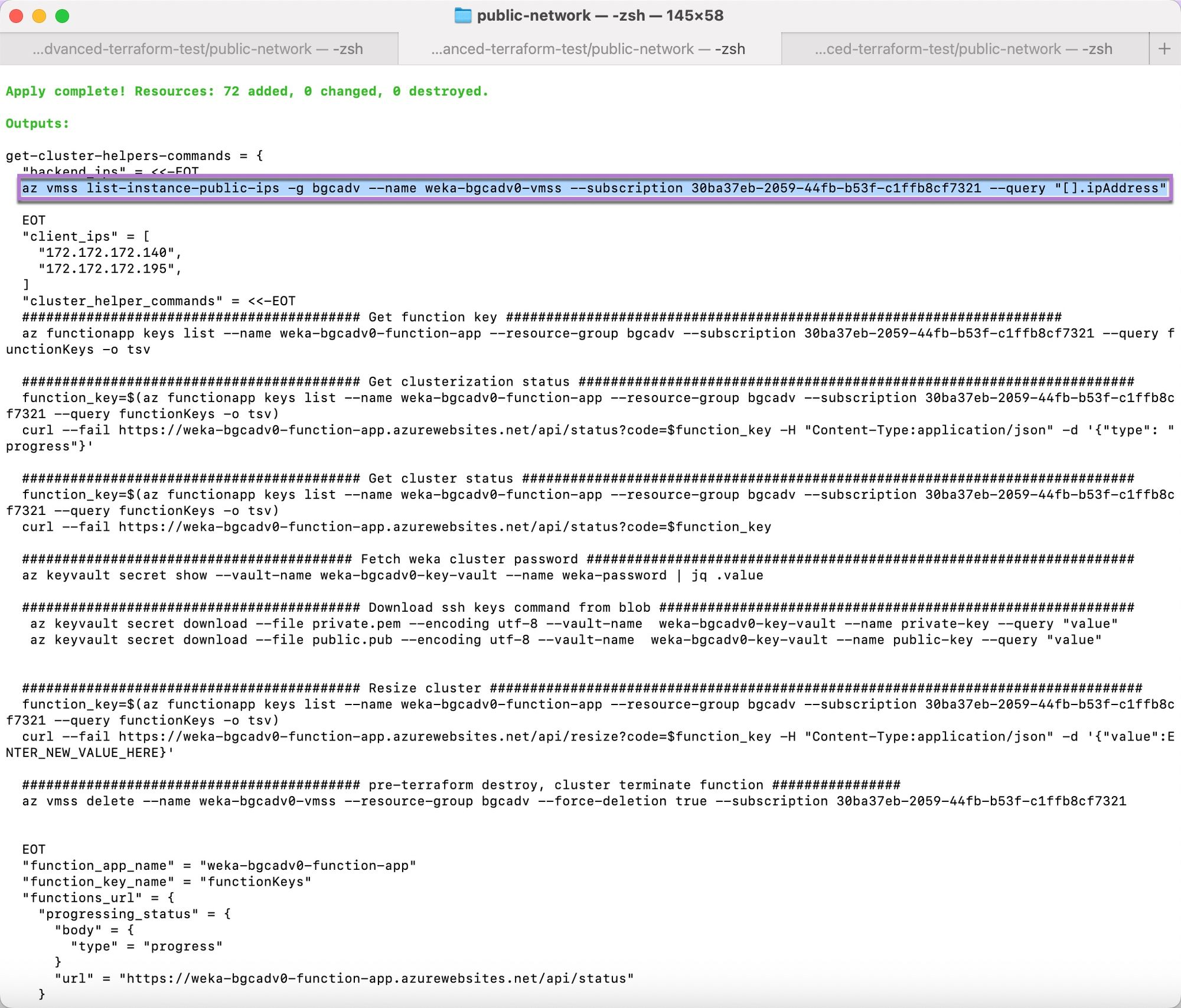
Retrieve the IP addresses of the WEKA backend instances. For a public network deployment, WAN addresses appear. If using a private network, LAN IP addresses are retrieved.
1. Copy the helper command for listing the IP addresses of the VMSS (Virtual Machine Scale Set) that contains the WEKA backend instances.
2. Paste the copied command into the terminal, and run it. The public IP addresses display.
## **Access the WEKA web interface**
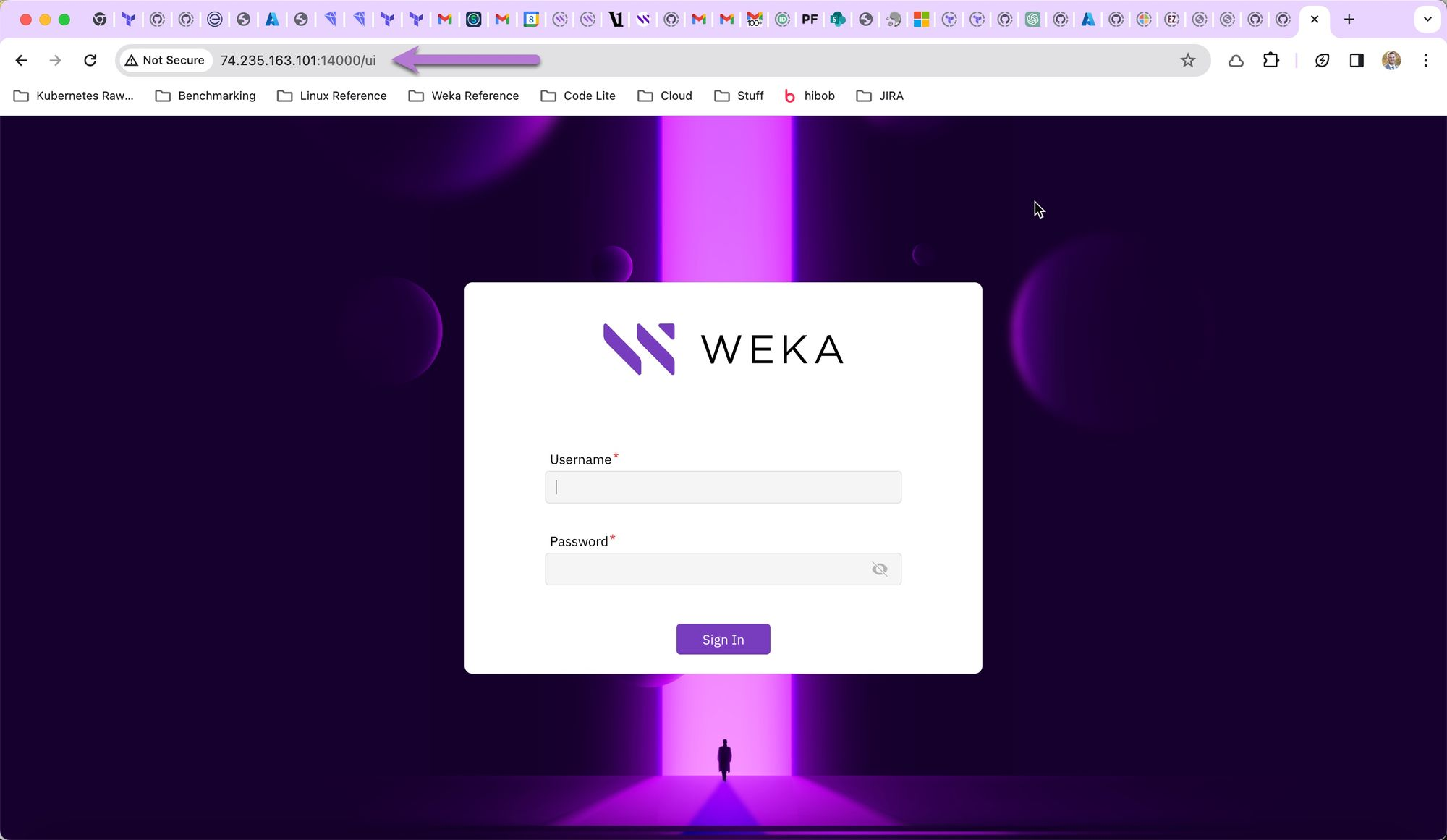
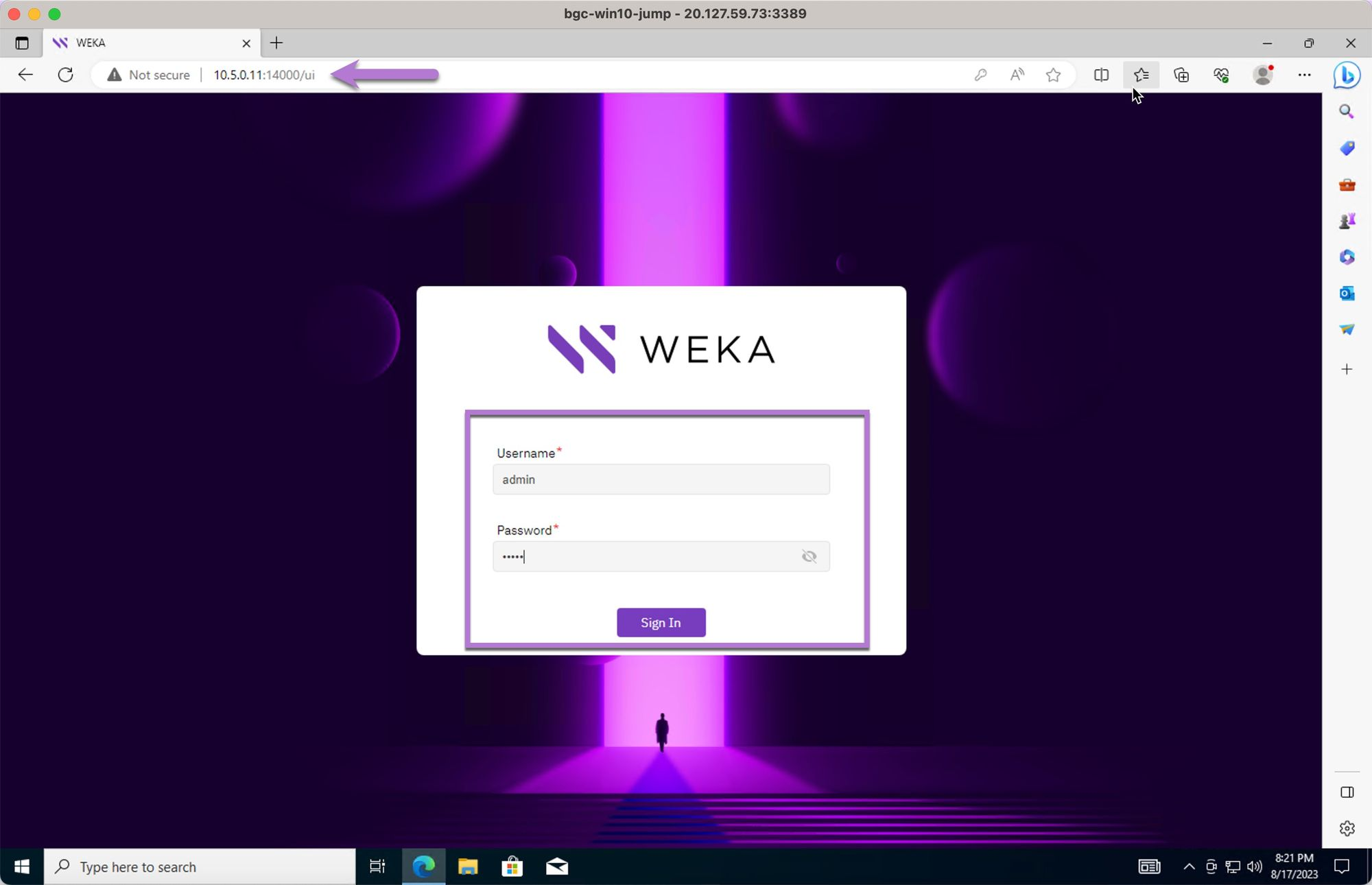
1. Select one of the backend IP addresses, paste it into the browser's address bar, append `:14000`, and press Enter. The WEKA web interface loads.
2. Log in using the default username `admin` and the password retrieved in the earlier step.
In the examples below, a Windows 10 instance with a public IP address was deployed in the same vnet, subnet, and security group as the WEKA cluster. Network security group rules were added to allow RDP explicit access to the Windows 10 system.
3. Open a browser in the Windows 10 jump box and visit `https://:14000`. The WEKA GUI login screen should appear. After changing the default password, login.
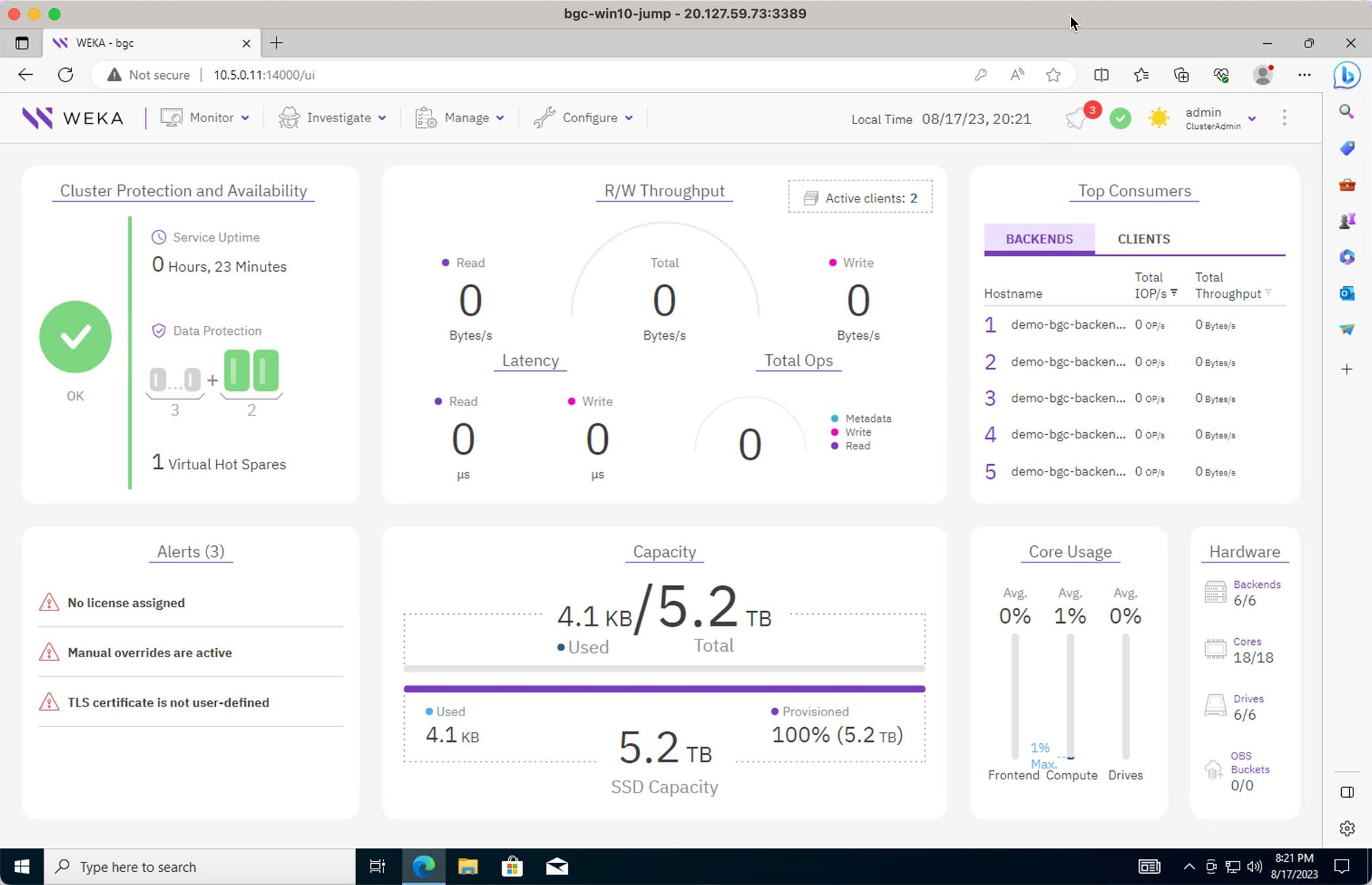
4. View the cluster GUI home screen.
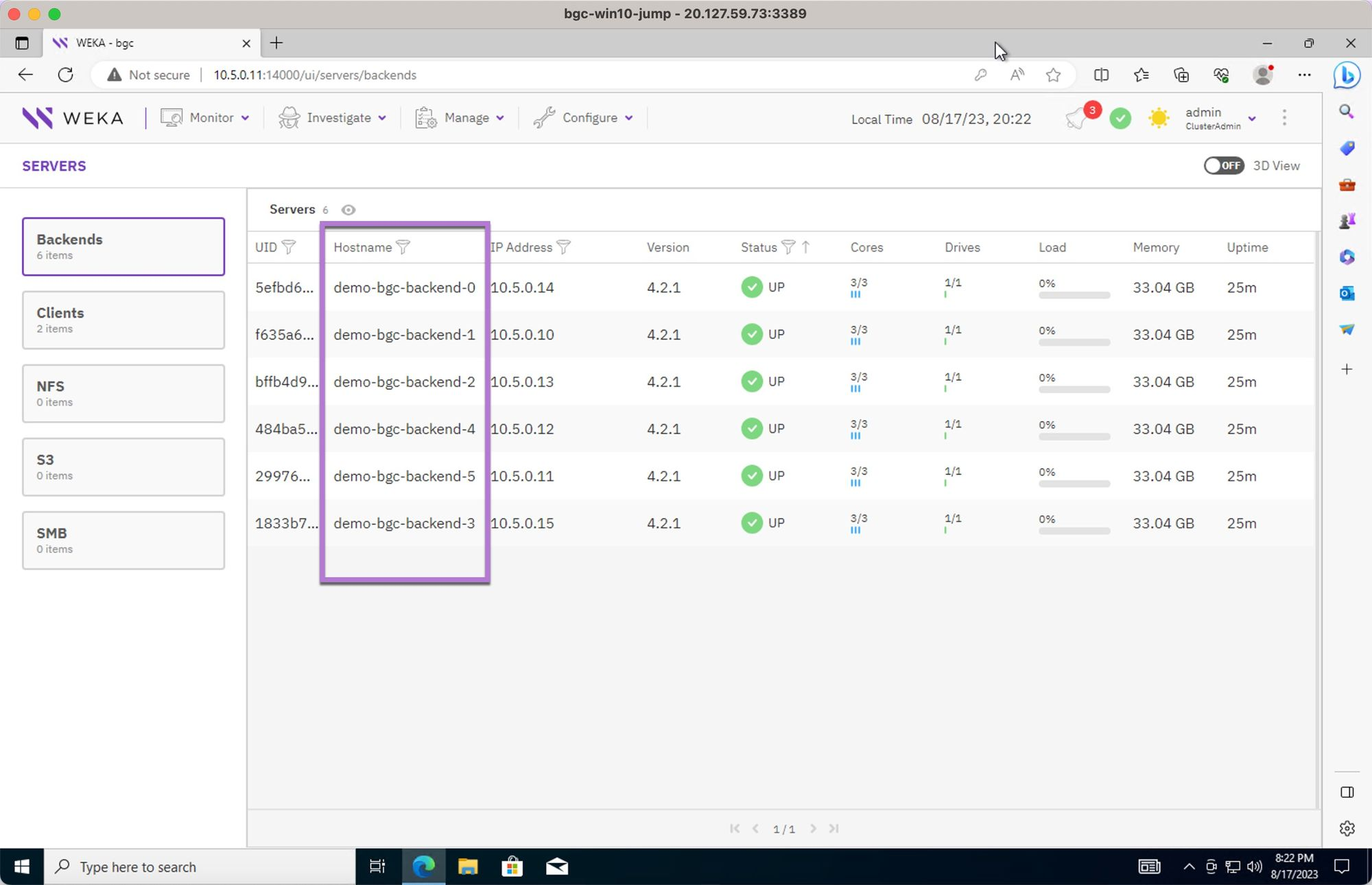
5. Review the cluster backends.
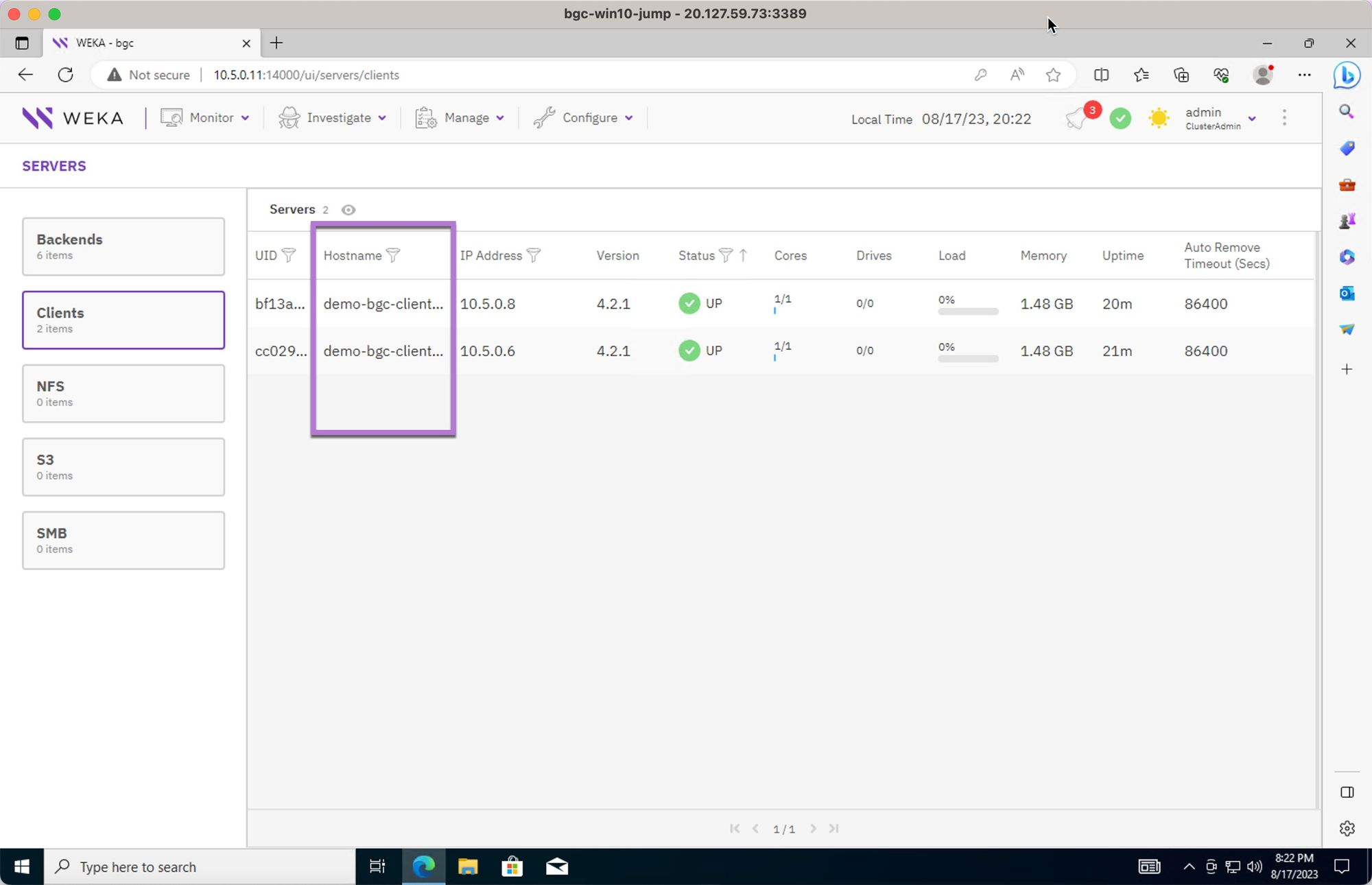
6. Review the clients attached to the cluster as part of the terraform deployment process.
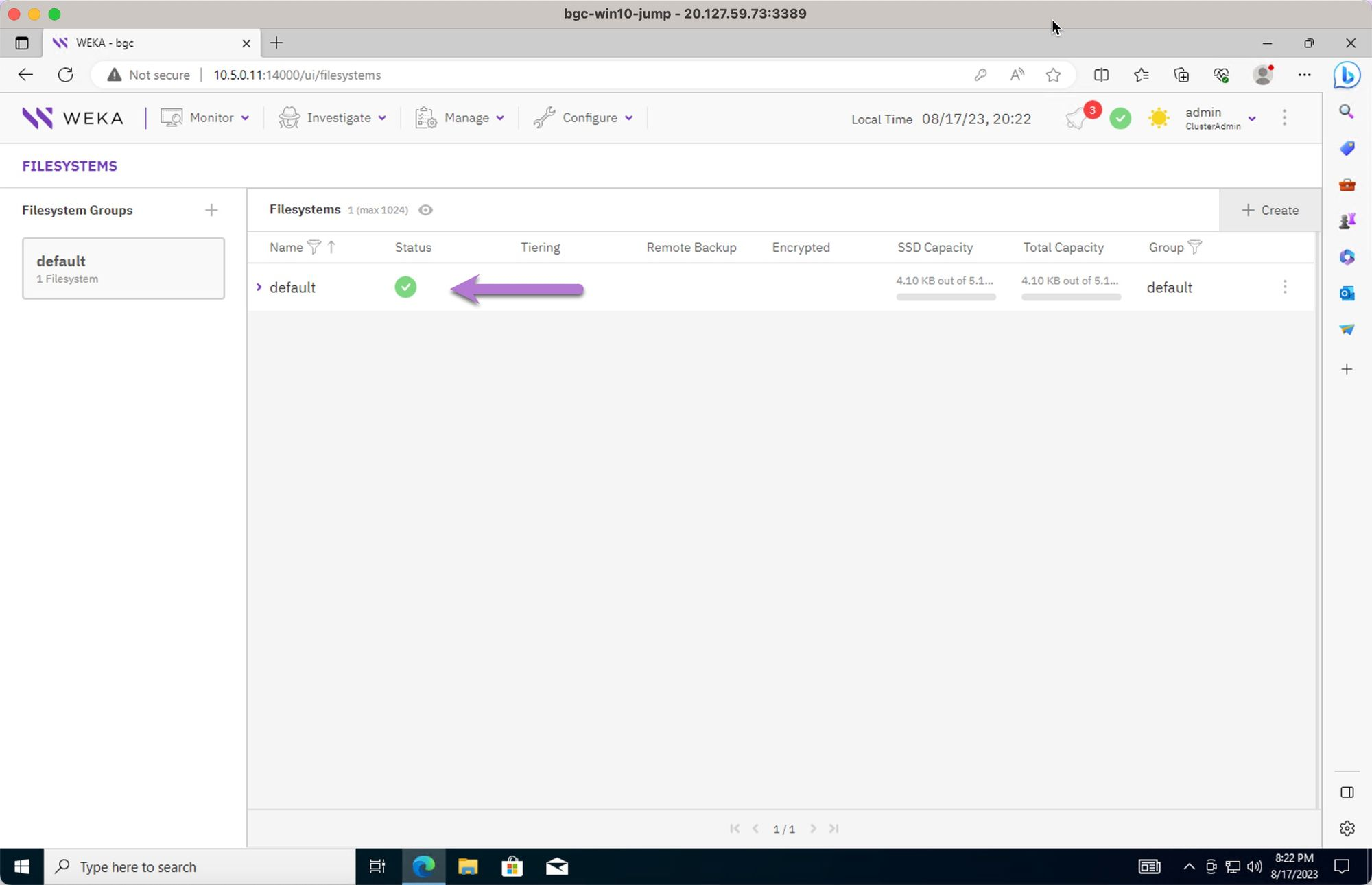
7. Review the file system `default` created as part of the terraform deployment process.
8. In the Azure portal Virtual Machines page, view the WEKA cluster instance resources.
[^1]: An Azure subscription acts as a legal and payment agreement tied to an Azure offer, defines scale limits for resources, and serves as an administrative boundary for managing security and policies. For details, see [Azure subscription purposes](https://learn.microsoft.com/en-us/azure/cloud-adoption-framework/ready/considerations/fundamental-concepts#azure-subscription-purposes).
[^2]: A "blank slate" refers to a newly set-up Azure environment with no pre-existing configurations or resources.
---
# Agent Instructions
This documentation is published with GitBook. GitBook is the documentation platform designed so that both humans and AI agents can read, navigate, and reason over technical content effectively. Learn more at gitbook.com.
## Querying This Documentation
If you need additional information that is not directly available in this page, you can query the documentation by asking a question.
Perform an HTTP GET request on the following URL with the `ask` and `goal` query parameters:
```
GET https://docs.weka.io/4.4/planning-and-installation/weka-installation-on-azure/detailed-deployment-tutorial-weka-on-azure-using-terraform.md?ask=&goal=
```
`ask` is the immediate question: it should be specific, self-contained, and written in natural language.
`goal` is what the user is ultimately trying to achieve, the reason they need the answer. Sharing it helps GitBook give you a better, more relevant answer. A goal is most helpful when it describes the outcome the user wants rather than restating the question. For example, with `ask=how do I create an API token`, a goal like `automate deployments from our CI pipeline` lets GitBook tailor the answer to that use case.
The response will contain a direct answer to the question and relevant excerpts and sources from the documentation.
Use this mechanism when the answer is not explicitly present in the current page, you need clarification or additional context, or you want to retrieve related documentation sections.